This guide shows how to add buttons on a custom admin page that link directly to a filtered event calendar or a filtered list in your app. It walks you through creating Button - Link to In-app Page content blocks, choosing the target calendar or list, selecting the specific event category or filter tag, naming the button, and publishing the changes so users see the filtered view.
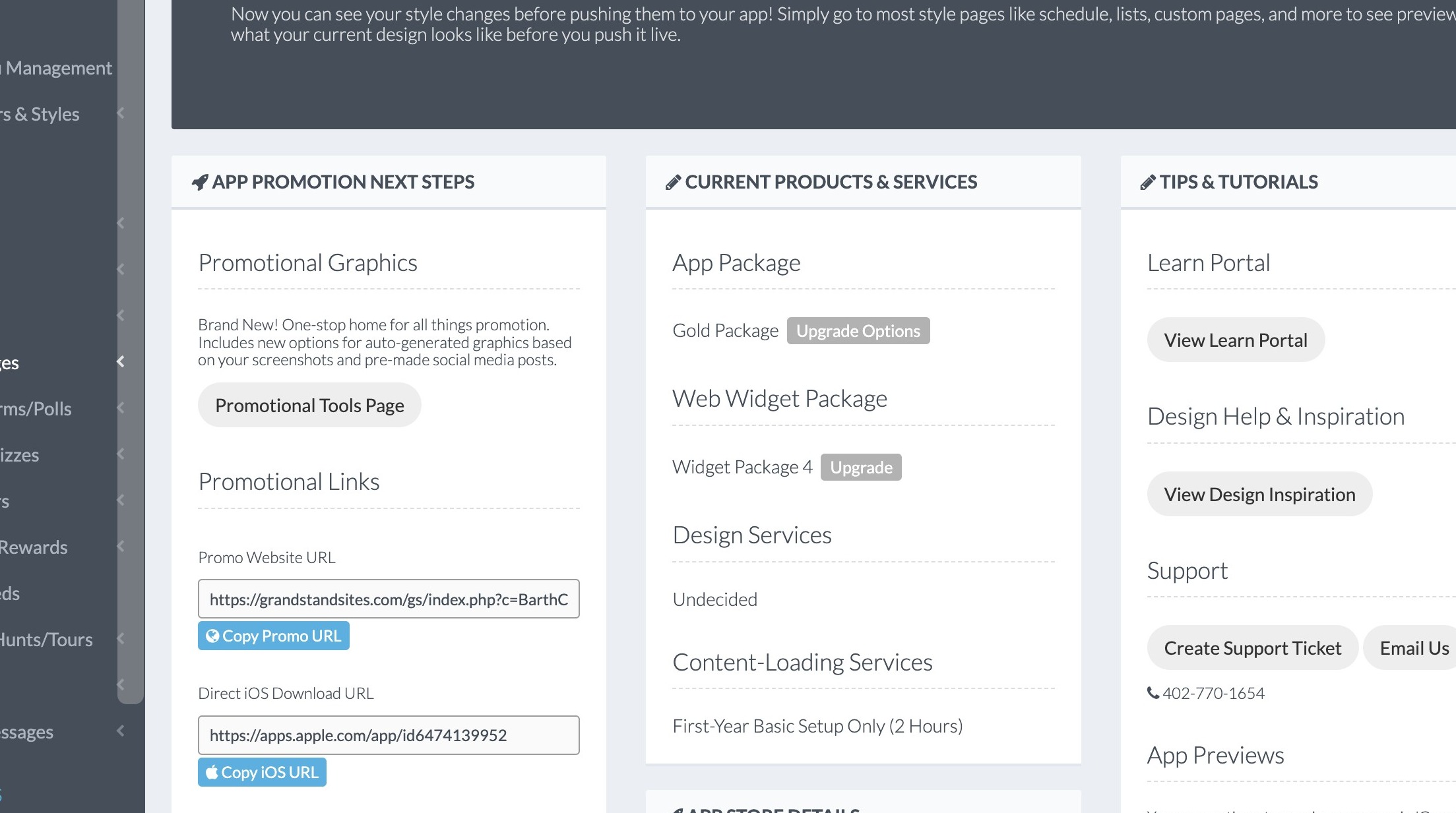
1. Log in at https://grandstandapps.com/admin
Add a Link to a Specific Schedule Category
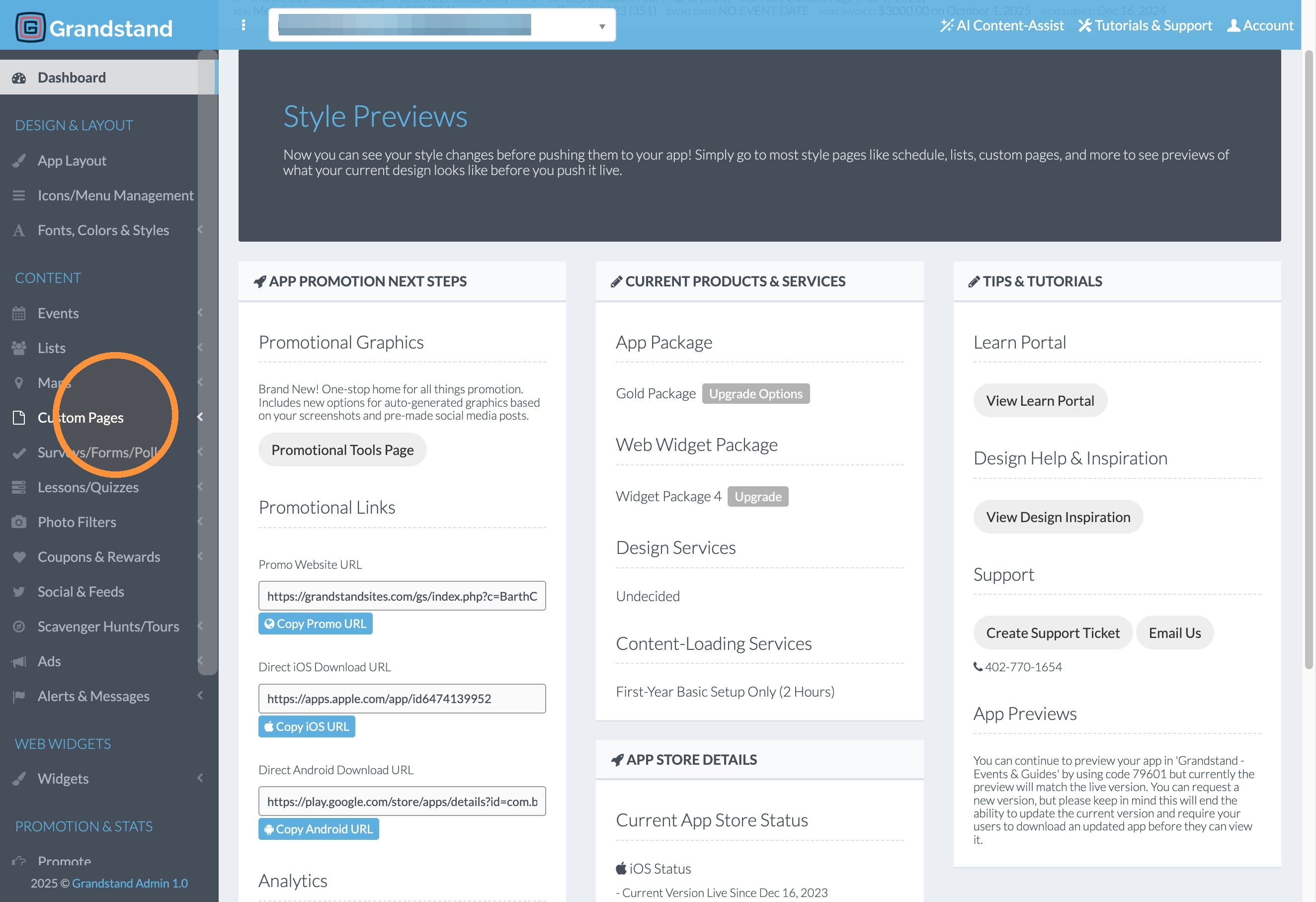
2. Click "Custom Pages"
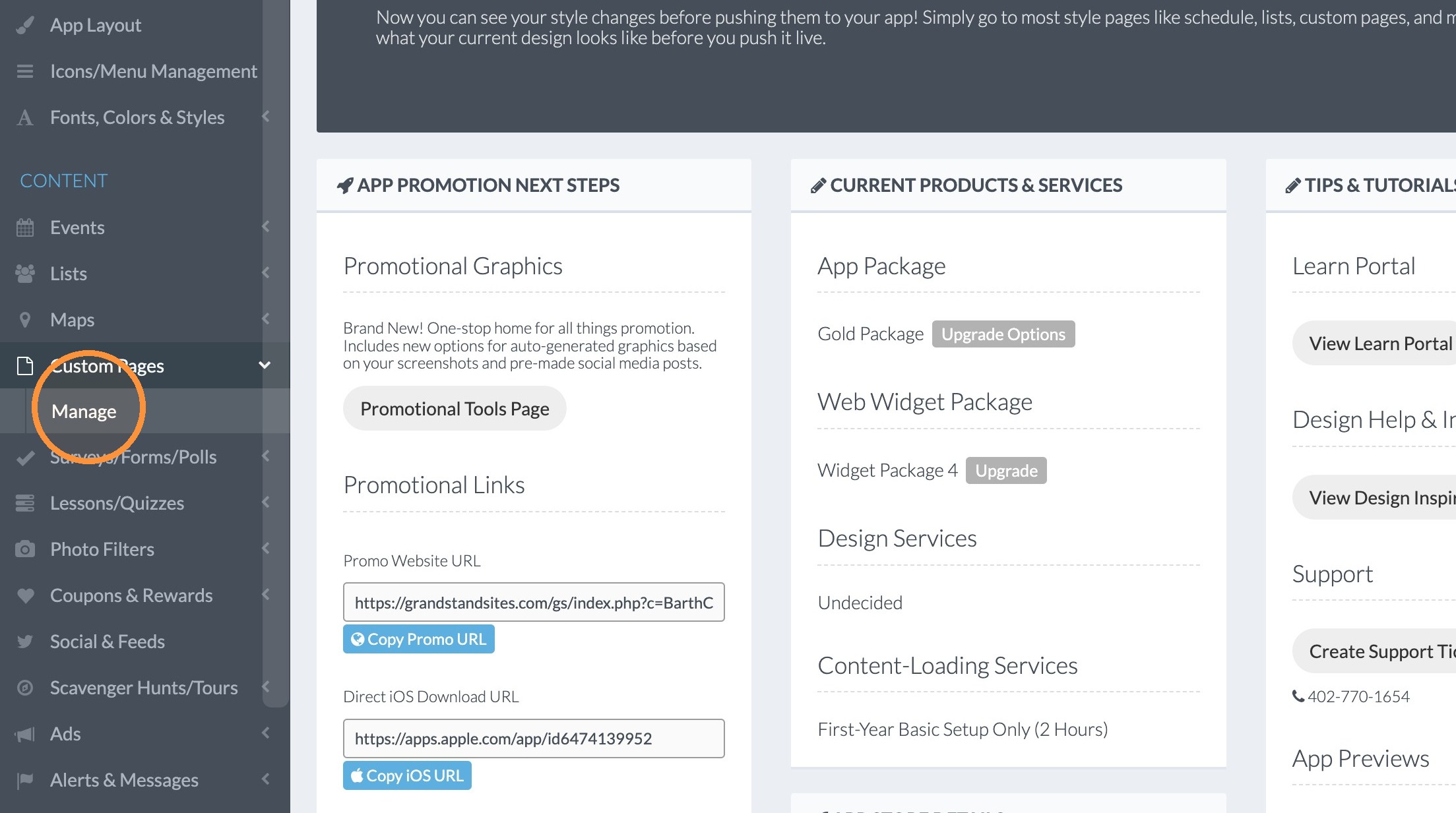
3. Click "Manage"
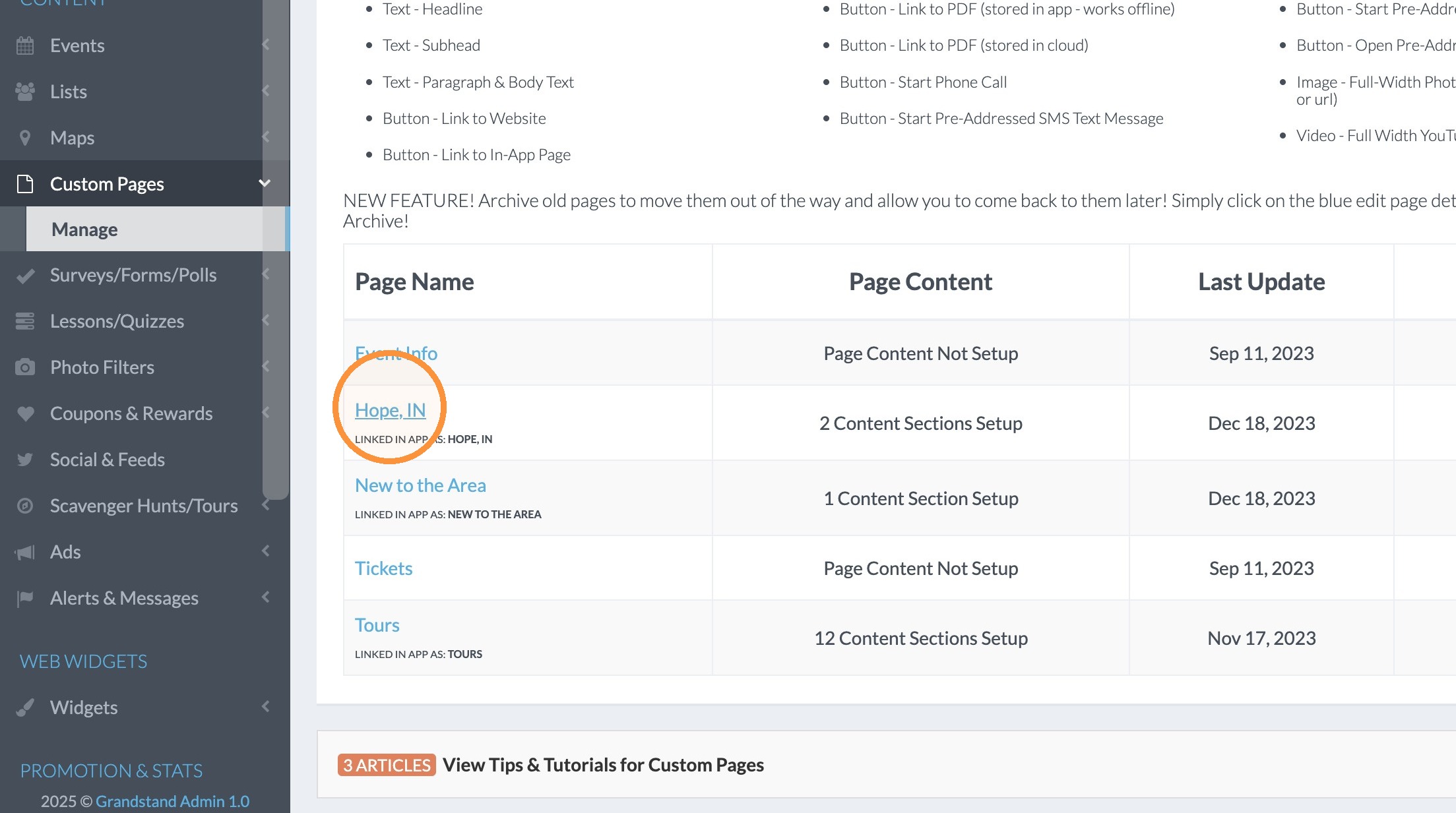
4. Click the custom page you would like to add link buttons to.
5. Click "Add Content Block"
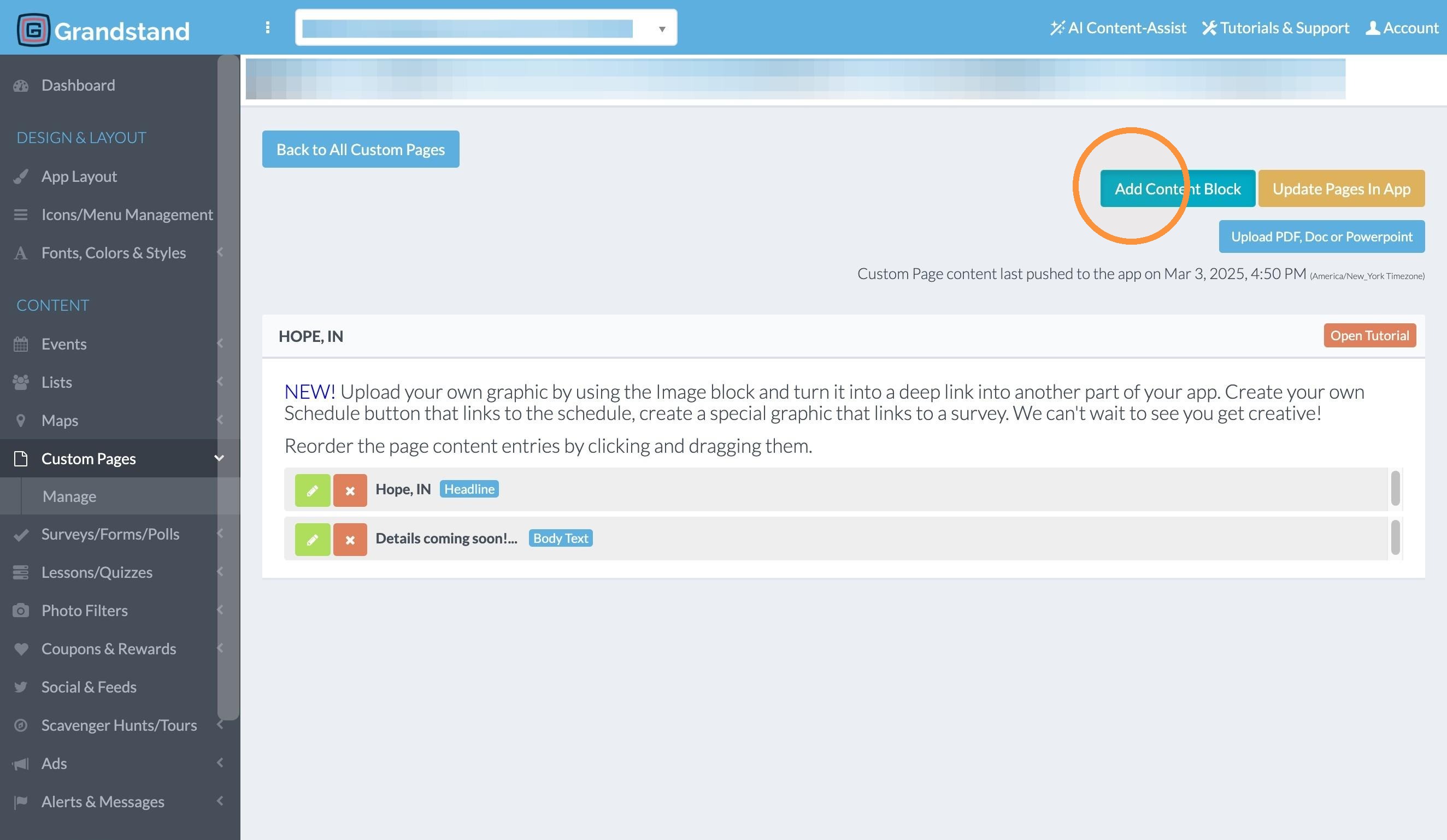
6. Select Button - Link to In-app Page in the Type of content dropdown.
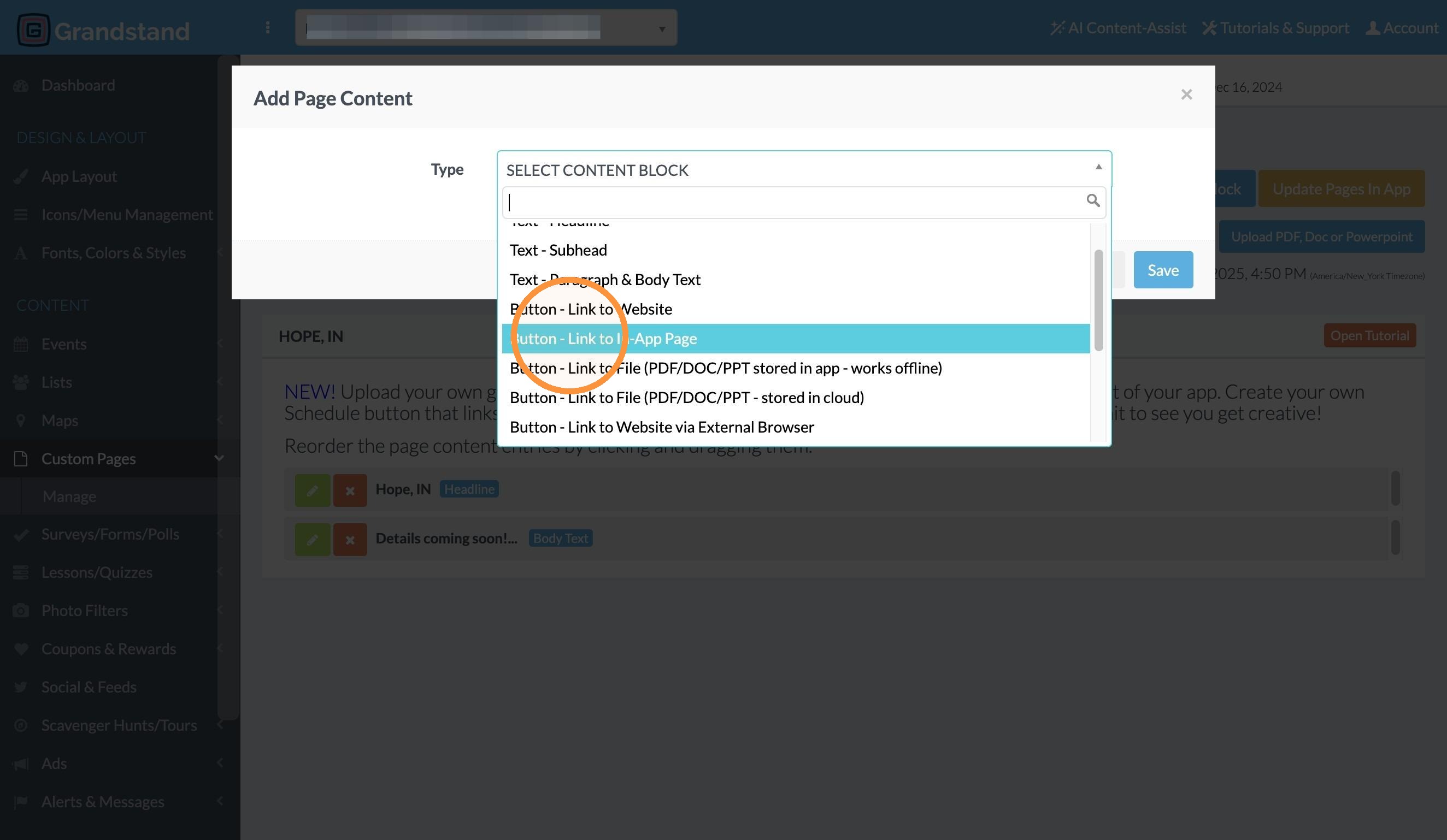
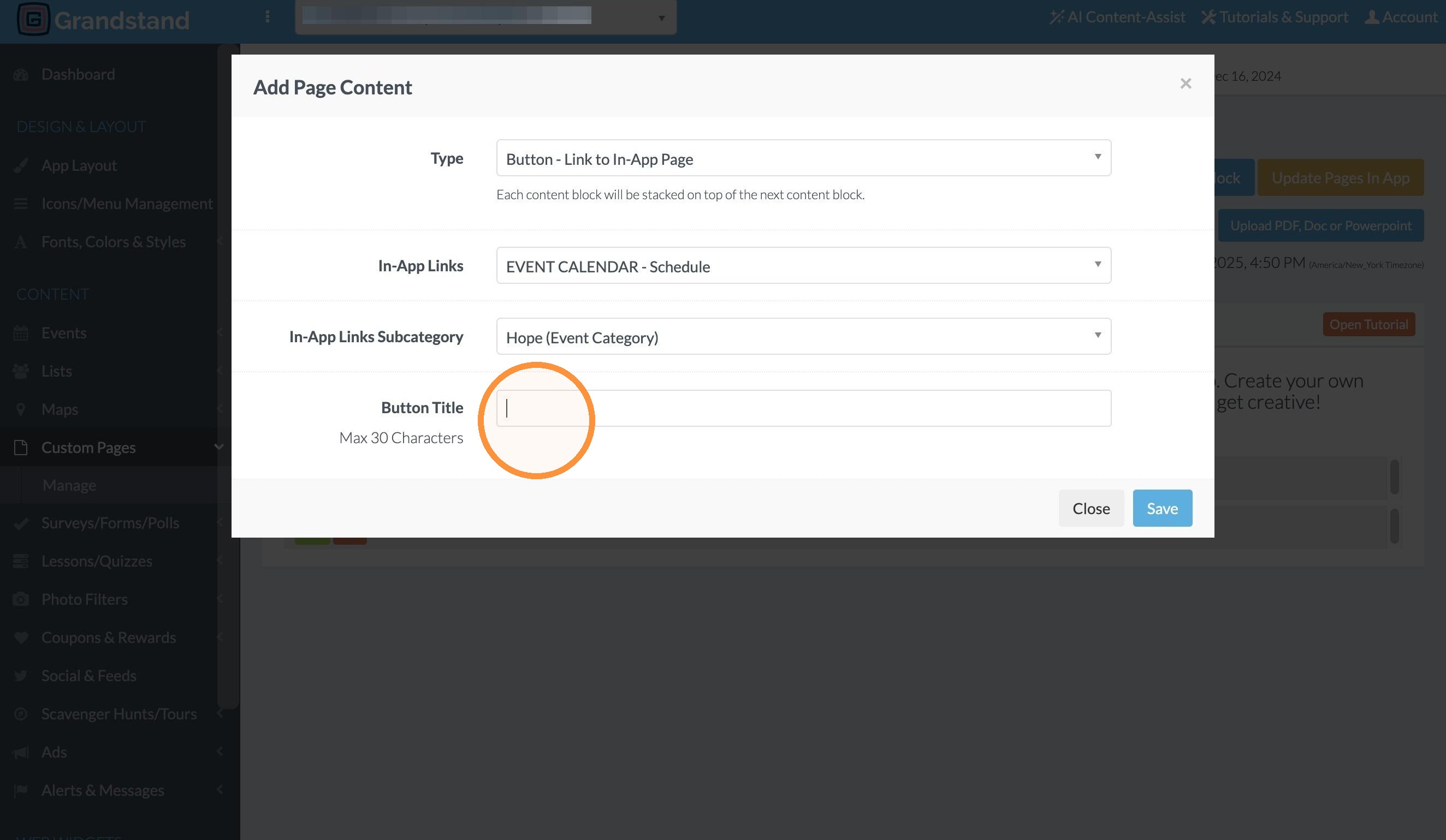
7. In the "In-App Links" drop down select the Event Calendar you would like to link to.
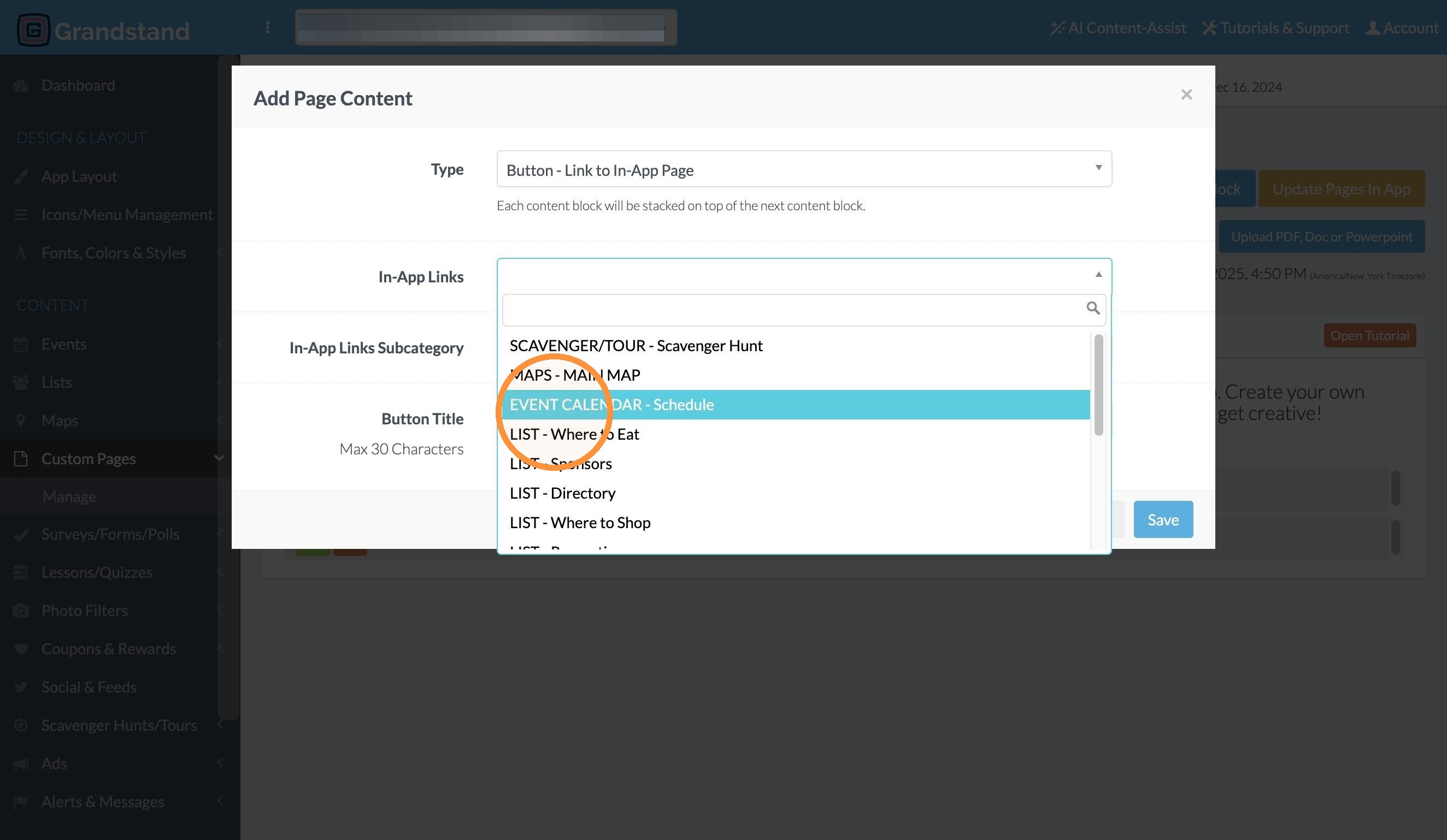
8. In the In-App Links Subcategory, select the Event Category name you would like to use as a filter for the link.
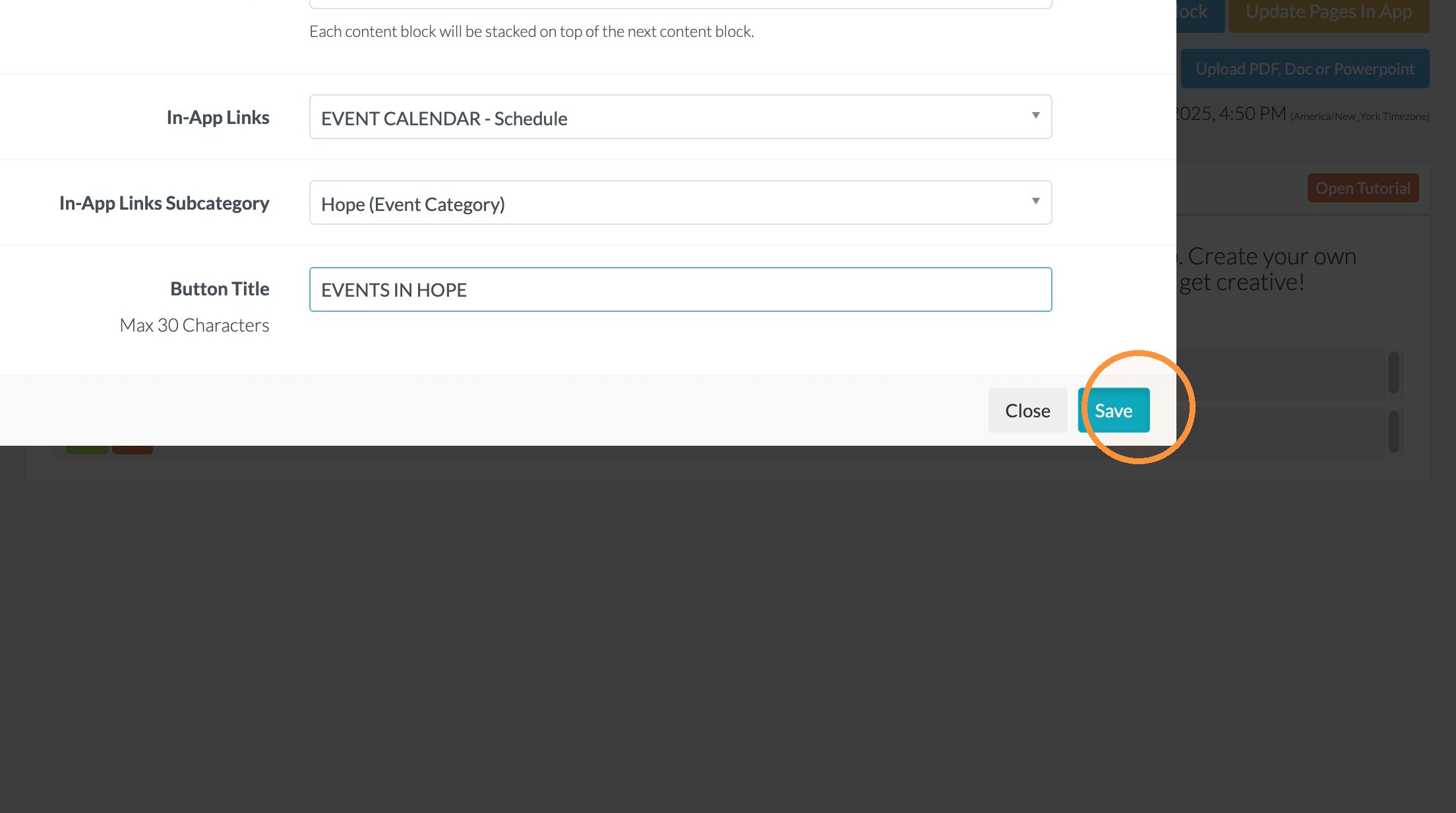
9. Click in the Button Title section and type the name of the Button.
10. Click "Save"
Add a Button for a Filtered List
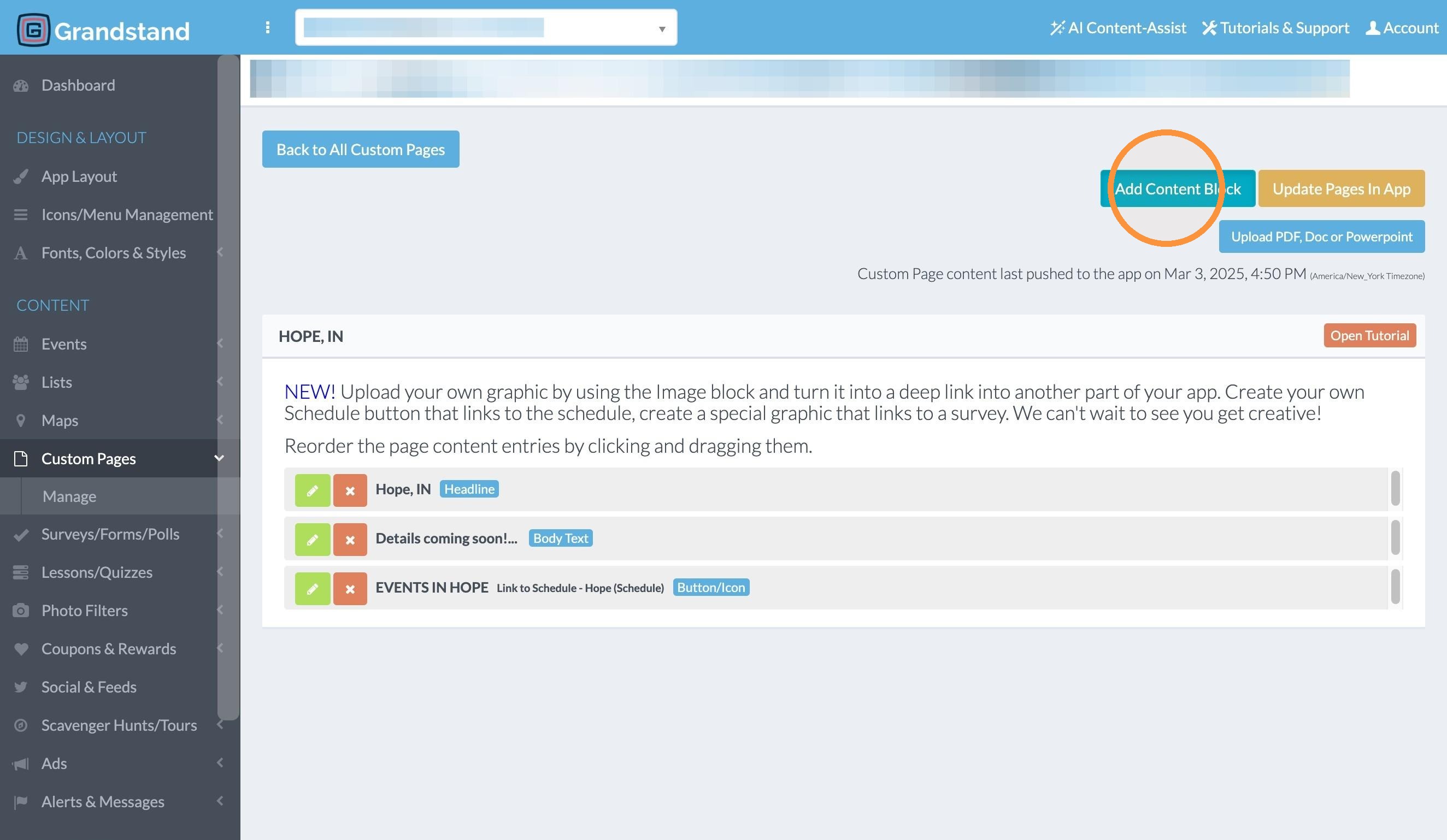
11. Click "Add Content Block"
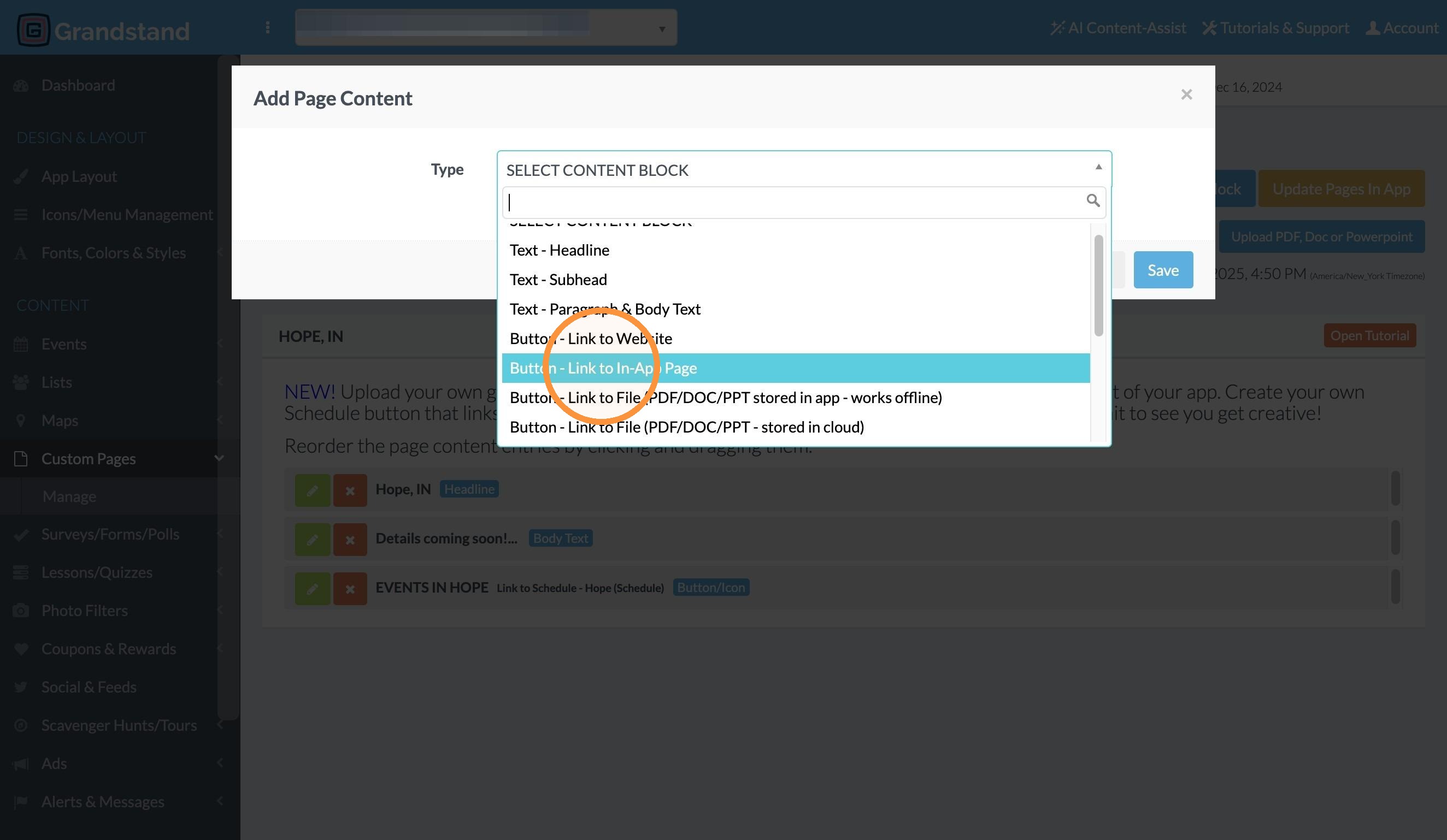
12. For the Type select Button - Link to In-app Page
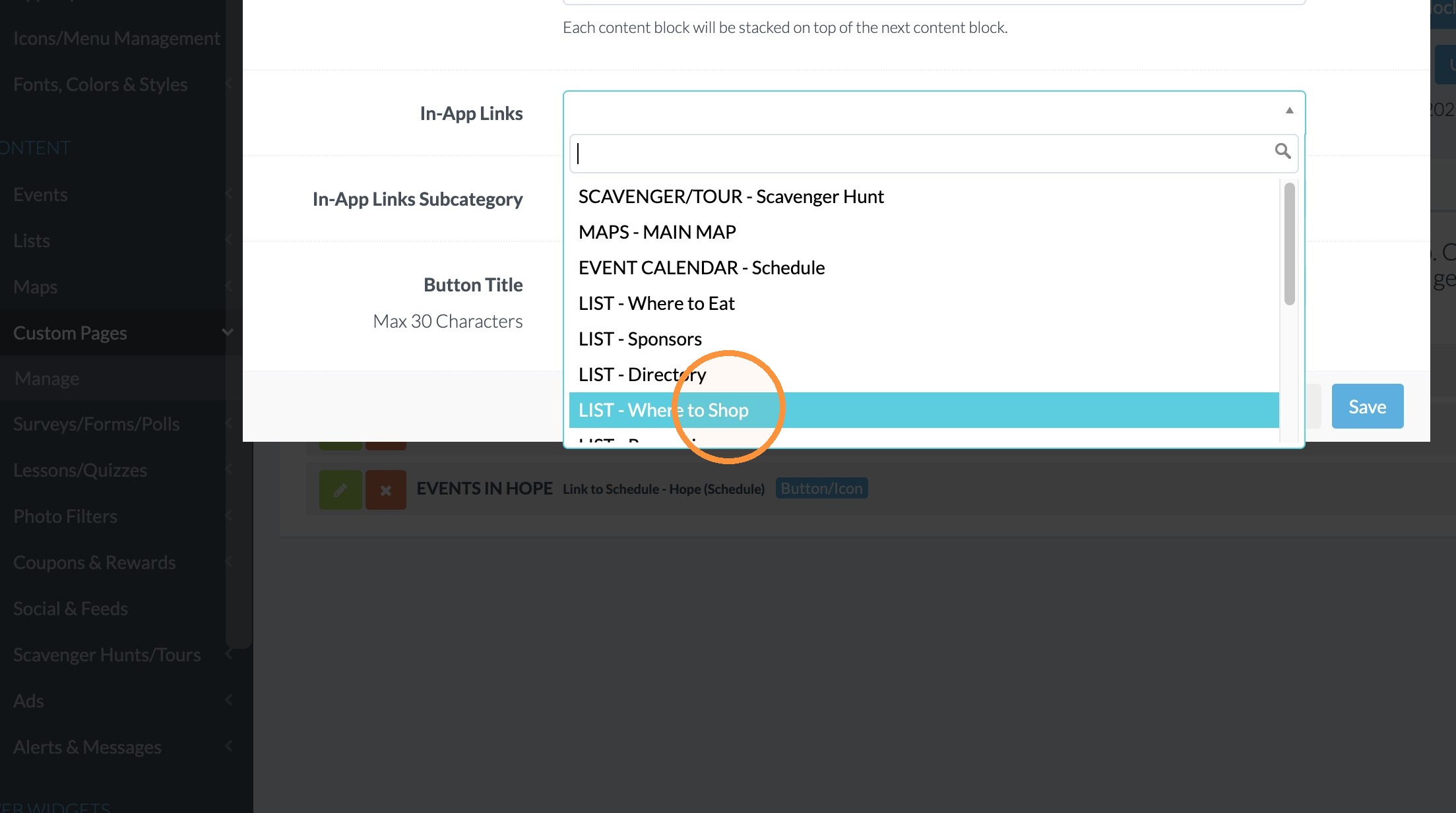
13. For the In-App Links select the List you would like to link to.
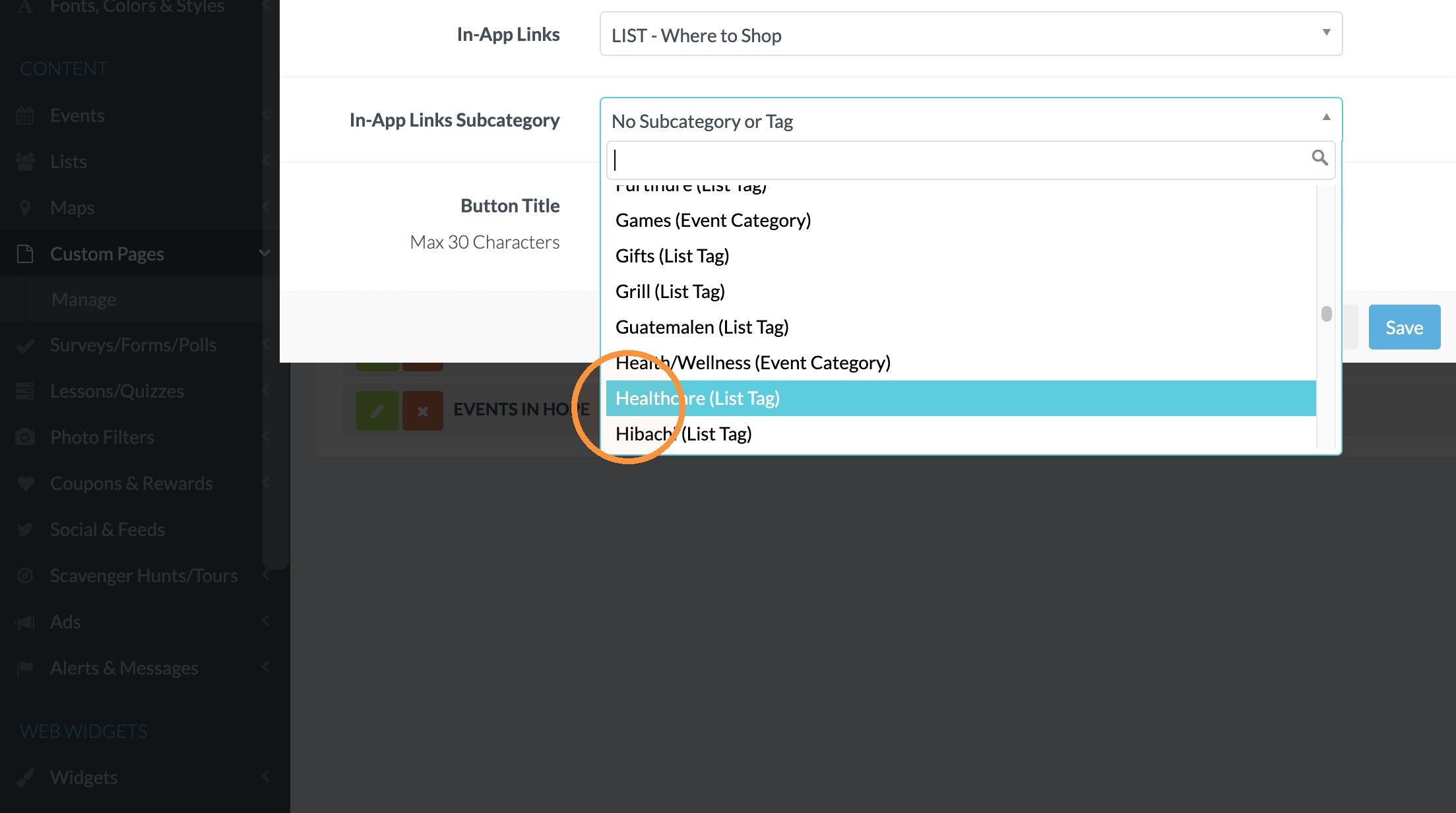
14. Under the Subcategory, select the filter tag you would like to link to.
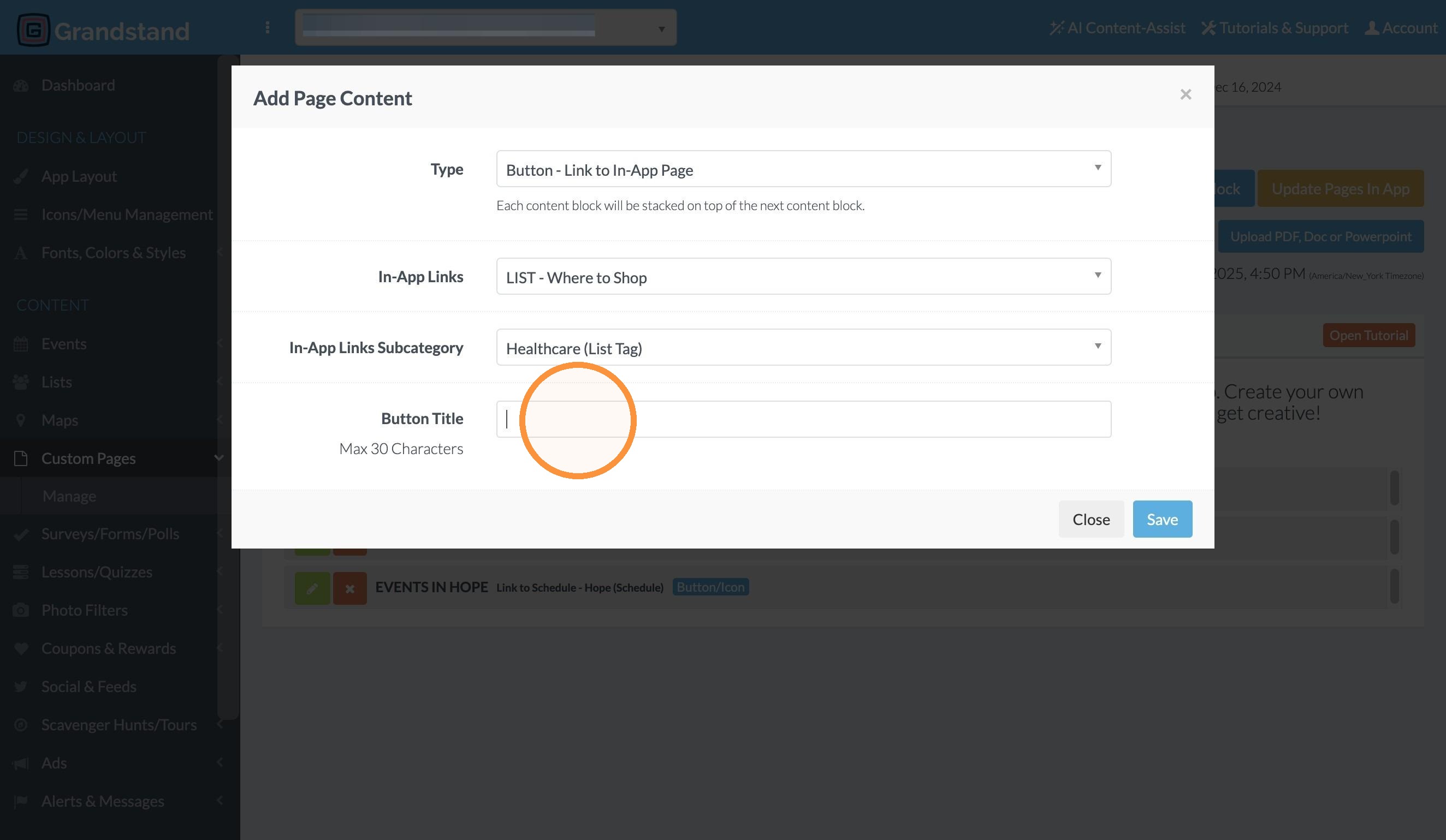
15. In the Button Title field type the name of the button.
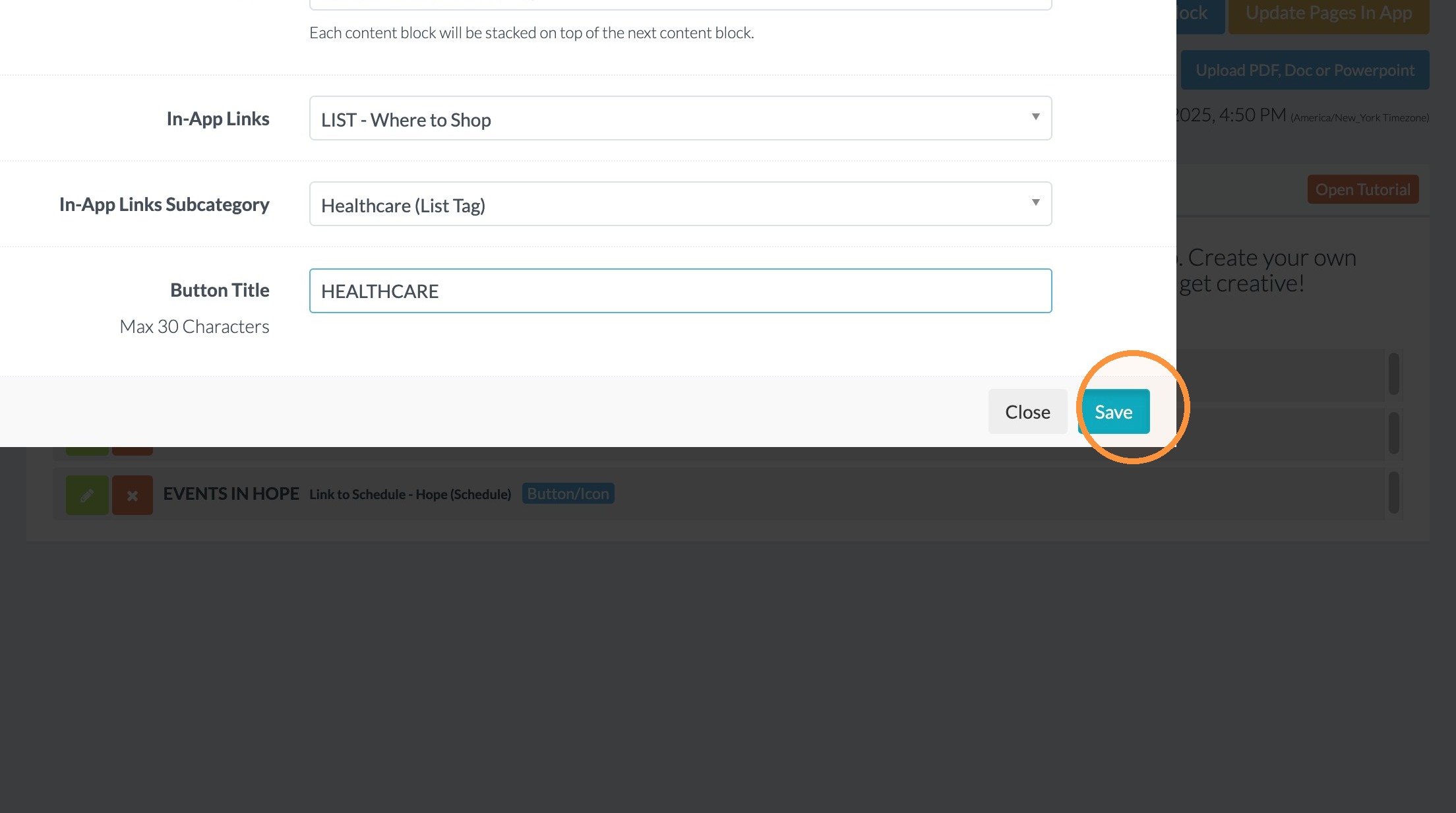
16. Click "Save"
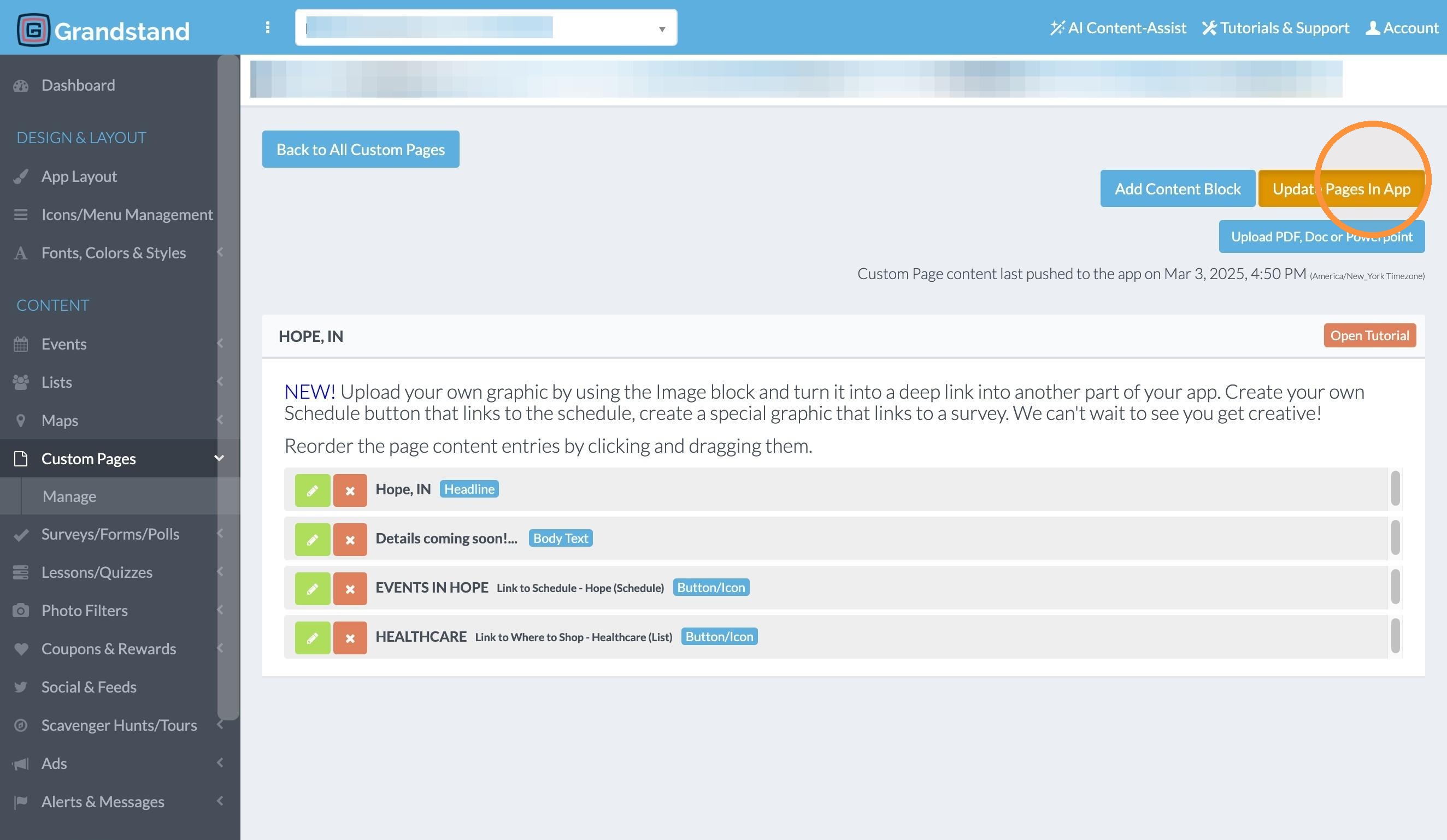
17. Click "Update Pages In App" to make the changes live in the app.
Custom Pages