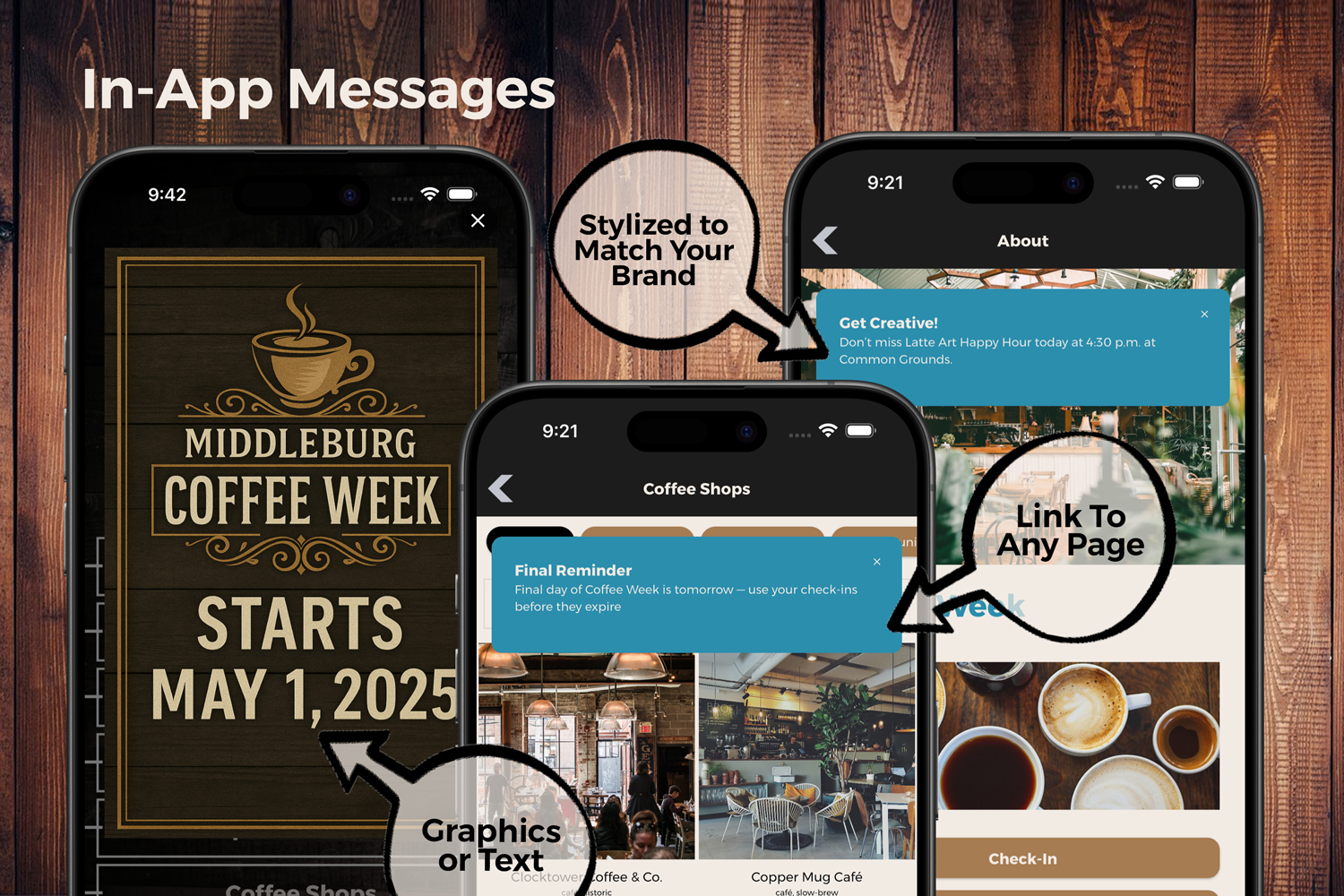
Step-by-Step Guide: Creating an In-App Message
1. Navigate to In-App Messages
In the left-hand sidebar, go to Alerts & Messages and click on In-App Messages.
2. Open the Create Modal
Click the blue Create In-App Message button. A modal window titled Create In-App Message will appear.
3. Configure Message Display Location
In the Where In-App Message Displayed dropdown, choose where in the app the message should appear. Options may include "Home Page Only", "Map", "Vendor", "Event Calendar", or "Any Page".
This determines which screen or area of the app will show the alert.
4. Set the Start and End Time
Set the following:
- Active Start Date & Time: When the message begins showing
- Active End Date & Time: When the message stops showing
Times are based on your fair’s selected timezone (shown on screen).
5. Enter Message Content
Fill in the following:
- In-App Message Title: A short title (used if no image is uploaded)
- In-App Message Body: The message text (limit 256 characters)
- In-App Message Image: Upload a banner image (optional and replaces title/body)
6. Reference Title (Internal Use Only)
Use the Reference Title to name the message internally. This is not shown to users but appears in reports and admin views.
7. (Optional) Add Location-Based Trigger
If available on your plan, set Location Requirements to require a geographic location for users to view the alert.
- Center Latitude, Longitude, and Distance in Meters will appear
- Use Google Maps “Measure Distance” tool to estimate the radius
8. Set App Version Targeting (Optional)
- Minimum App Version: Only show to users with this version or newer
- Maximum App Version: Limit to users below this version
9. Configure Repeat Interval
Use Hours to Repeat to define how often the alert should reappear for a user:
0: Show only once1: Show again after 1 hour4: Show again every 4 hours
10. Define Click Behavior
Set the Click Behavior to determine what happens when the user taps the message:
- In-App Message Disappears (default)
- Opens URL – if selected, enter the full link in the next field
- Opens Specific Page – choose from available app pages
11. Save Your Alert
Click the blue Save button.
To publish changes to the app, click Update to App from the main screen after saving.
Tips
- If the alert starts immediately, users may see it before edits are complete.
New, Misc