Access the List Manager
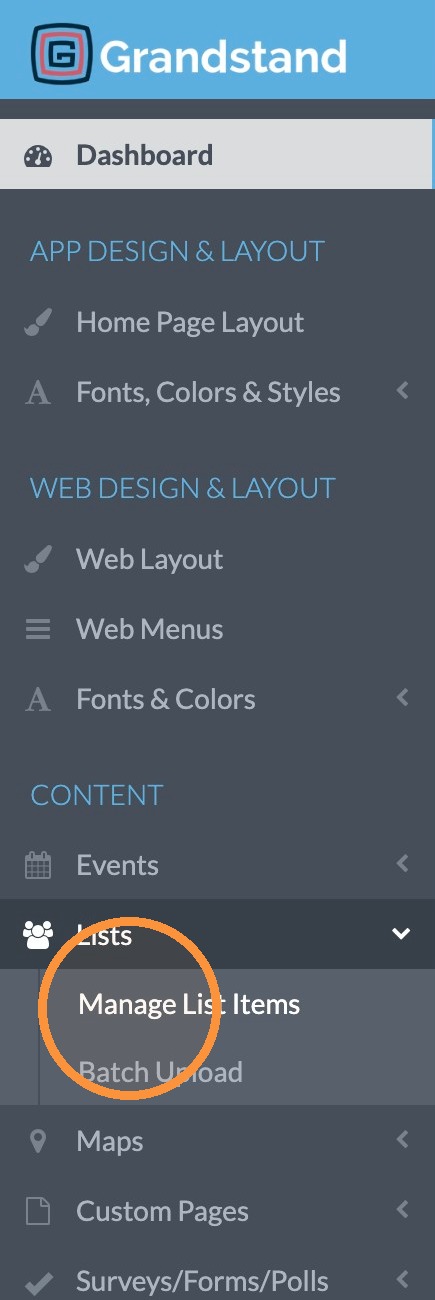
1. After logging in, click "Manage List Items" under "Lists"
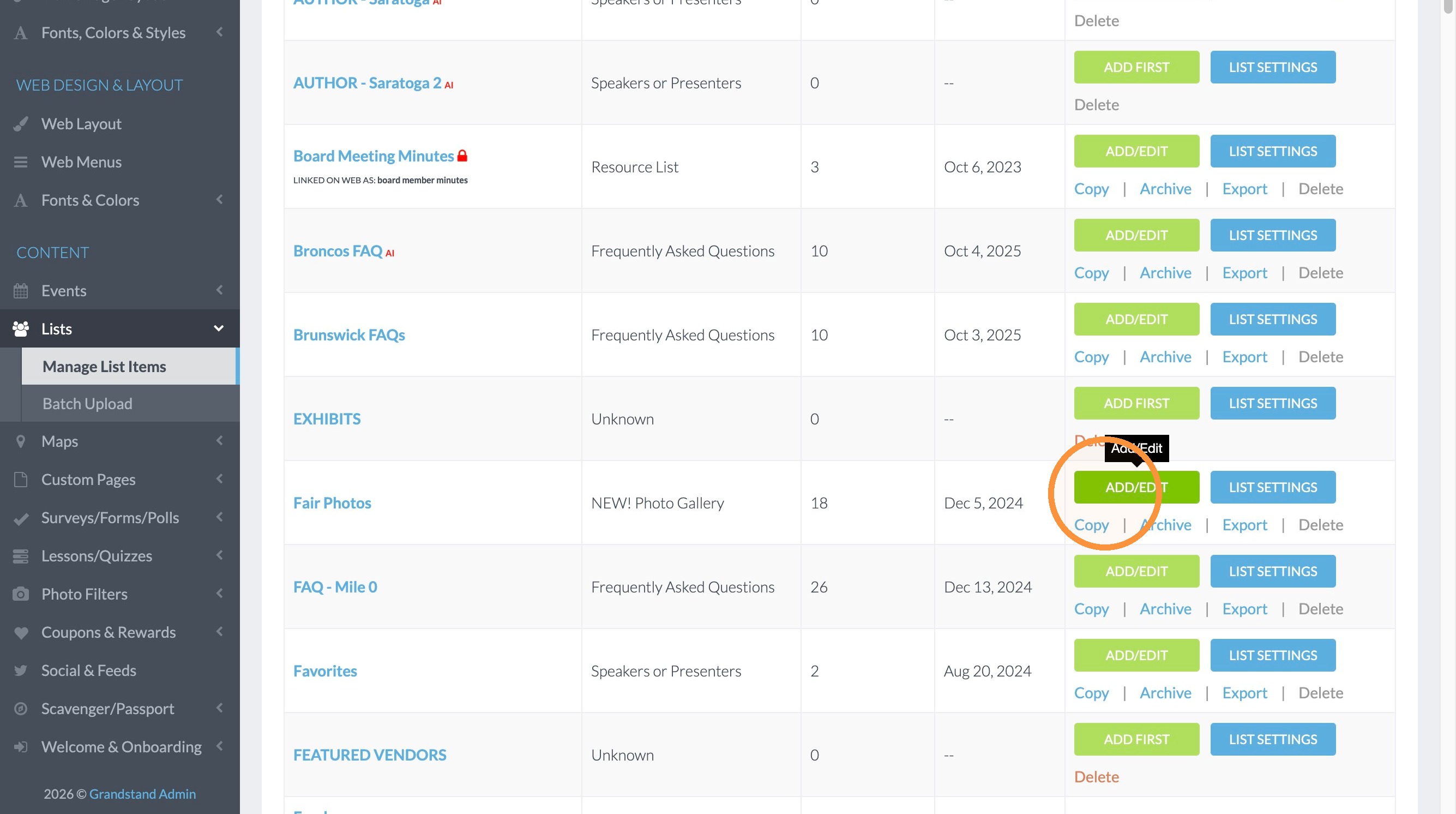
2. Once on the page of List Groups, click Add/Edit of the one you want to edit, you can see here we are editing the "Fair Photos" list that is a Photo Gallery.
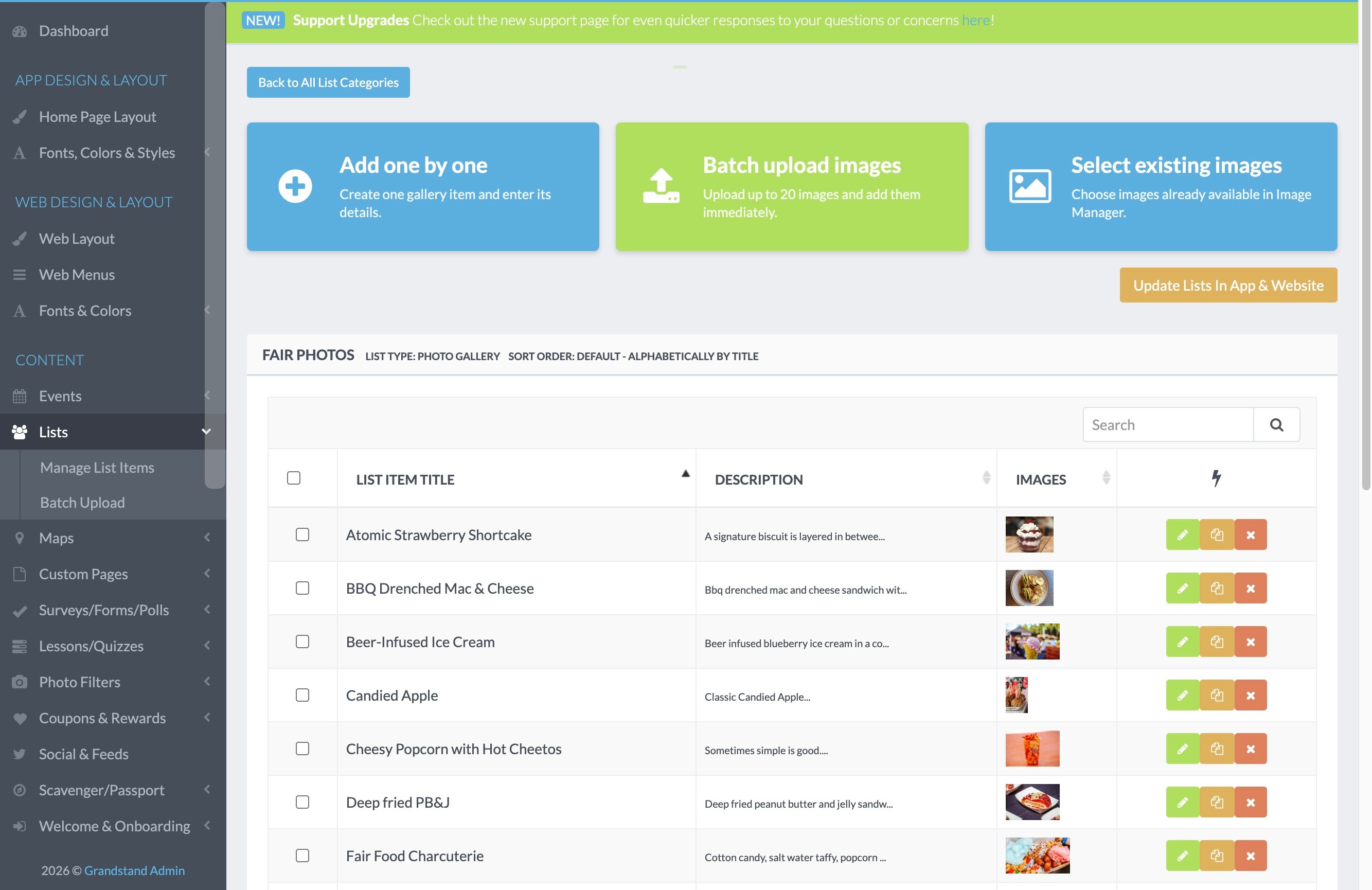
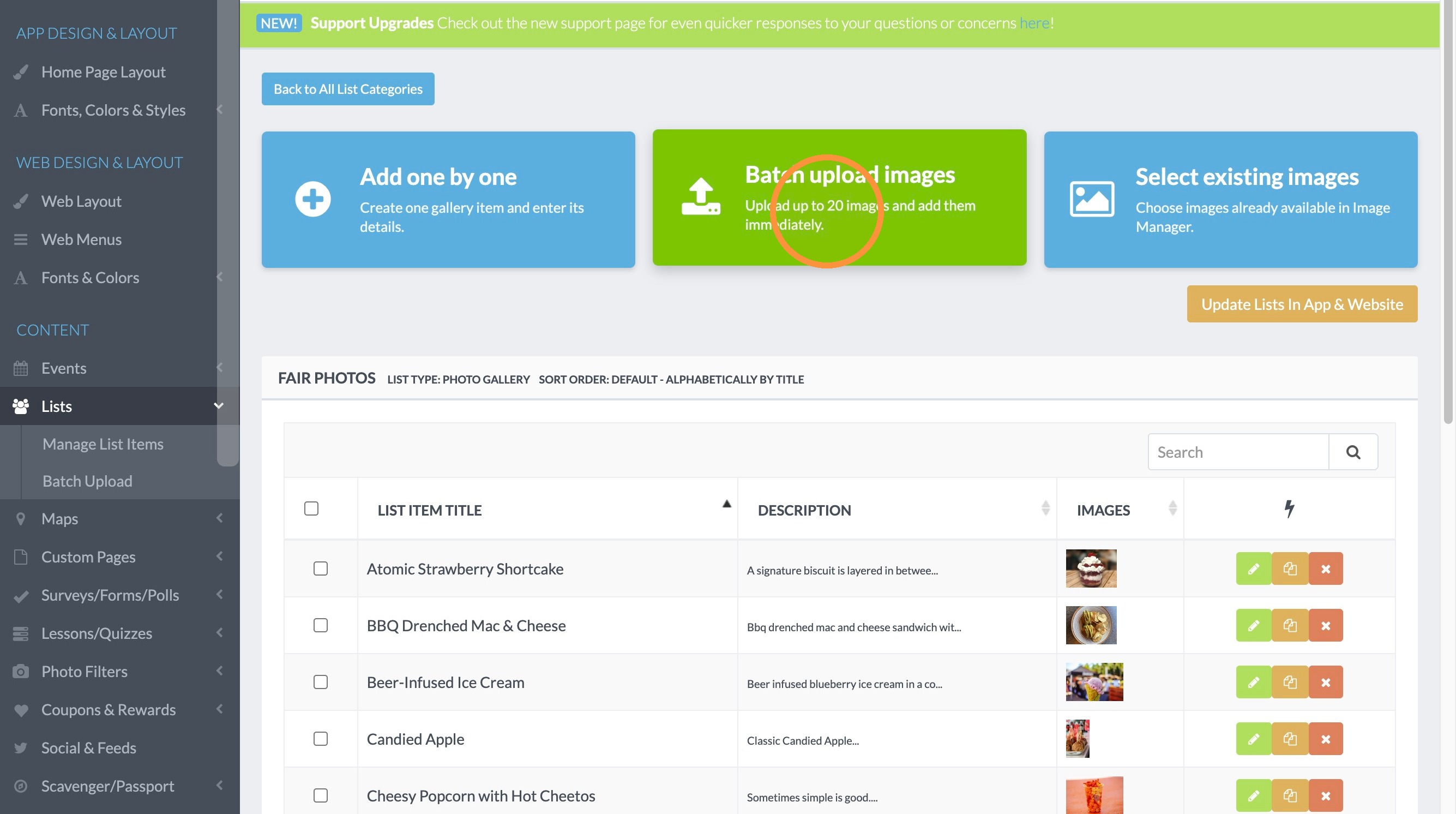
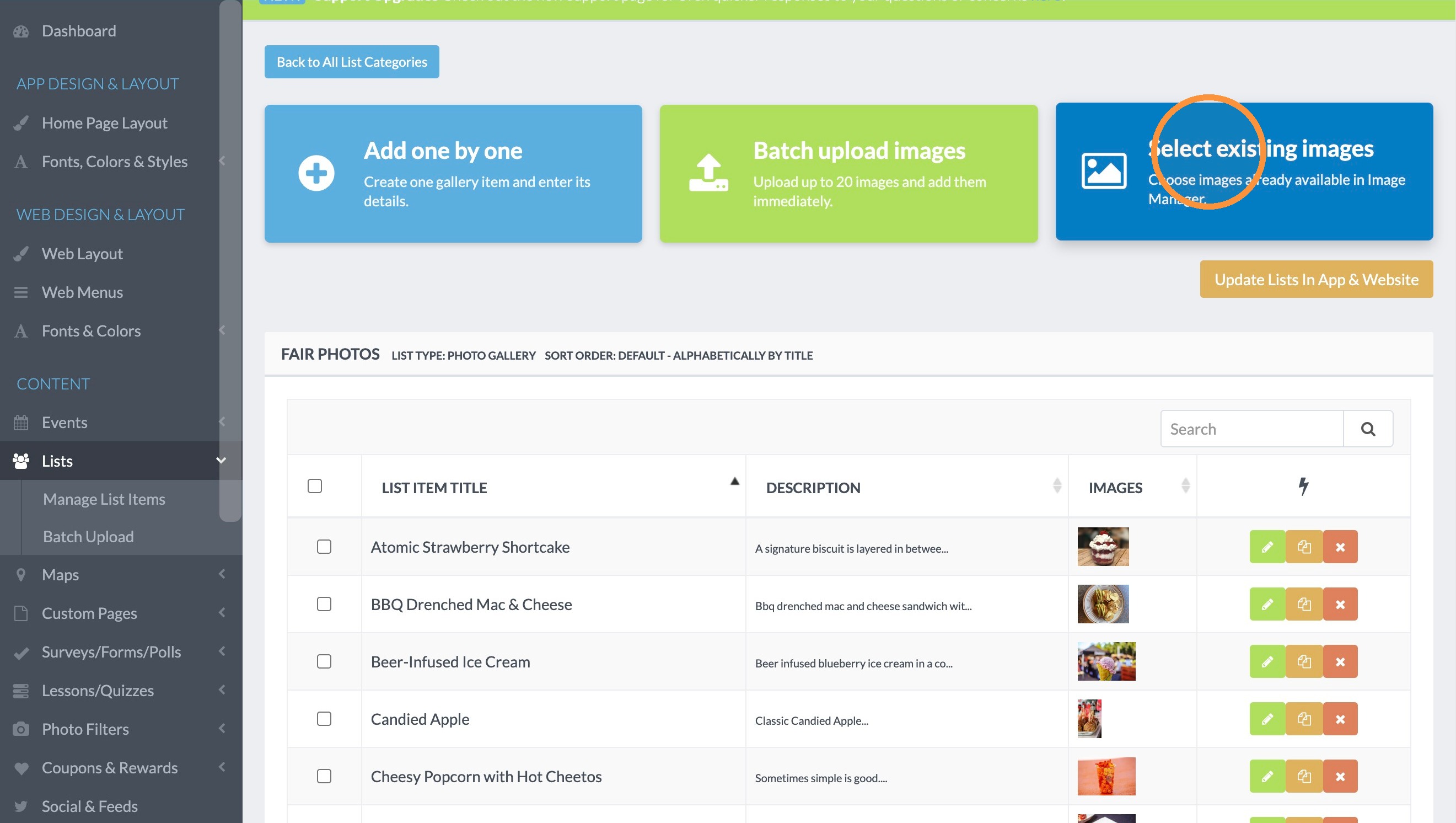
3. When you are on the List page for a list group that is a Photo Gallery, you will see 3 options at the top for ways to upload images:
1. Add One by One - this is the traditional way of adding a list item, you can add a title, description, etc.
2. Batch Upload Images - upload up to 20 images at a time using this feature. It will automatically add the images to the list without titles or descriptions.
3. Select Existing Images - if you have batch uploaded images into the Image Manager OR if you have already uploaded the image for use on a different list, you can select images using this option.
More on how you upload using each type is below.
Add One by One
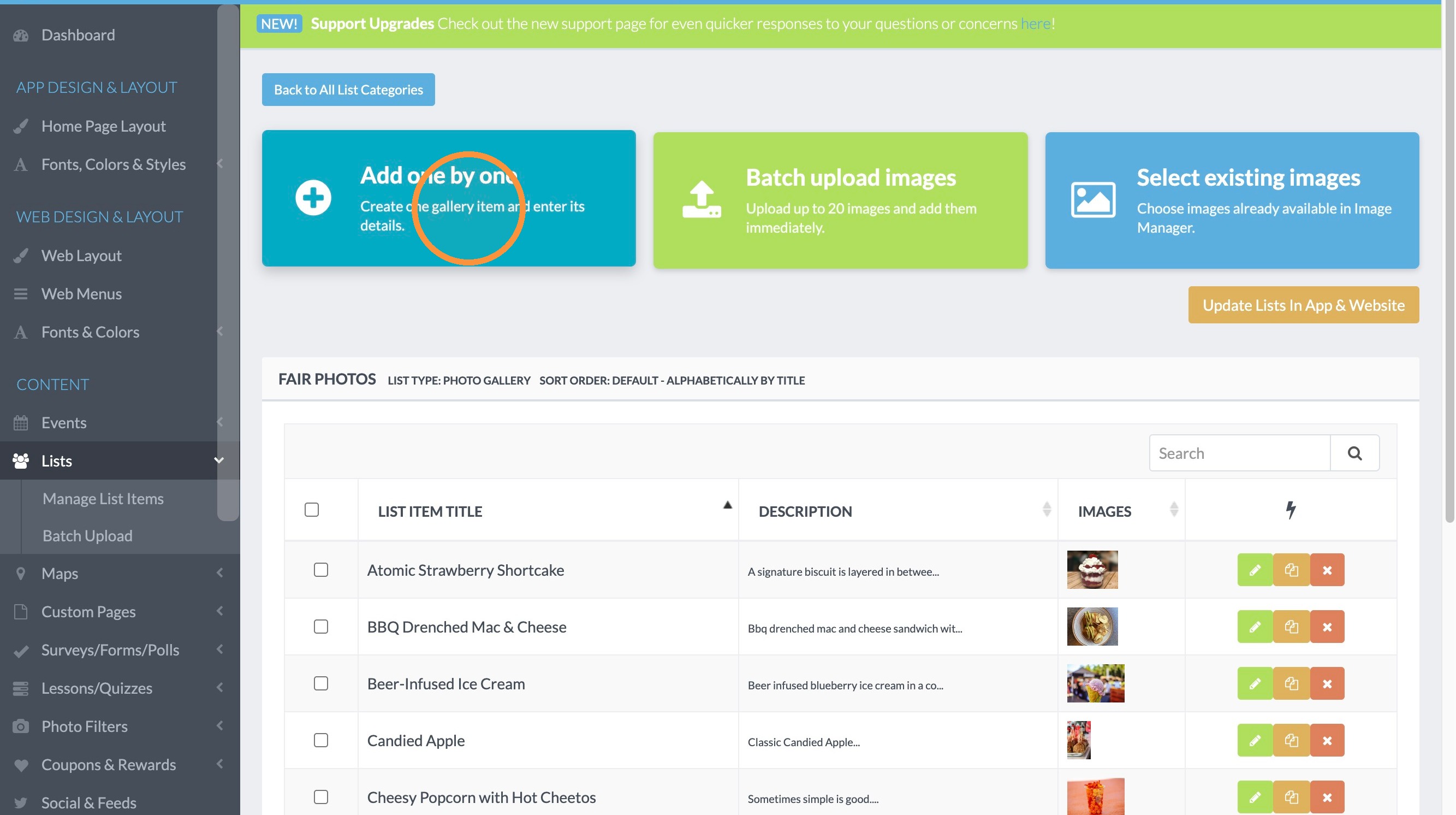
4. Click "Add one by one" to create a gallery item.
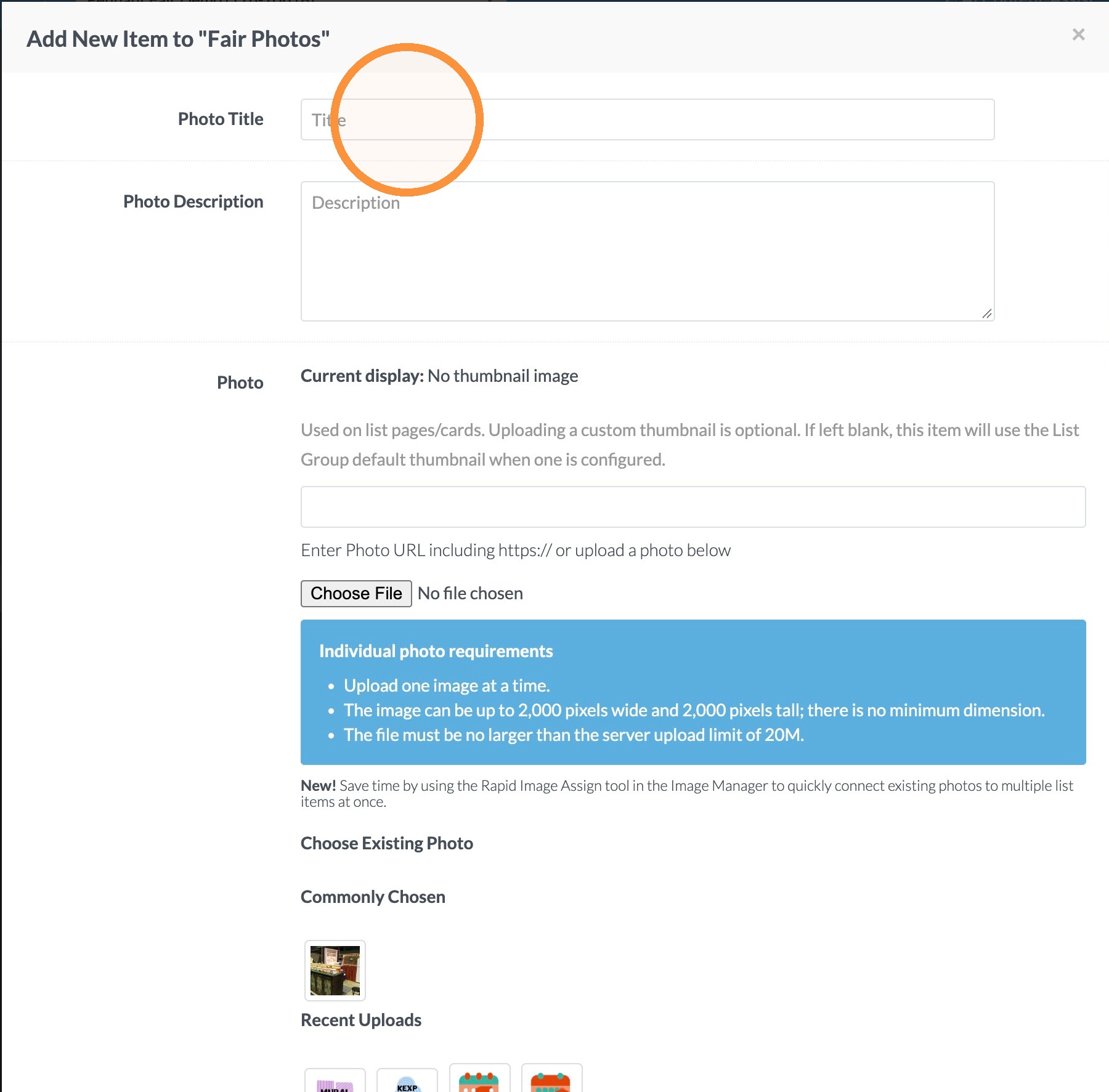
5. Type "photo image" in the "Title" field.
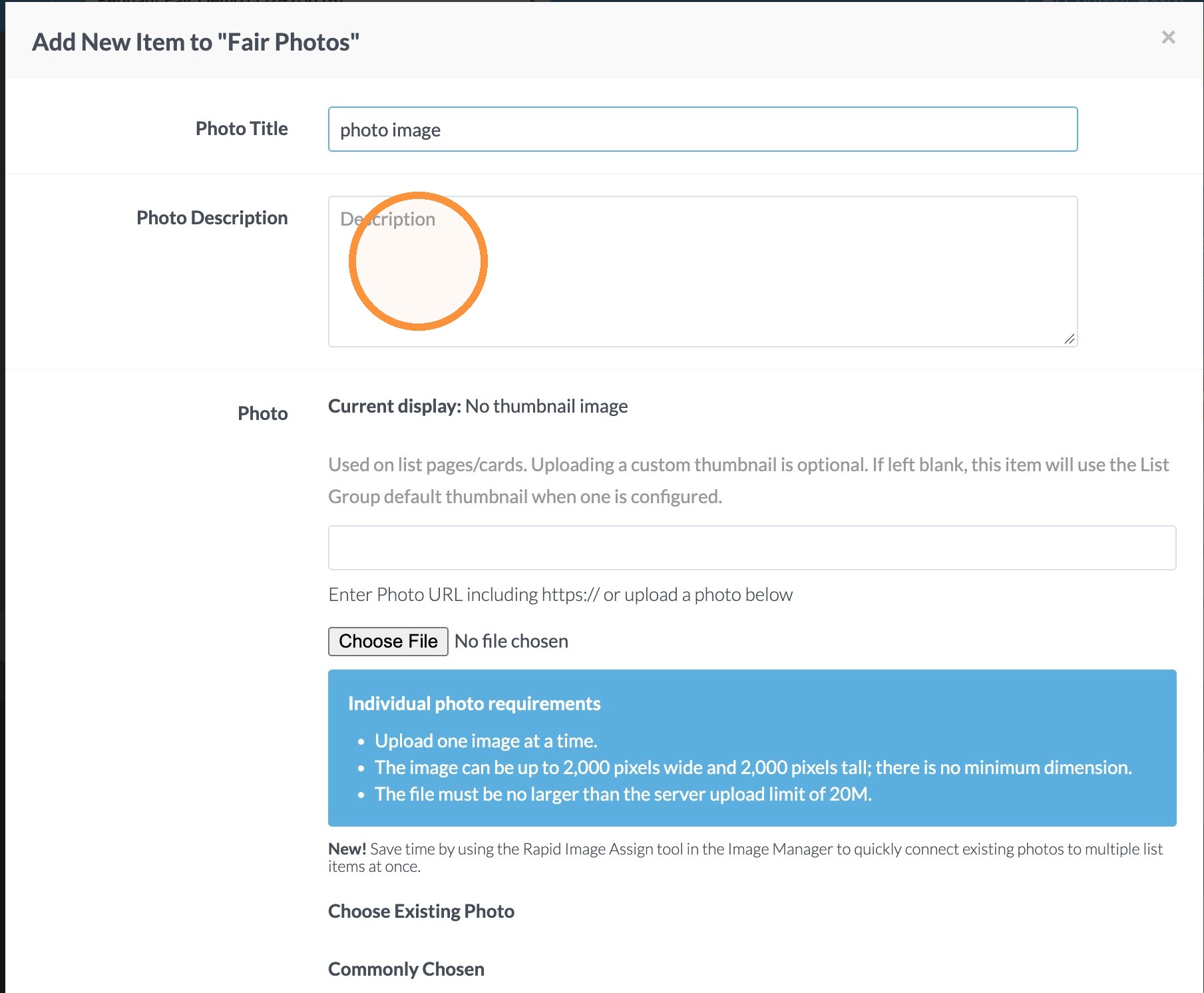
6. Type "caption" in the "Description" field.
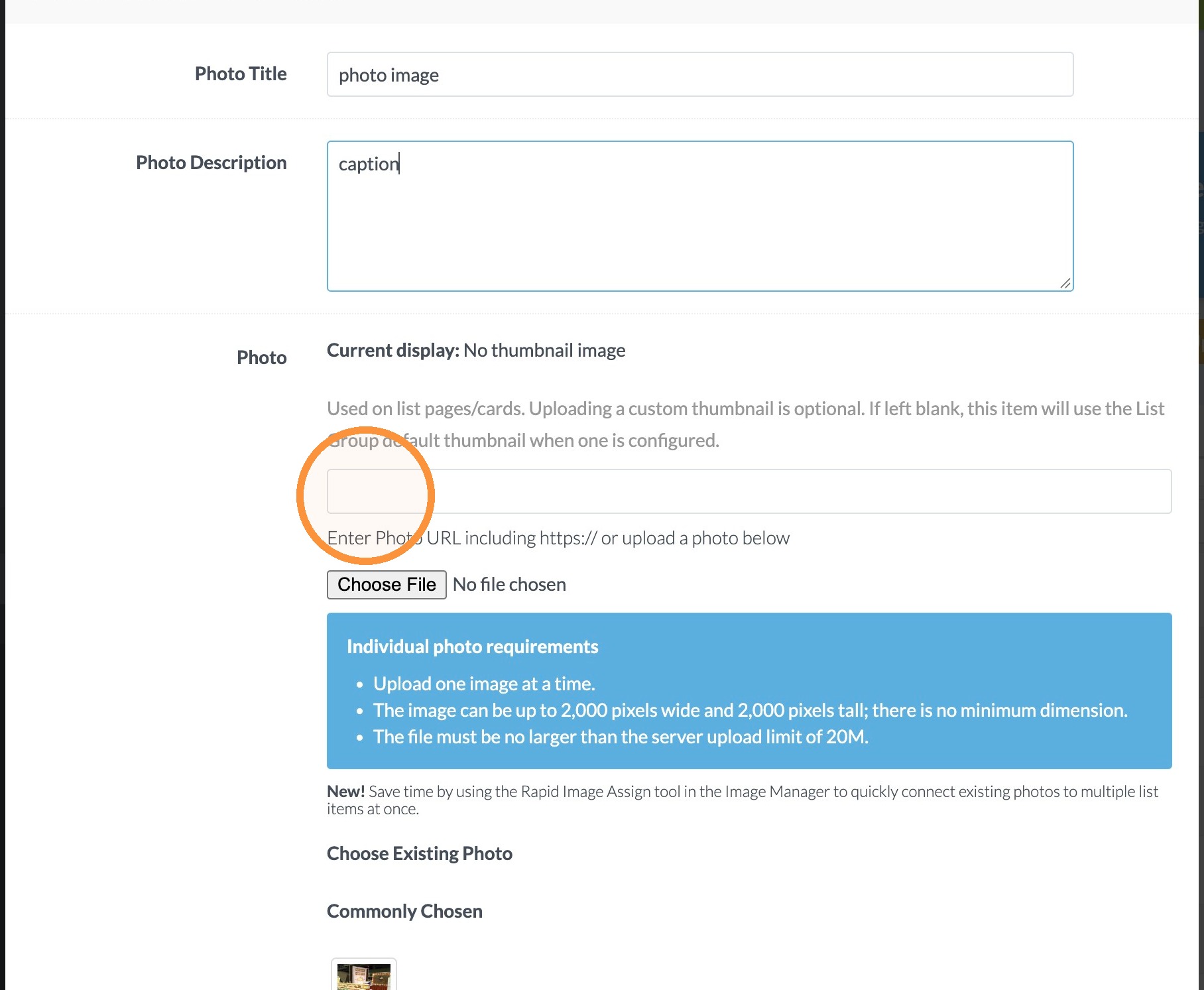
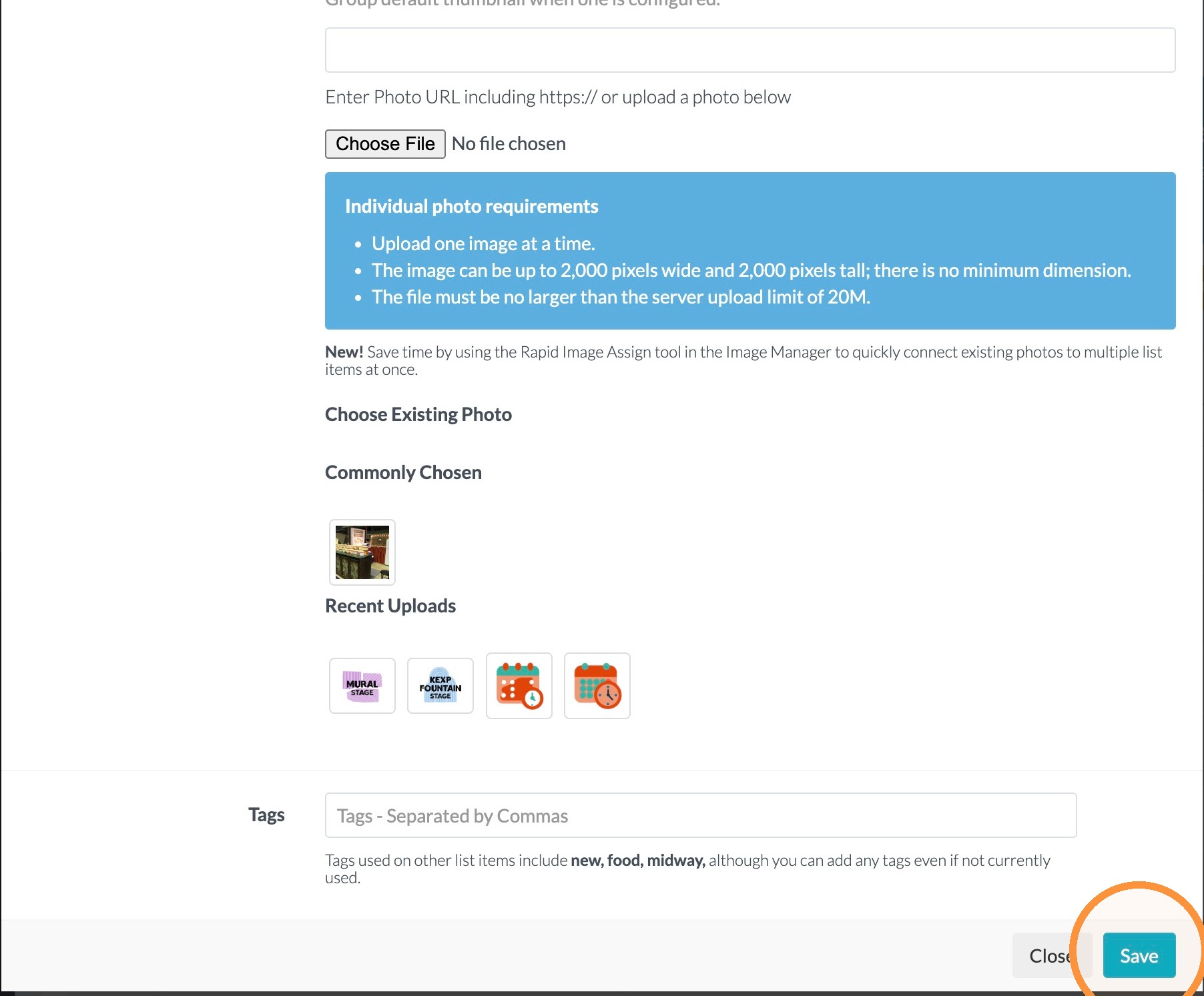
7. If the photo is already uploaded on your website, you can paste the image address here. Note that Google Drive images are not open files and will not show up in the gallery.
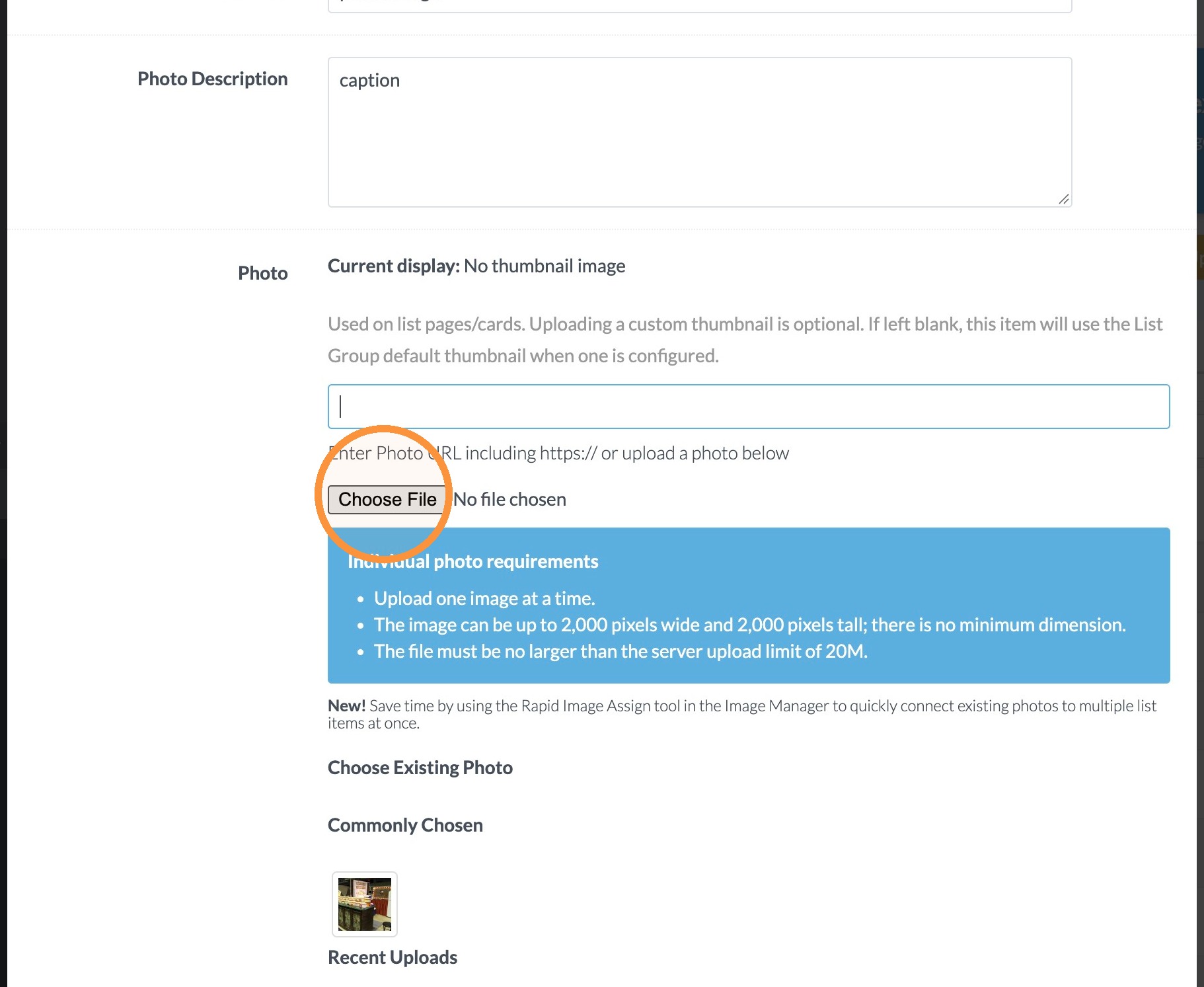
8. Alternatively, Click the "Choose File" button and select the image file from your computer.
9. Click "Save"
Batch Upload Images
10. Click "Batch Upload Images"
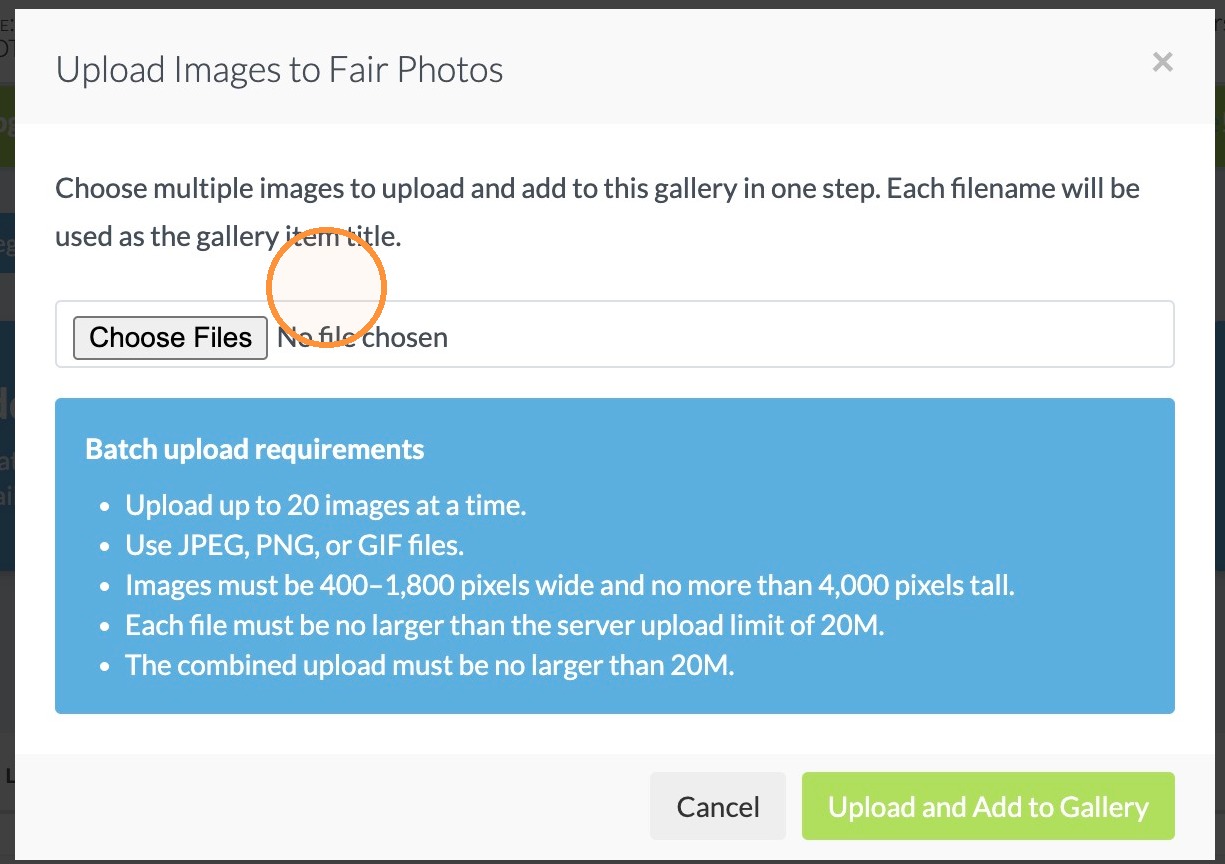
11. Click "Choose Files" to select images from your computer. Note the requirements:
- Up to 20 images at a time only
- Files can only be jpeg, png, or gif files
- Images should be no larger than 1,800 pixels wide
- Batch upload should be no larger than 20M. That means each photo should be less than 1M each.
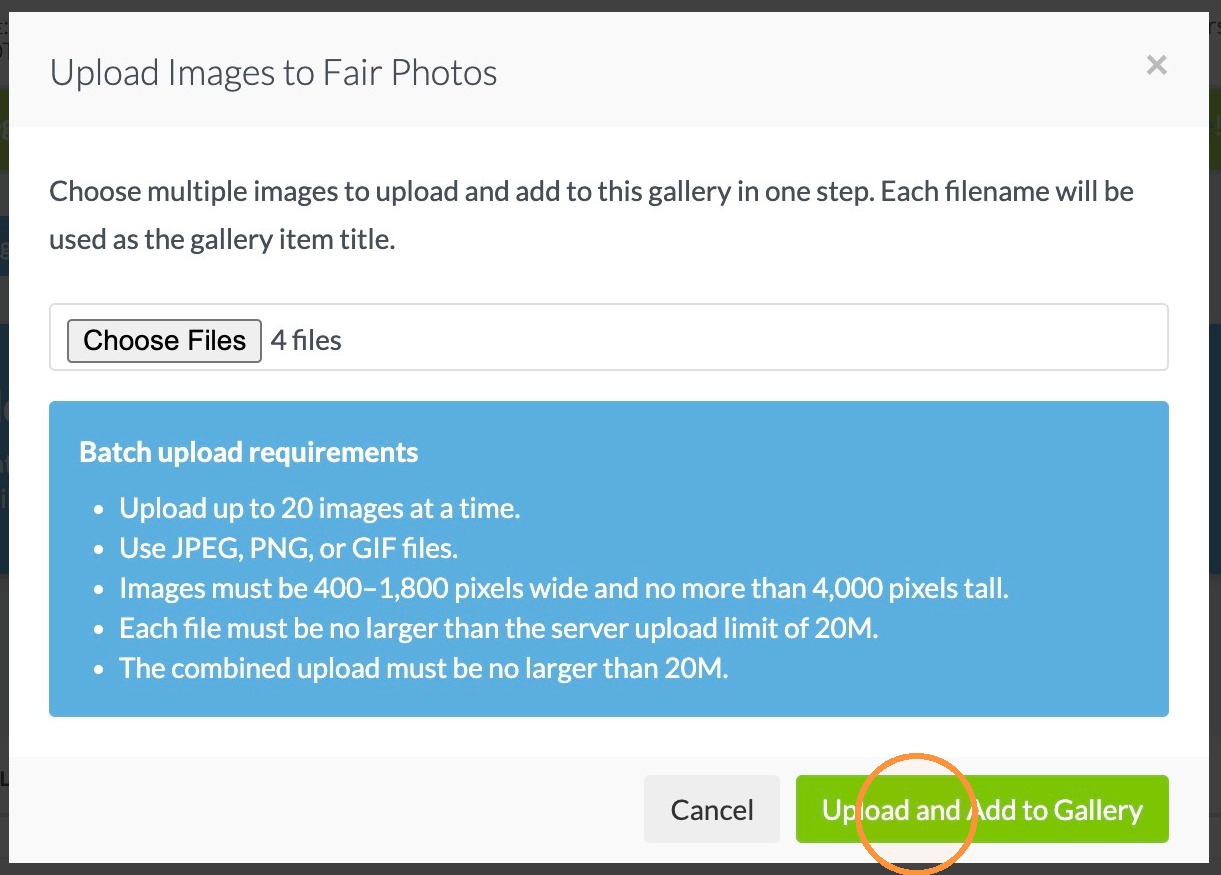
12. Once you select your files, click "Upload and Add to Gallery"
Select Existing Images
Tip: The images you can select must have been either:\
- Uploaded using the batch upload in Image Manager or\
- Already uploaded when setting up a different List (images used in another list).
13. Click "Select existing images"
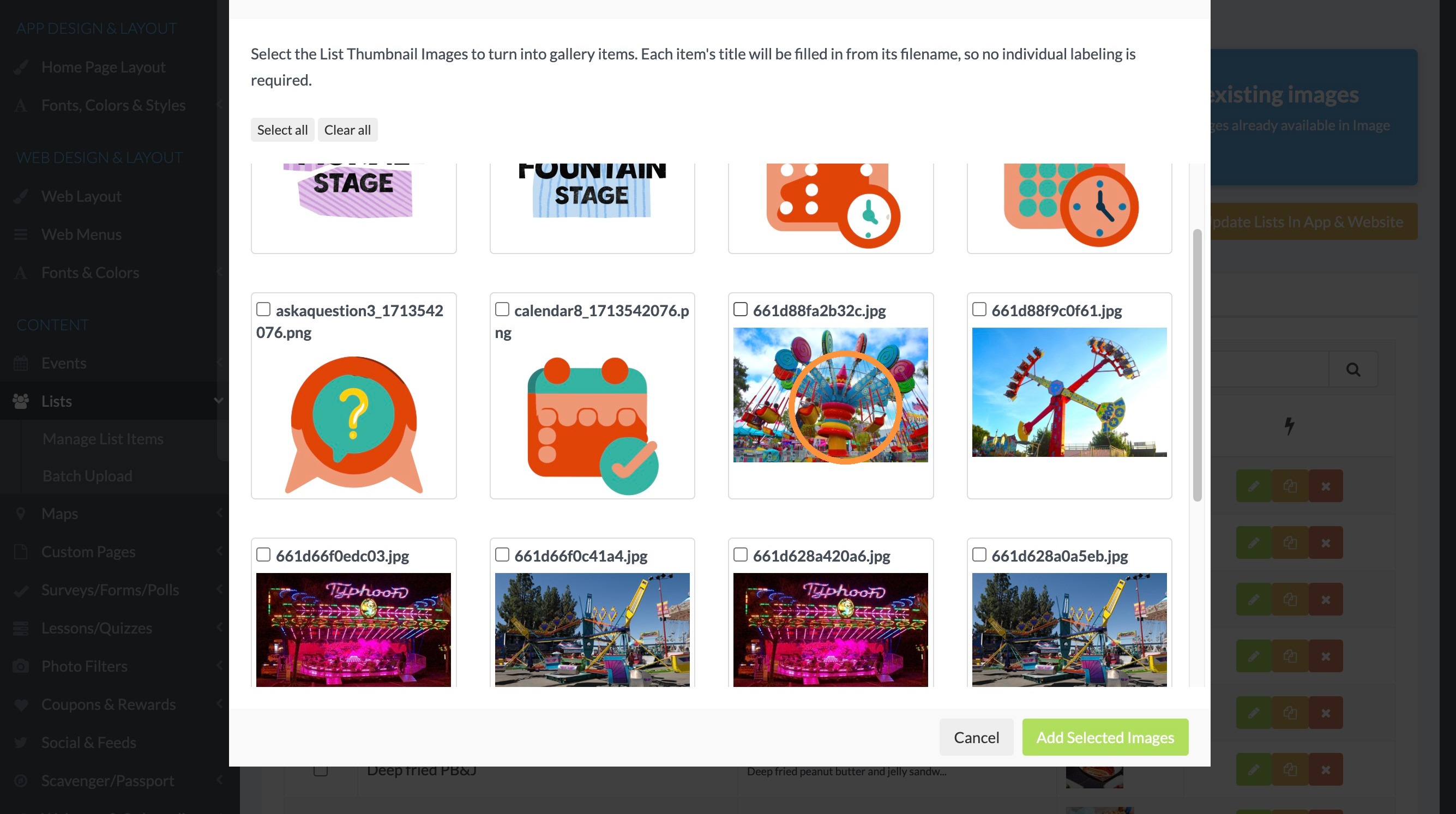
14. Select the image files you would like to add to the gallery by selecting them.
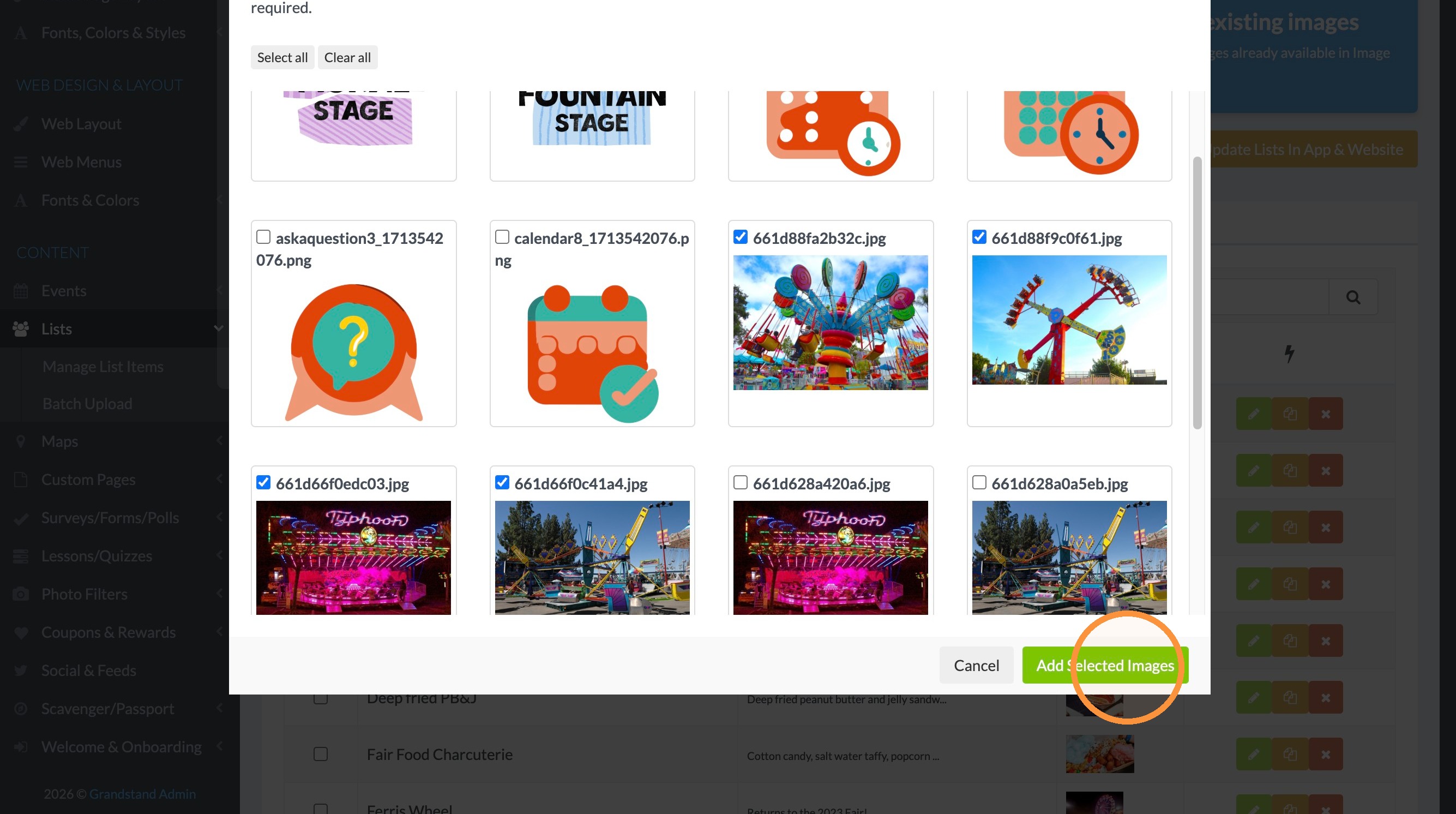
15. After selecting all of your images, click "Add Selected Images"
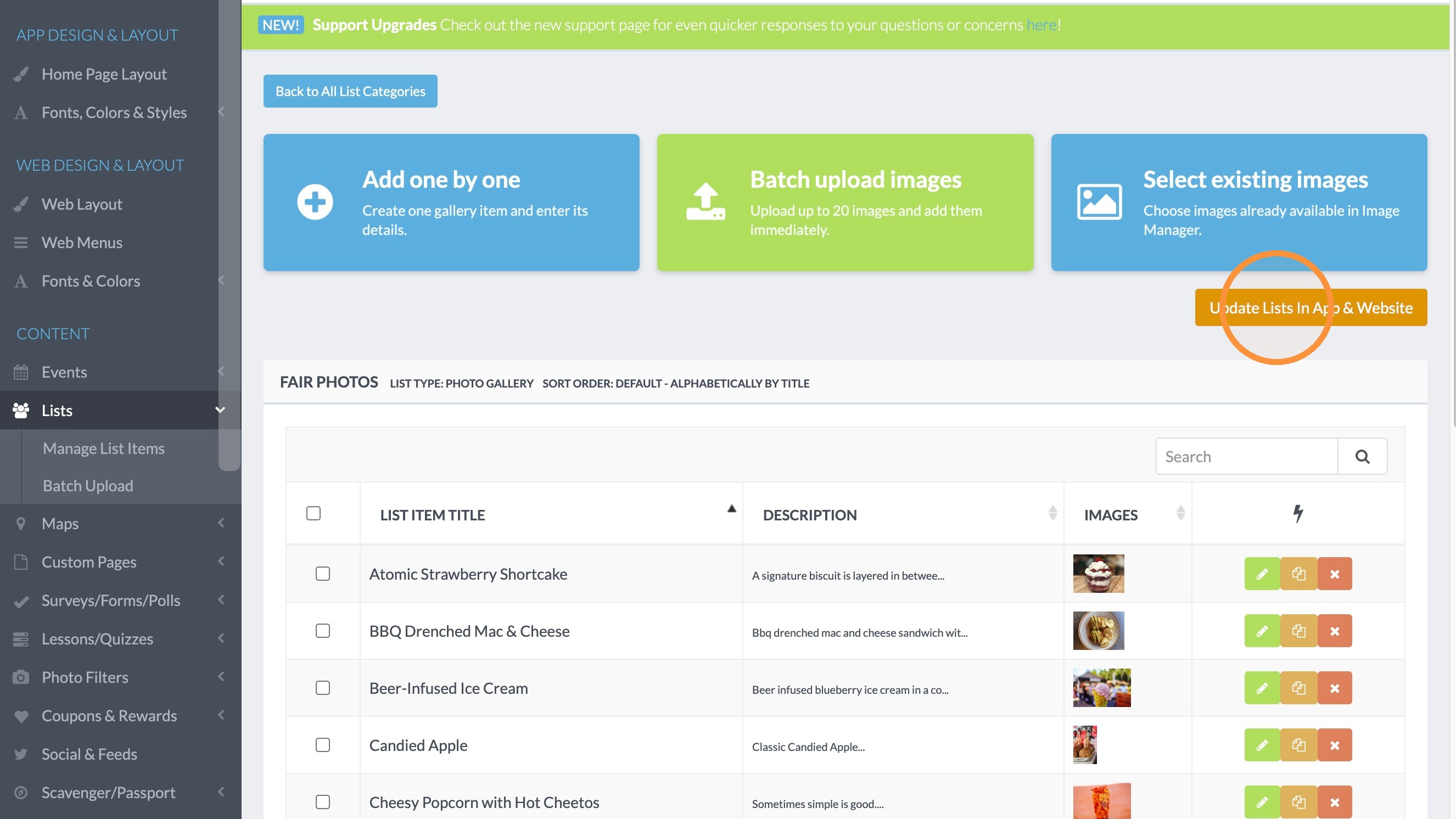
16. Once all of the images are added, click "Update Lists In App & Website" to make the images live in your app (or in your app and on your web widget).
Lists,Photo Gallery