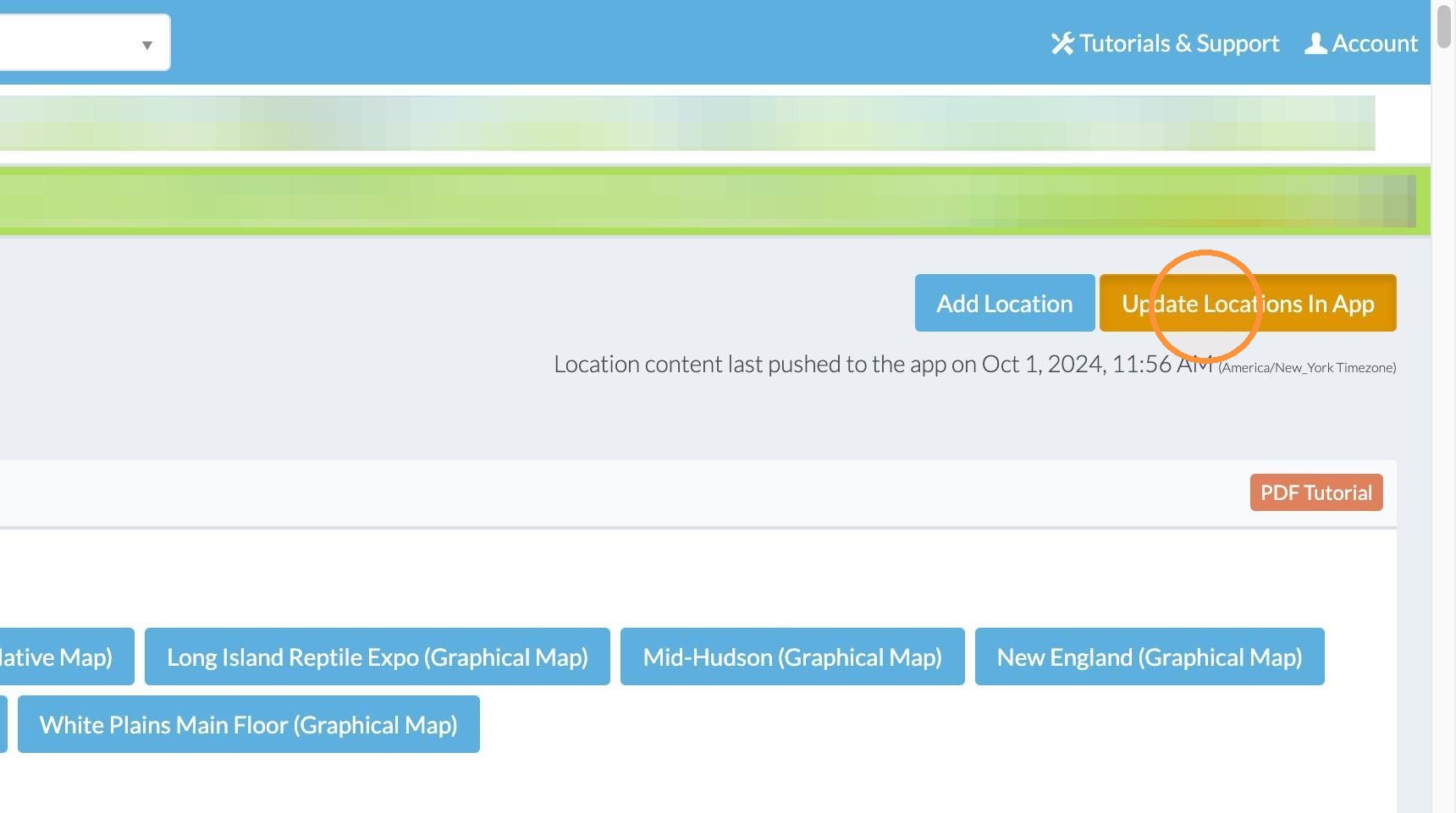
This guide quickly shows how to link a single list item to a specific map location from the maps page. It’s useful if you need precise control over which one item appears at a specific location. Follow it to ensure your app map reflects the correct single-item association. For linking multiple list items to a single location, you will do that by editing each list item to be assigned to the single location (or do it by bulk selecting on the list page in the admin).
1. Login to https://grandstandapps.com/admin
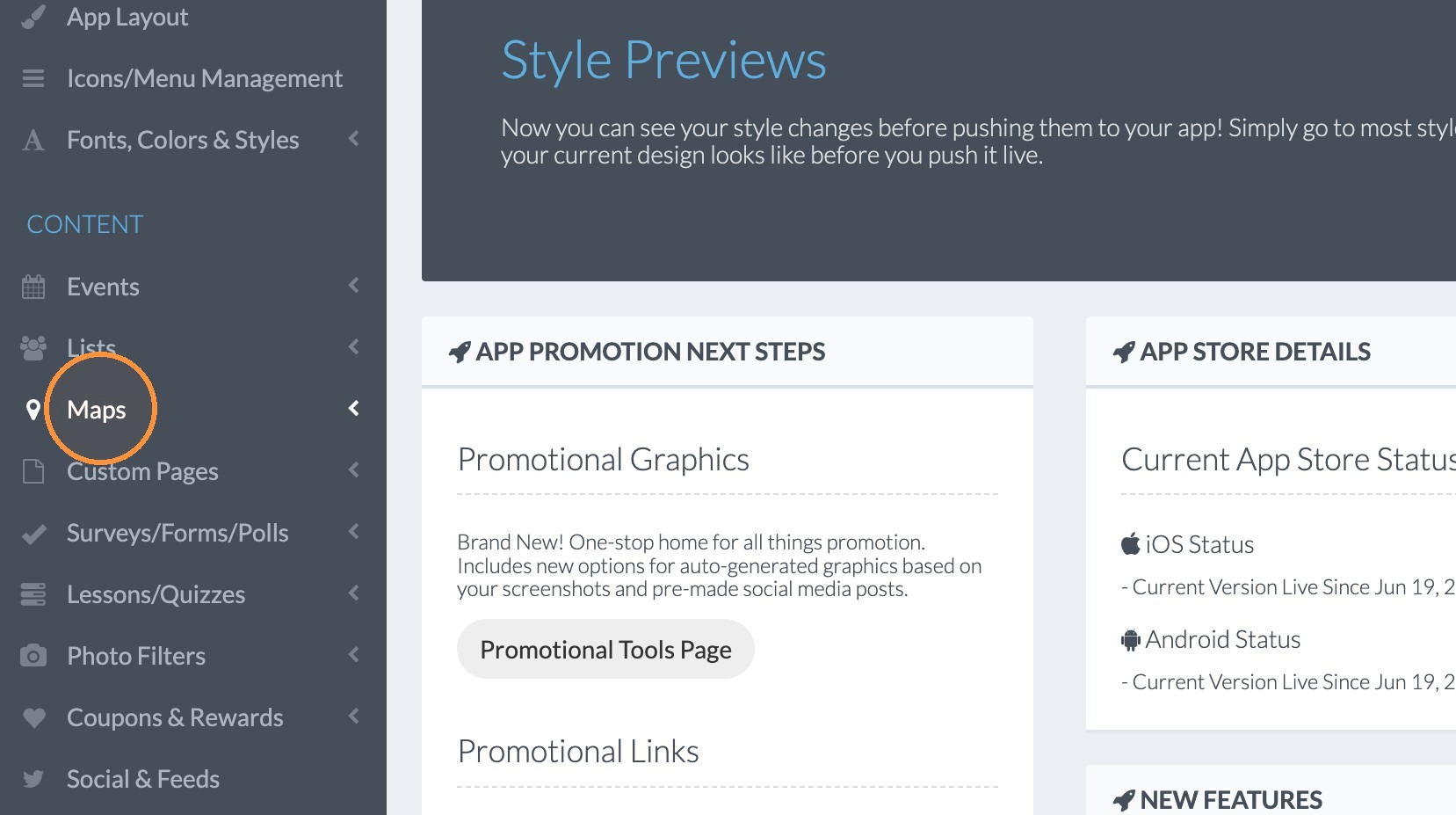
2. Click "Maps"
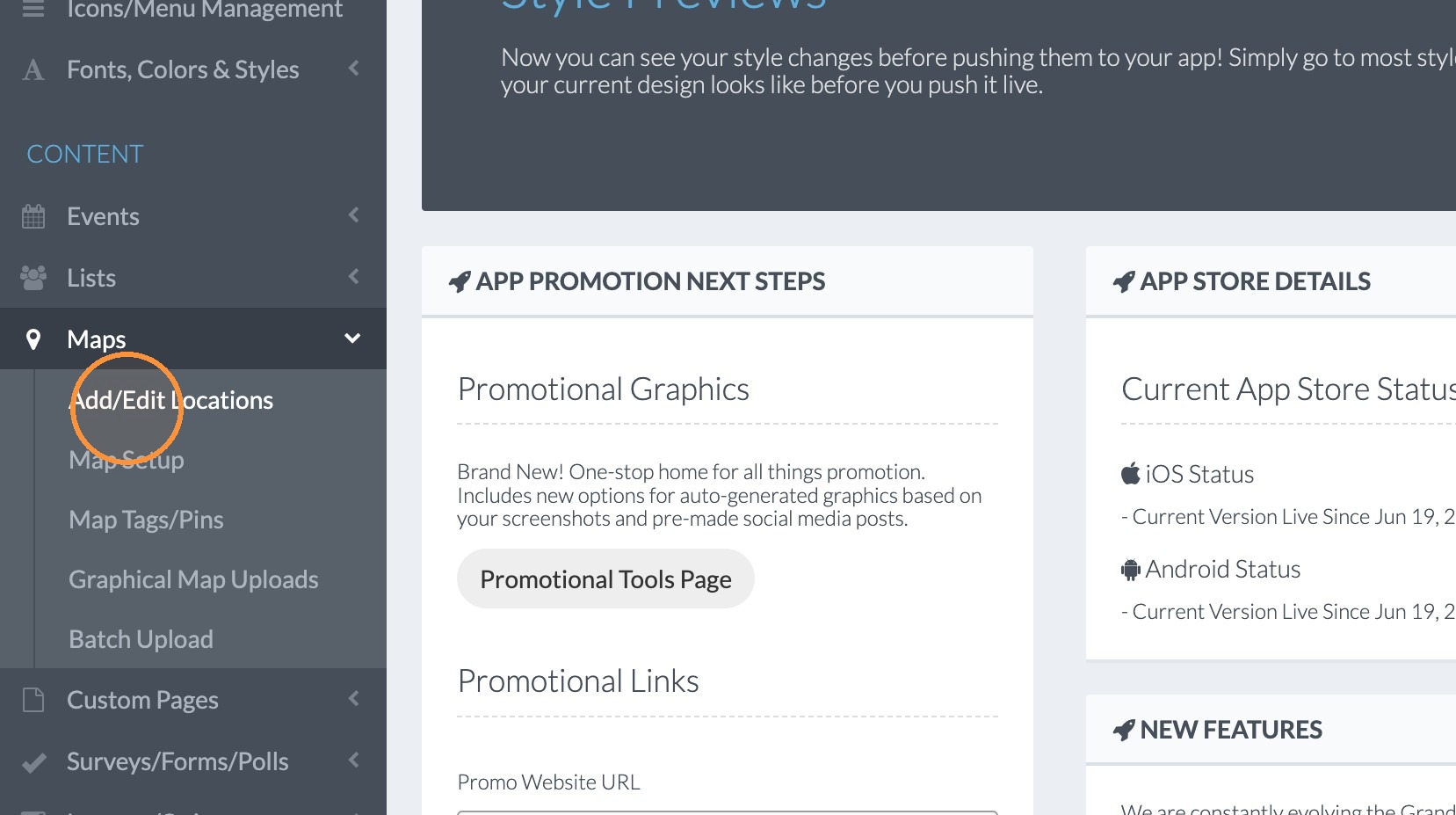
3. Click "Add/Edit Locations"
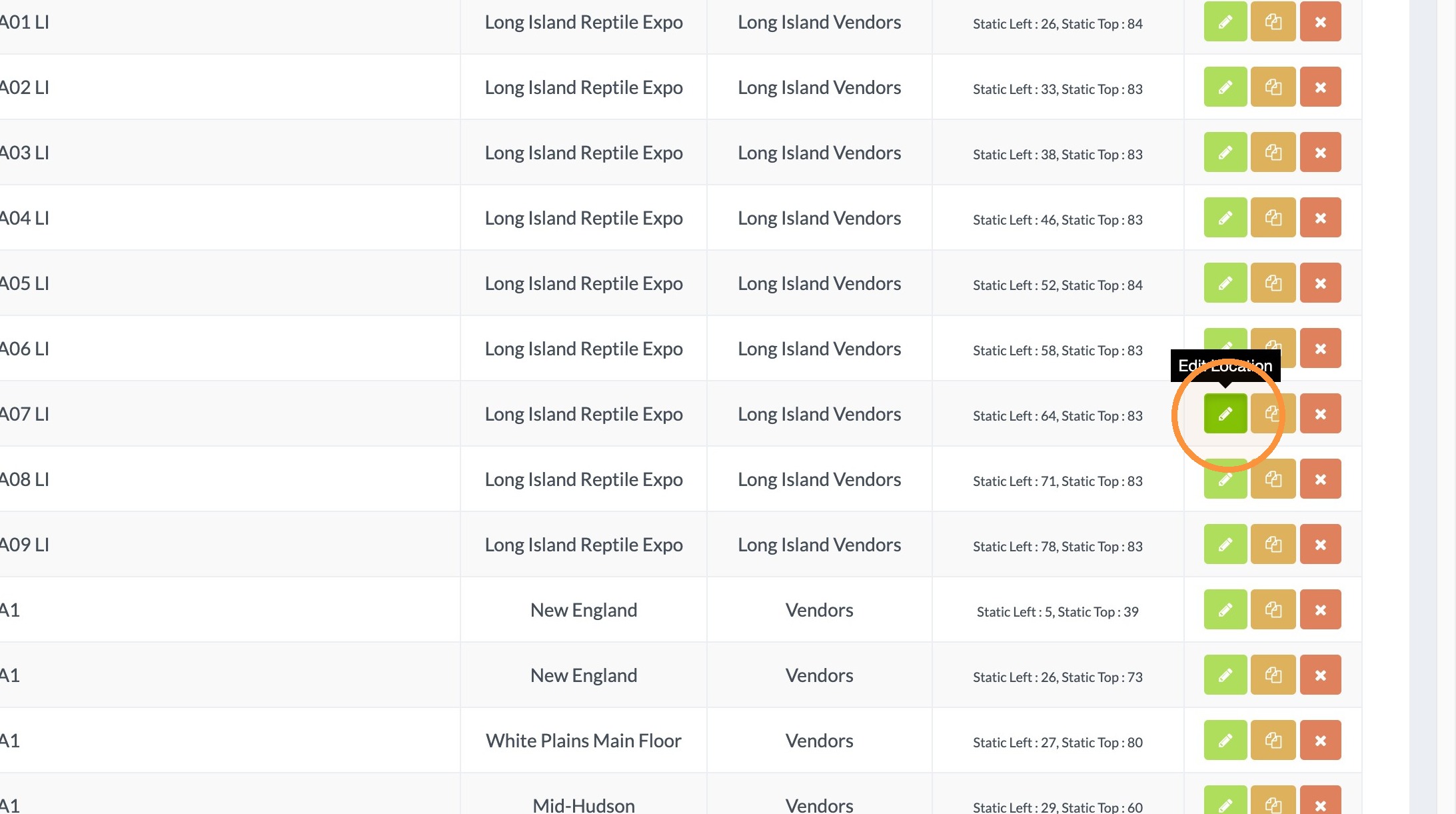
4. Click on the green edit button next to the location you would like to edit.
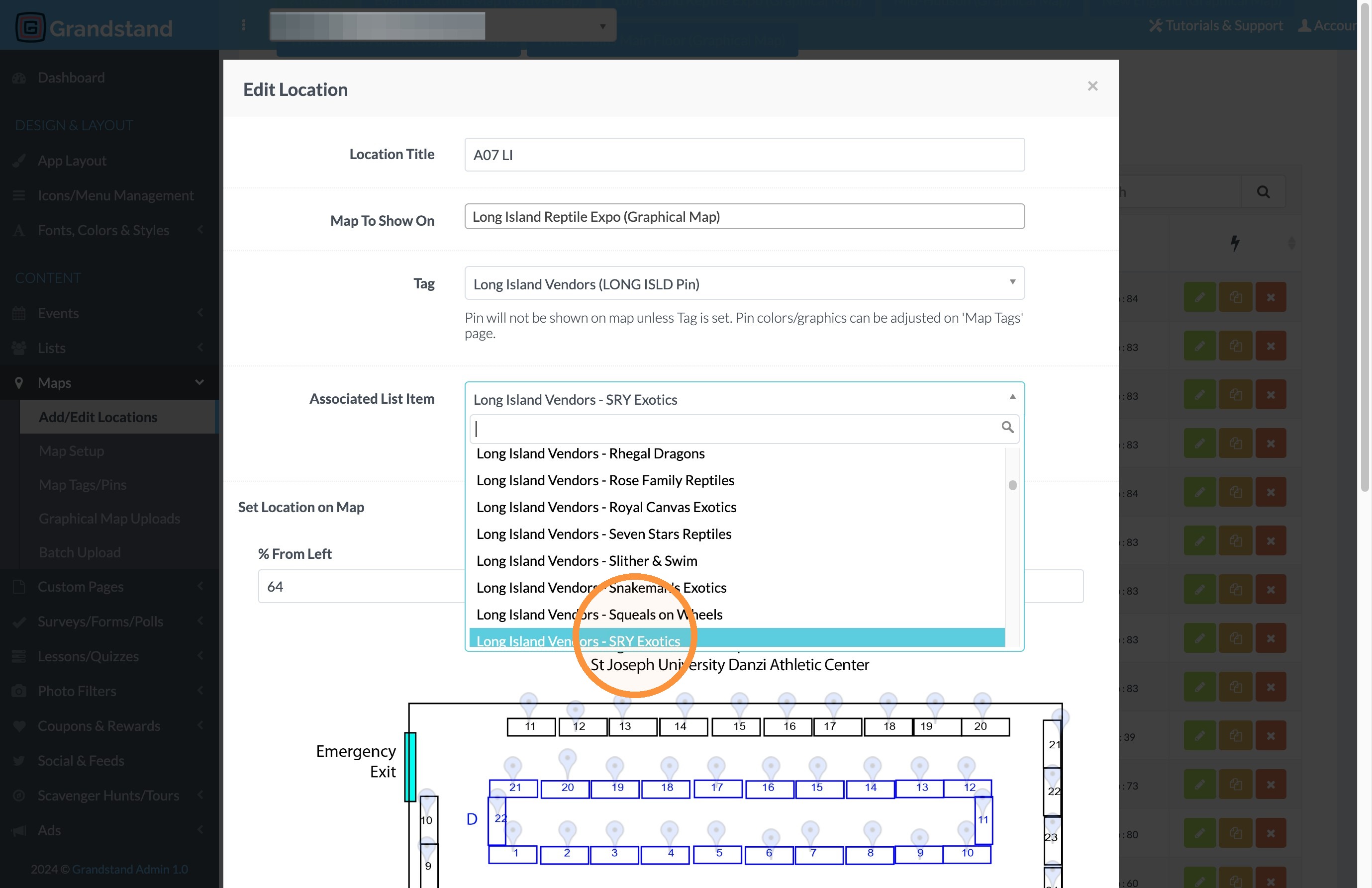
5. Click "Long Island Vendors - SRY Exotics"
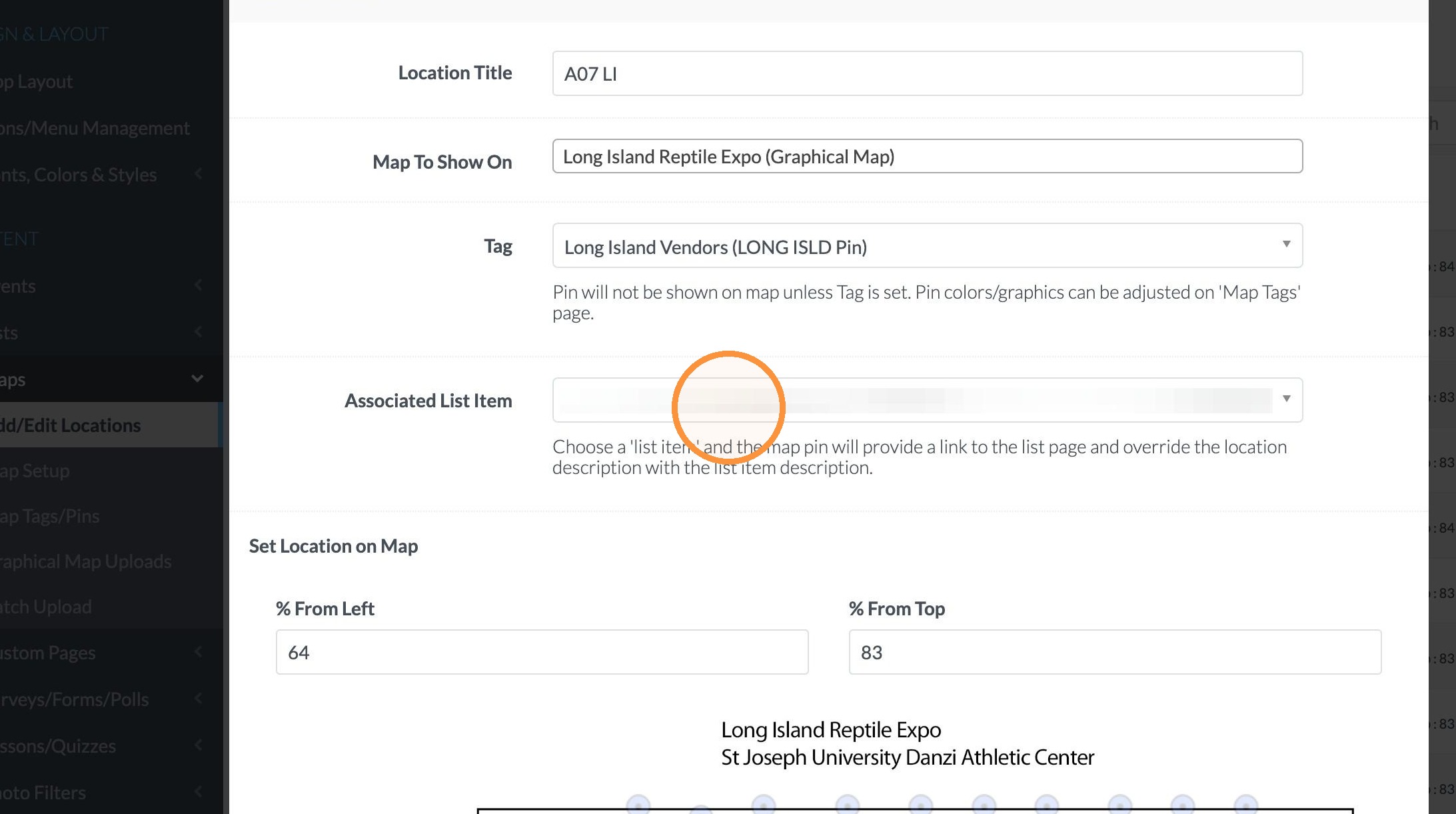
6. Select the List Item that should be associated with that location. Please note that using this method you can select just 1 list item per location. If you want to have several locations associated with a single location, you must edit the list items to put the location in.
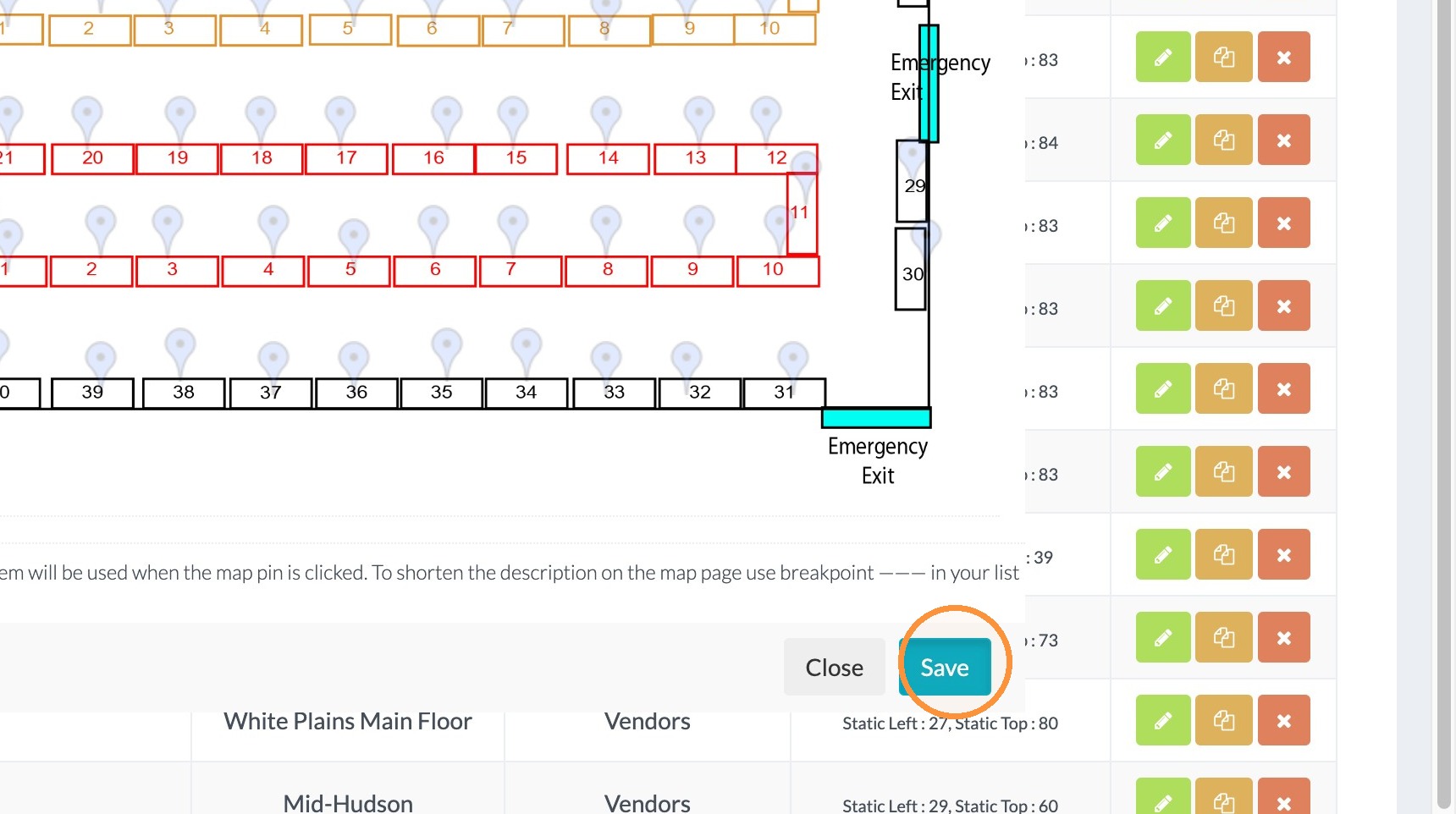
7. Click "Save"
8. Click "Update Locations In App"