Learn how to efficiently manage your image library by using the batch upload and resizing tools. This guide will help you streamline the process of assigning thumbnail images to ensure a professional look for your listings.
Image Upload
1. Login and go to Fonts, Colors & Styles
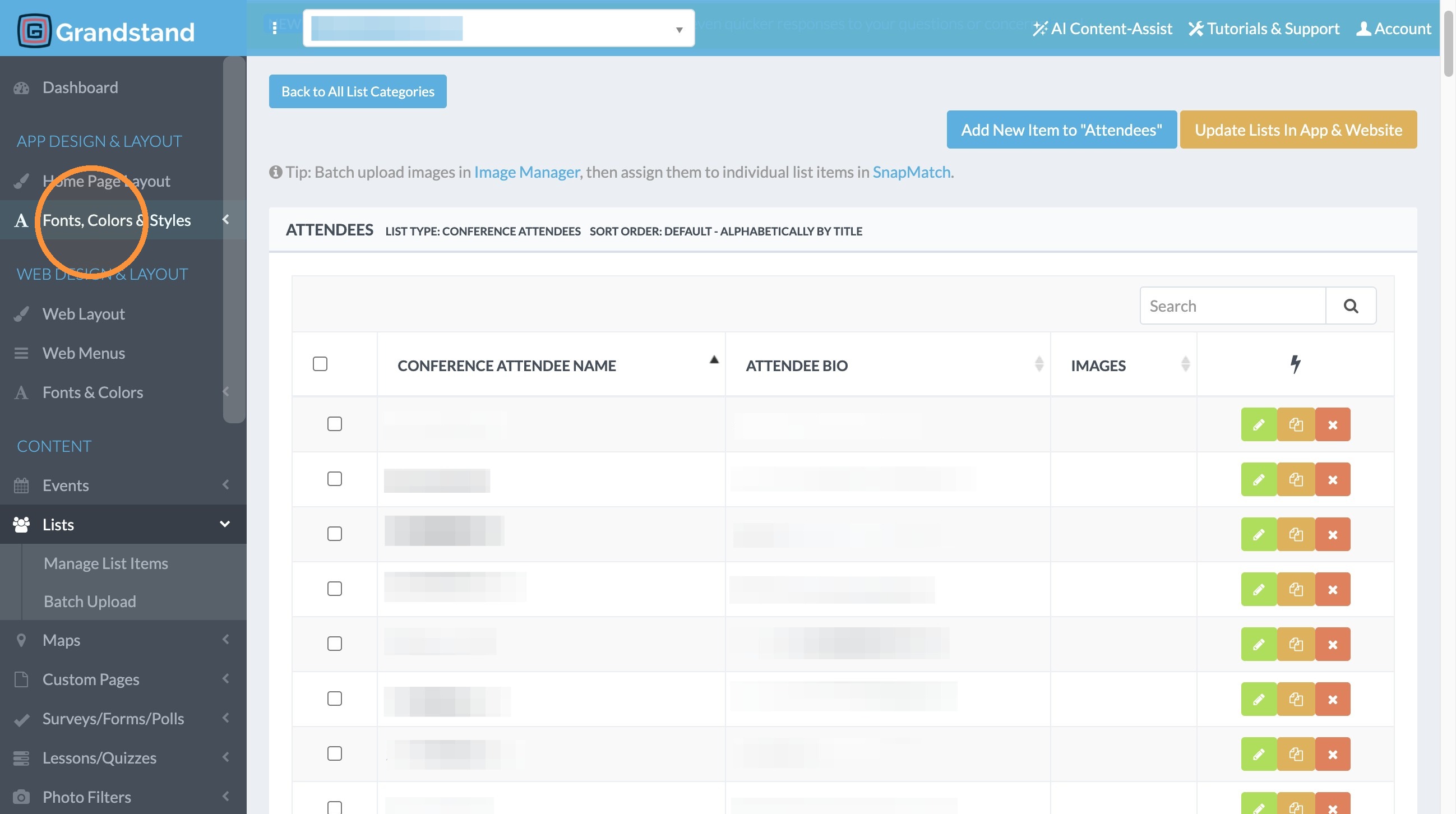
2. Click "Image Manager"
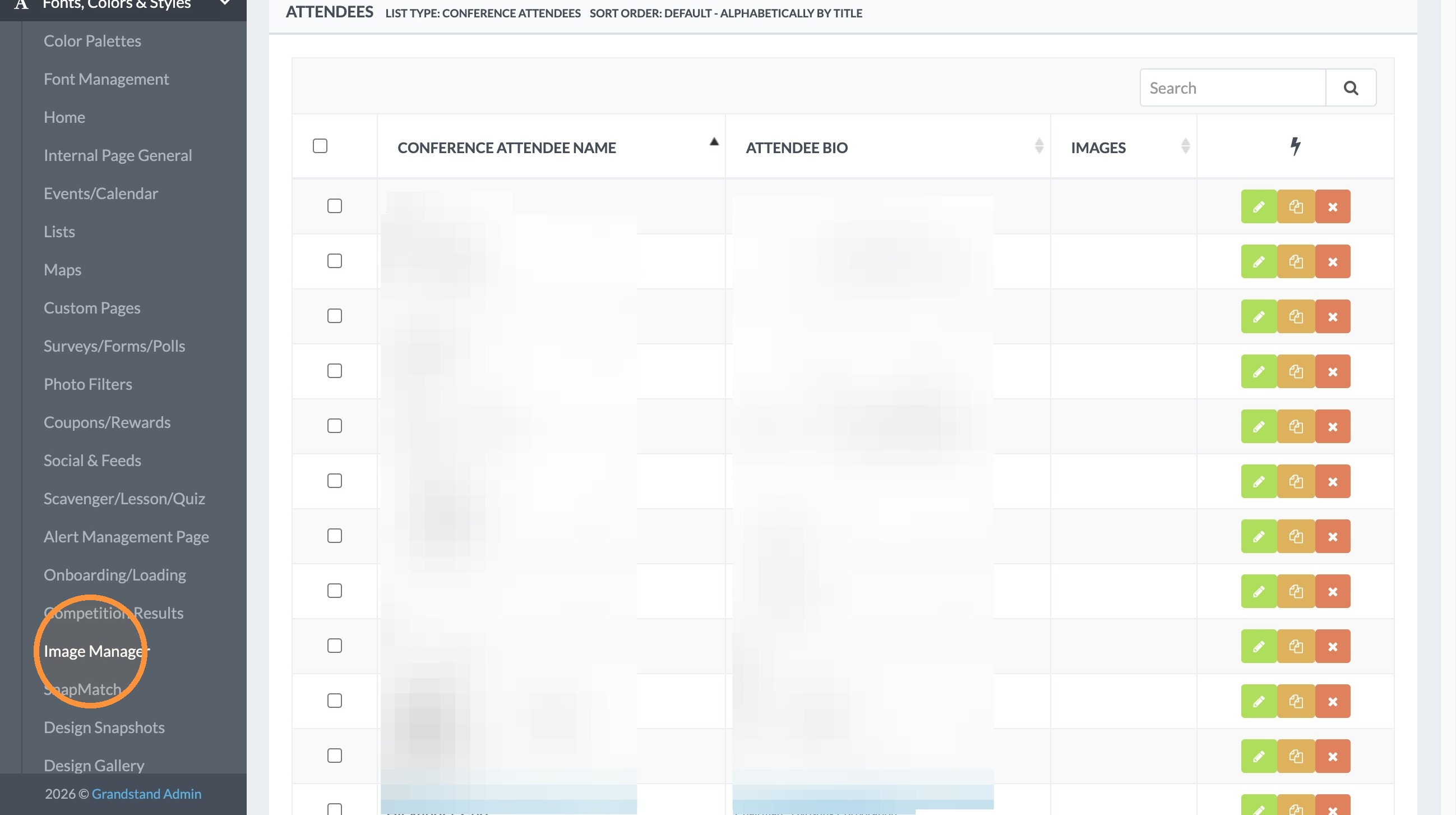
3. Click "Batch Upload Images"
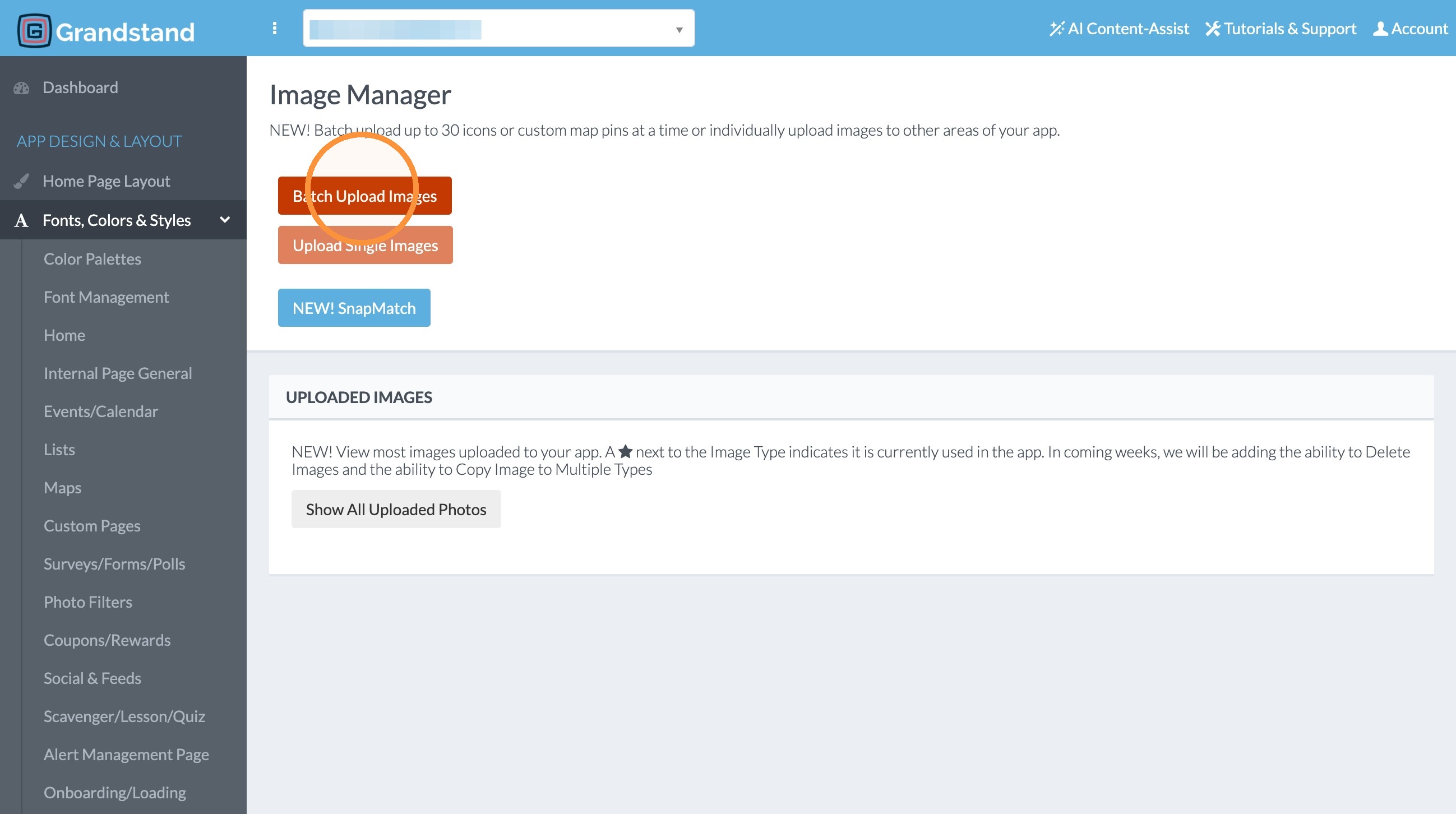
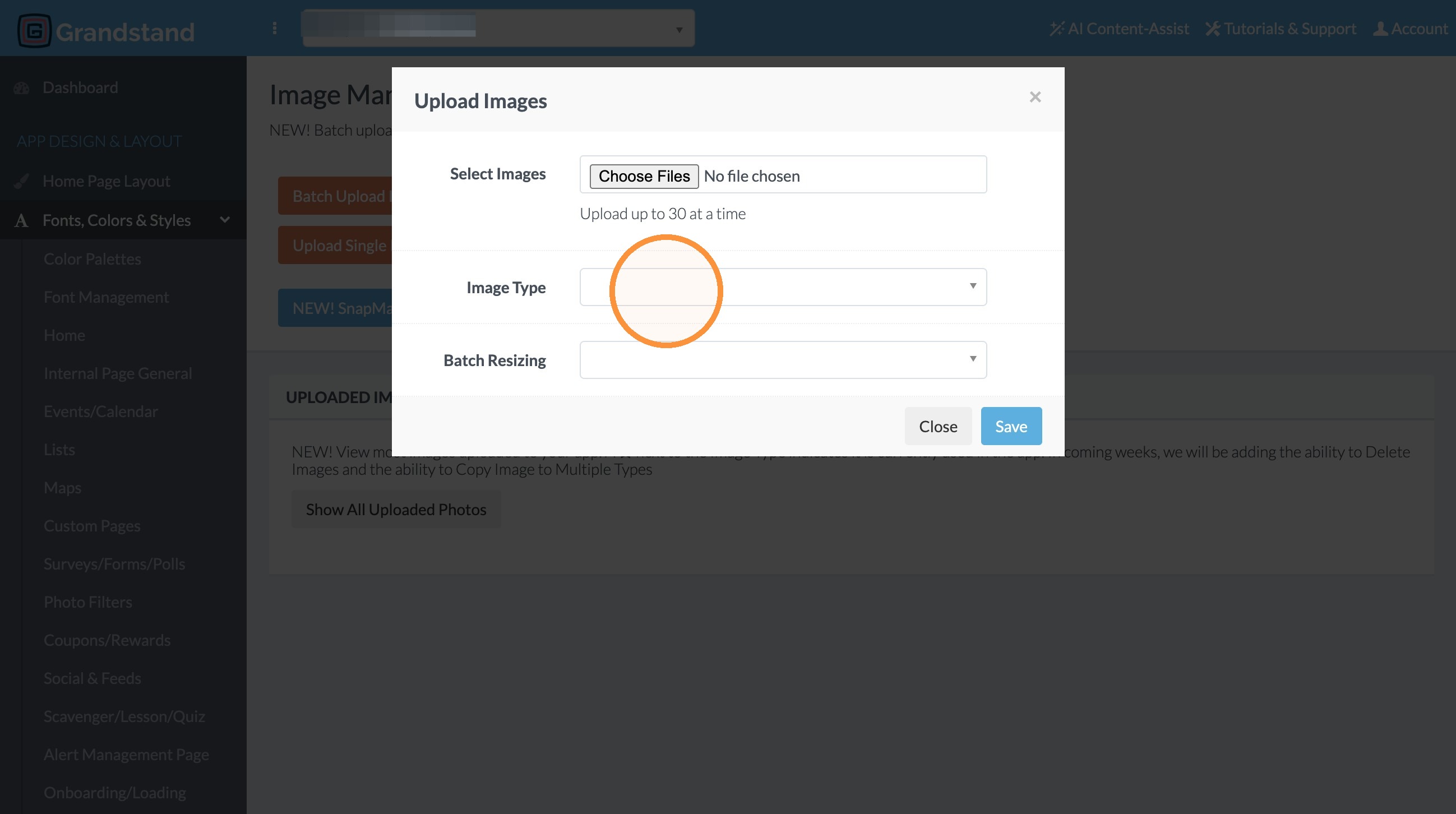
4. Click Choose Files and select the files from your computer to upload. You can do multiple at once. Start with 10 at a time, you may be able to upload up to 30 at a time.
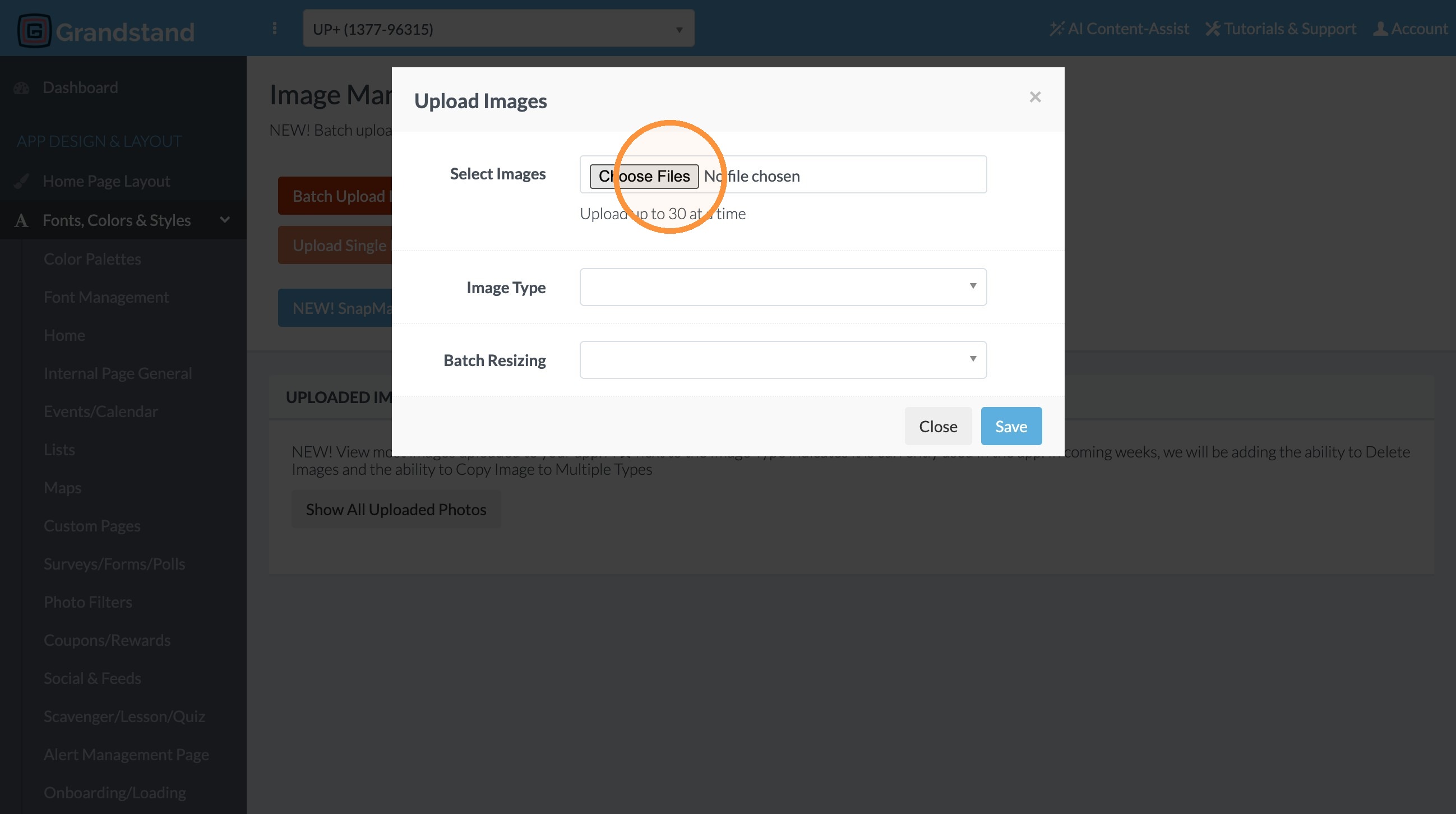
5. Open the Image Type menu.
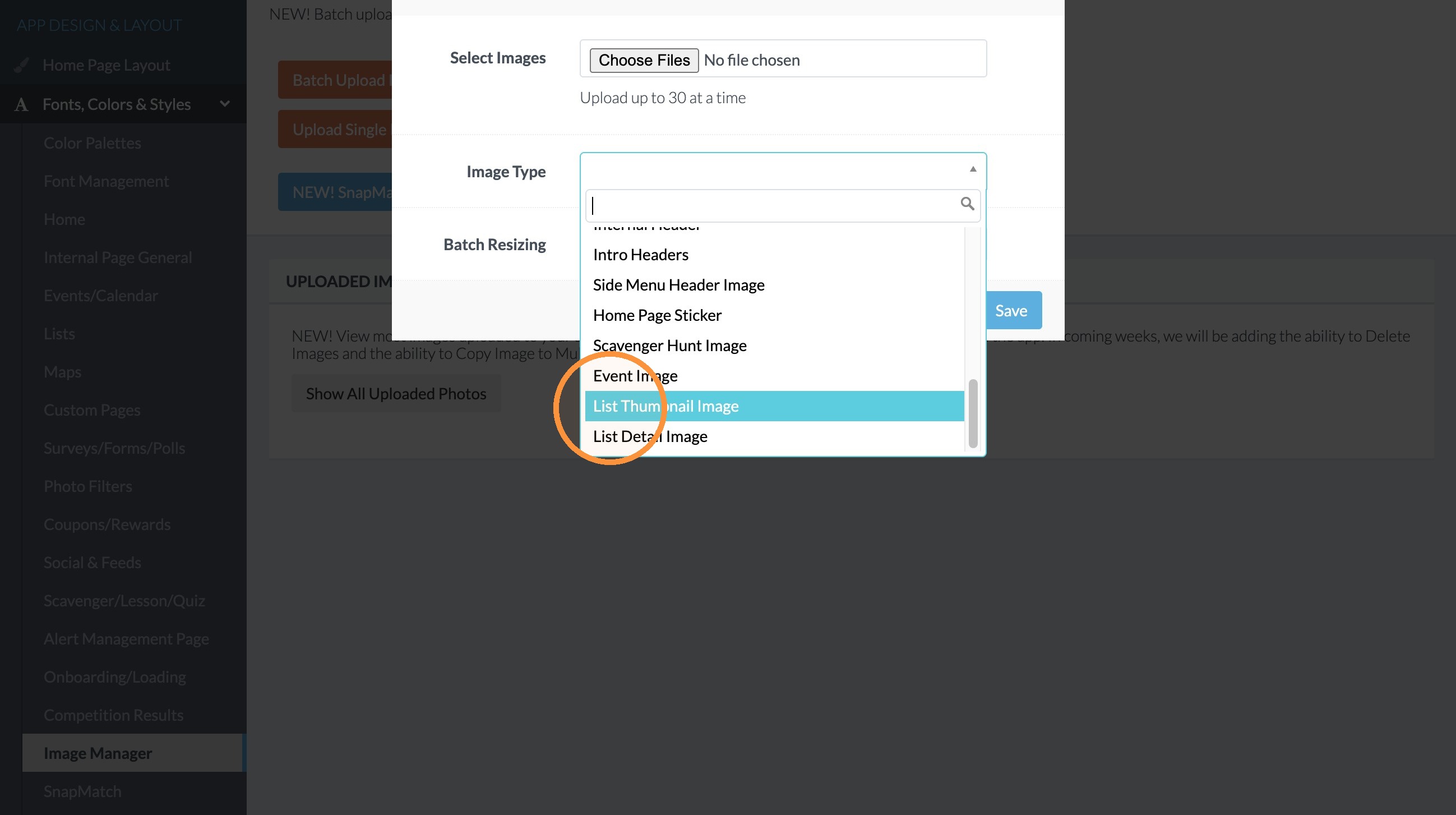
6. Click "List Thumbnail Image" - this is the image that would be used on the list page, and as the default image for the interior page of a list item (unless a separate image is uploaded). You can also batch upload other types of images as seen in this drop-down menu.
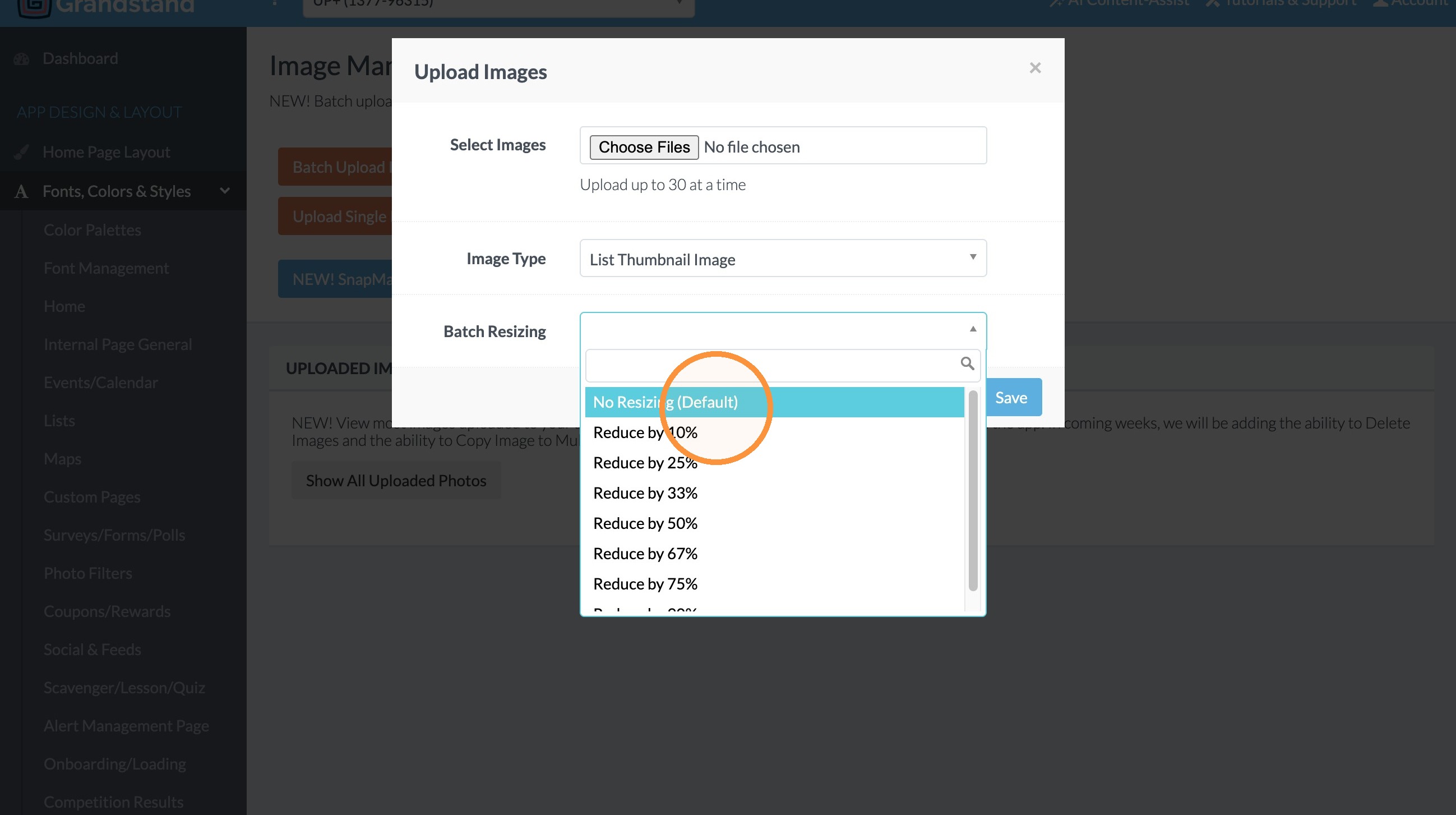
7. Open the Batch Resizing dropdown. Click "No Resizing (Default)" if your image is already the ideal size (we suggest 900x900 square for thumbnail images).
8. Click "Save"
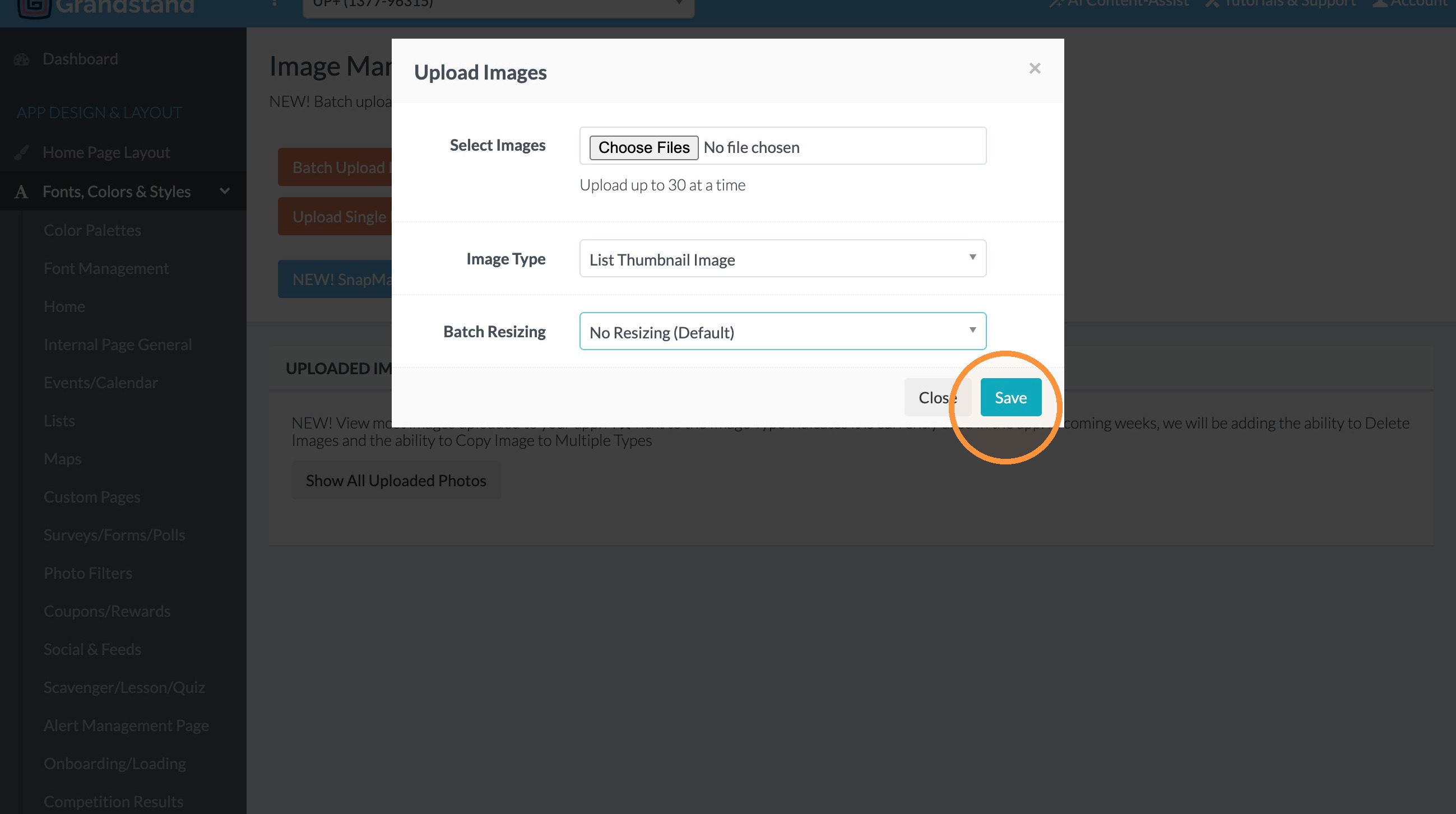
Image Assignment using SnapMatch
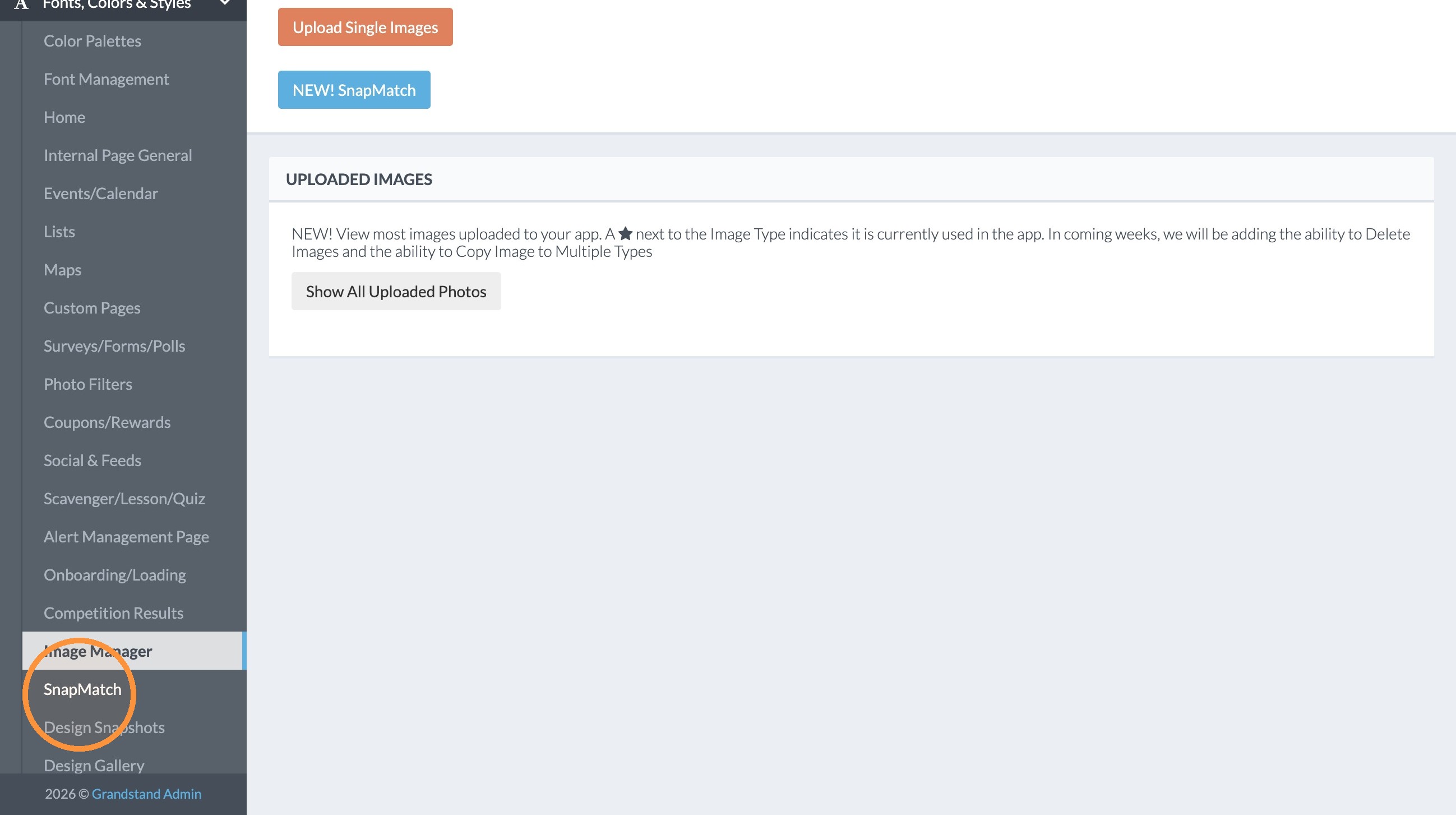
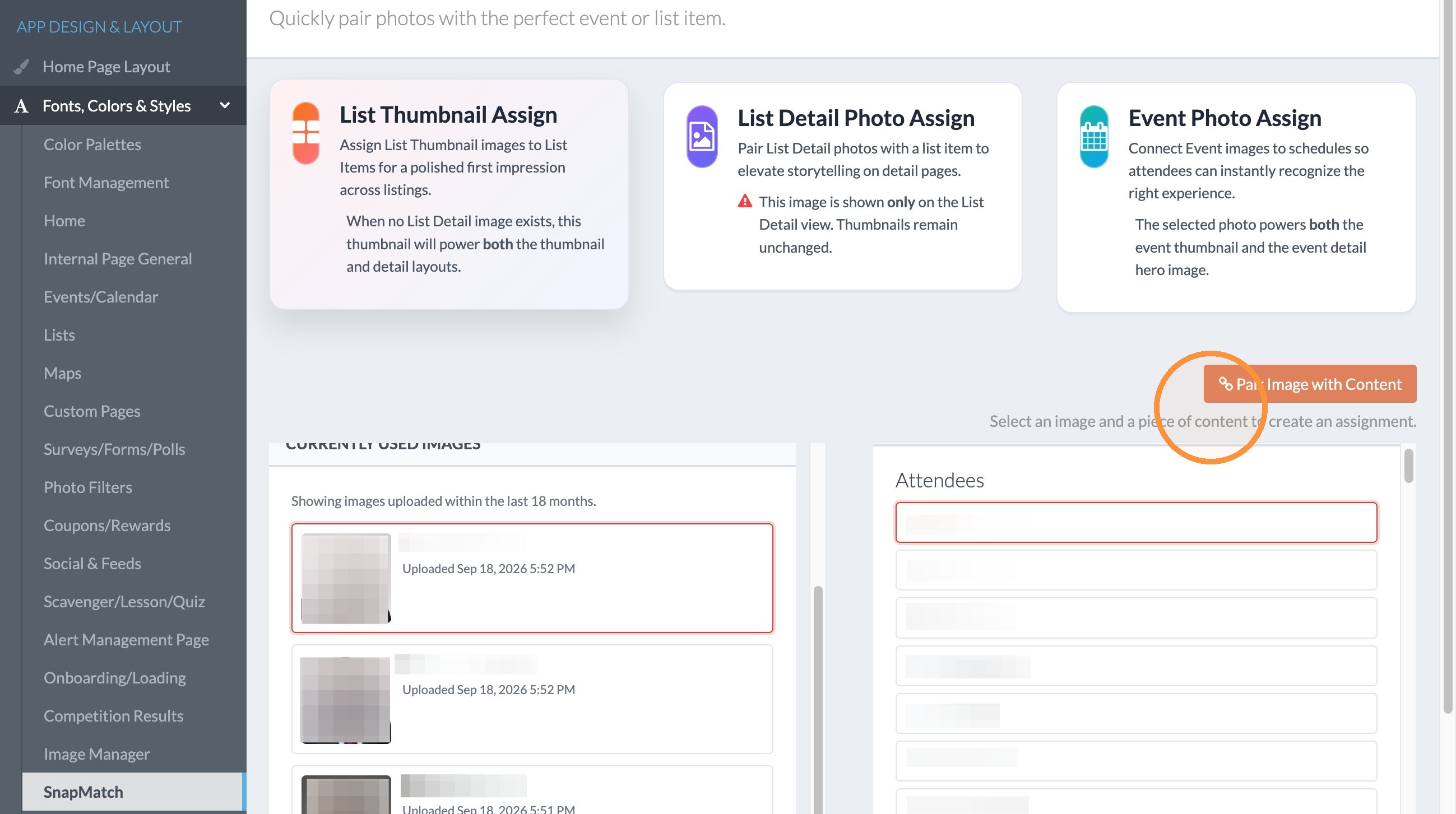
9. Click "SnapMatch" from the left-hand menu or the blue button at the top of the page.
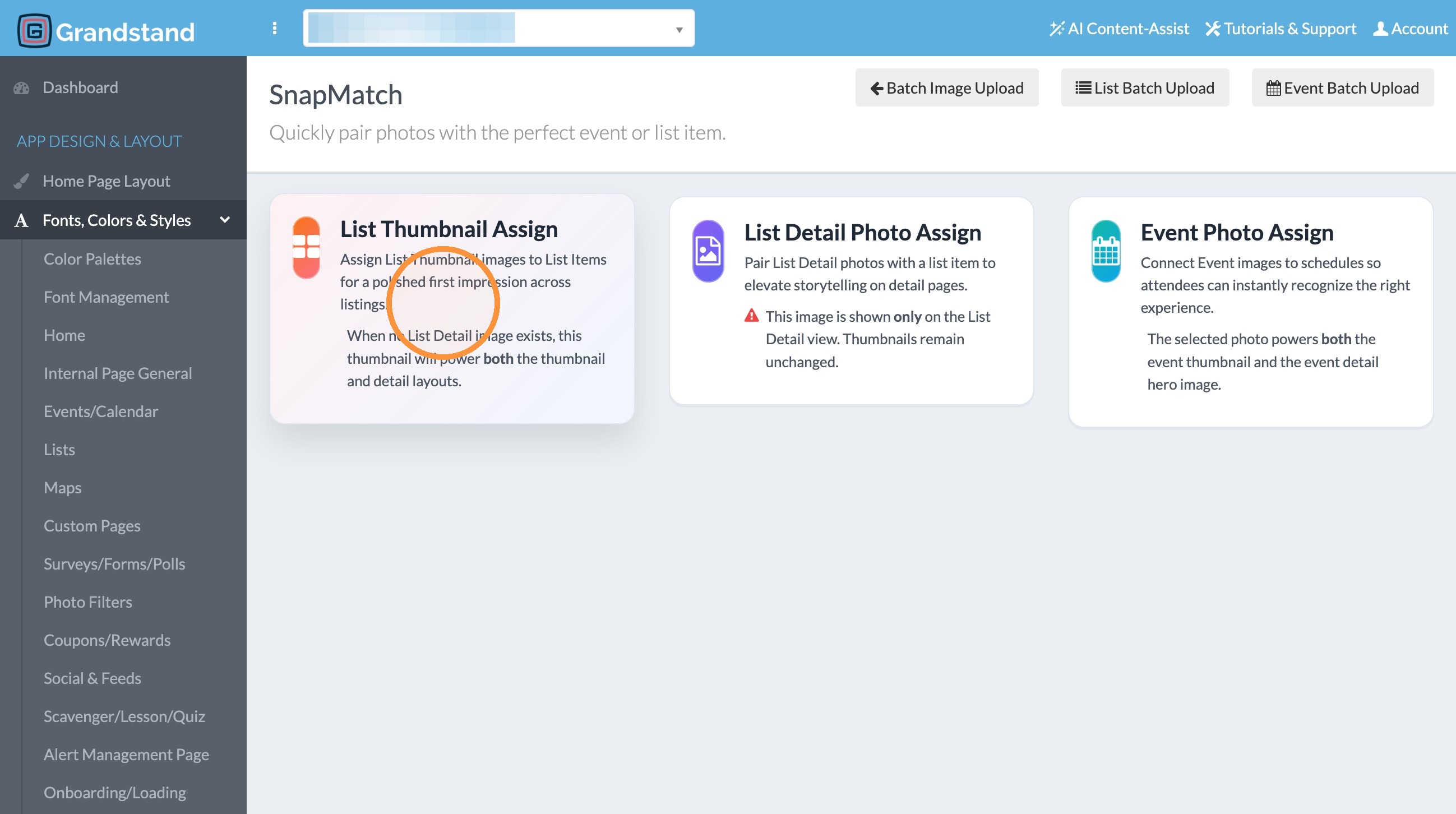
10. Click List Thumbnail Assign since we are assigning the thumbnail images for a list. You can also snapmatch the interior detail photos for a list or the event photos. But you select the type of photo in the Image Type menu (step 7 above) to indicate which type of image these are.
Content Pairing
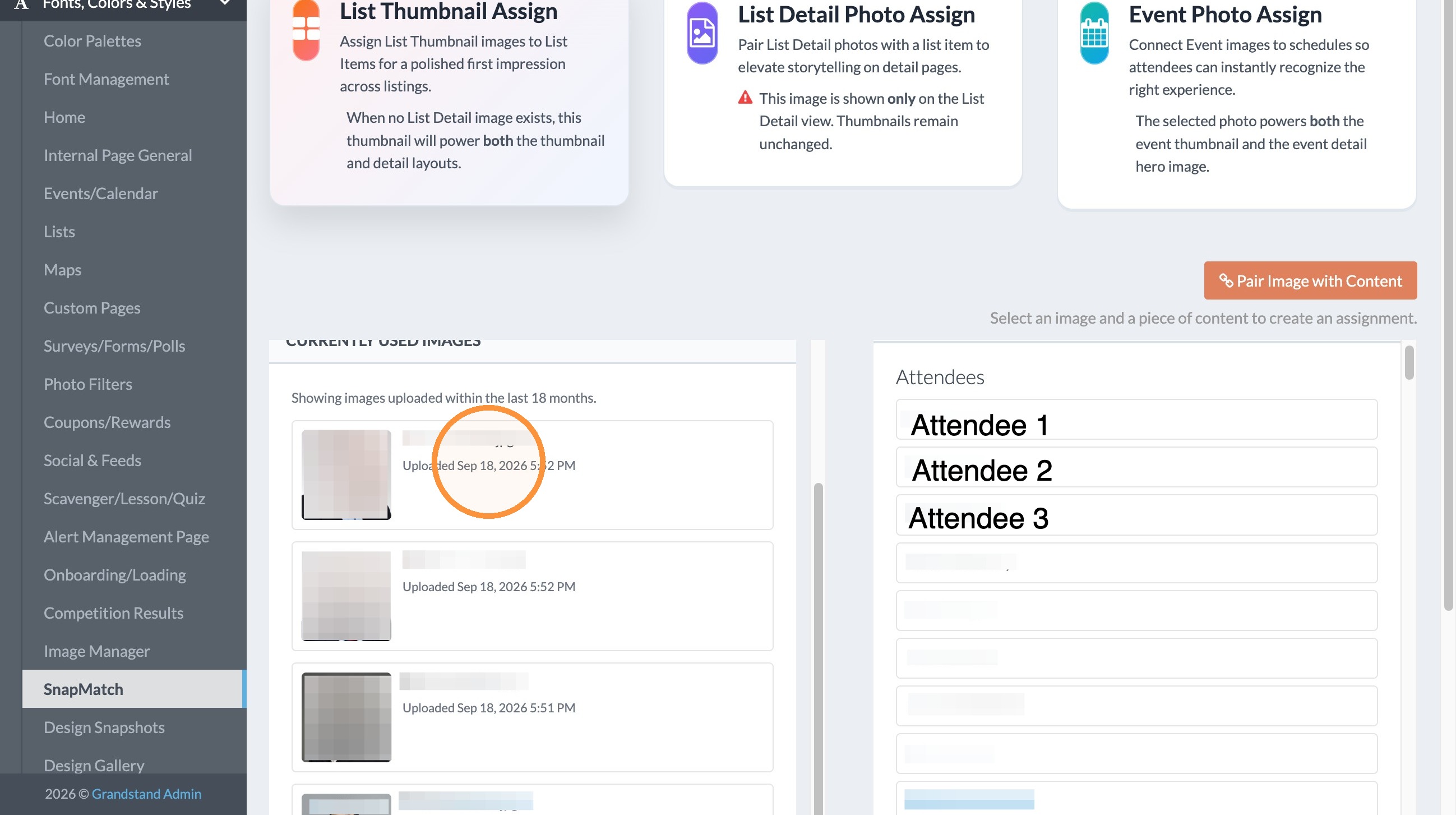
11. Click the photo on the left that you want to match.
12. Click the name or list title on the right that you want to pair with the image (or the list item that this photo should be assigned to).
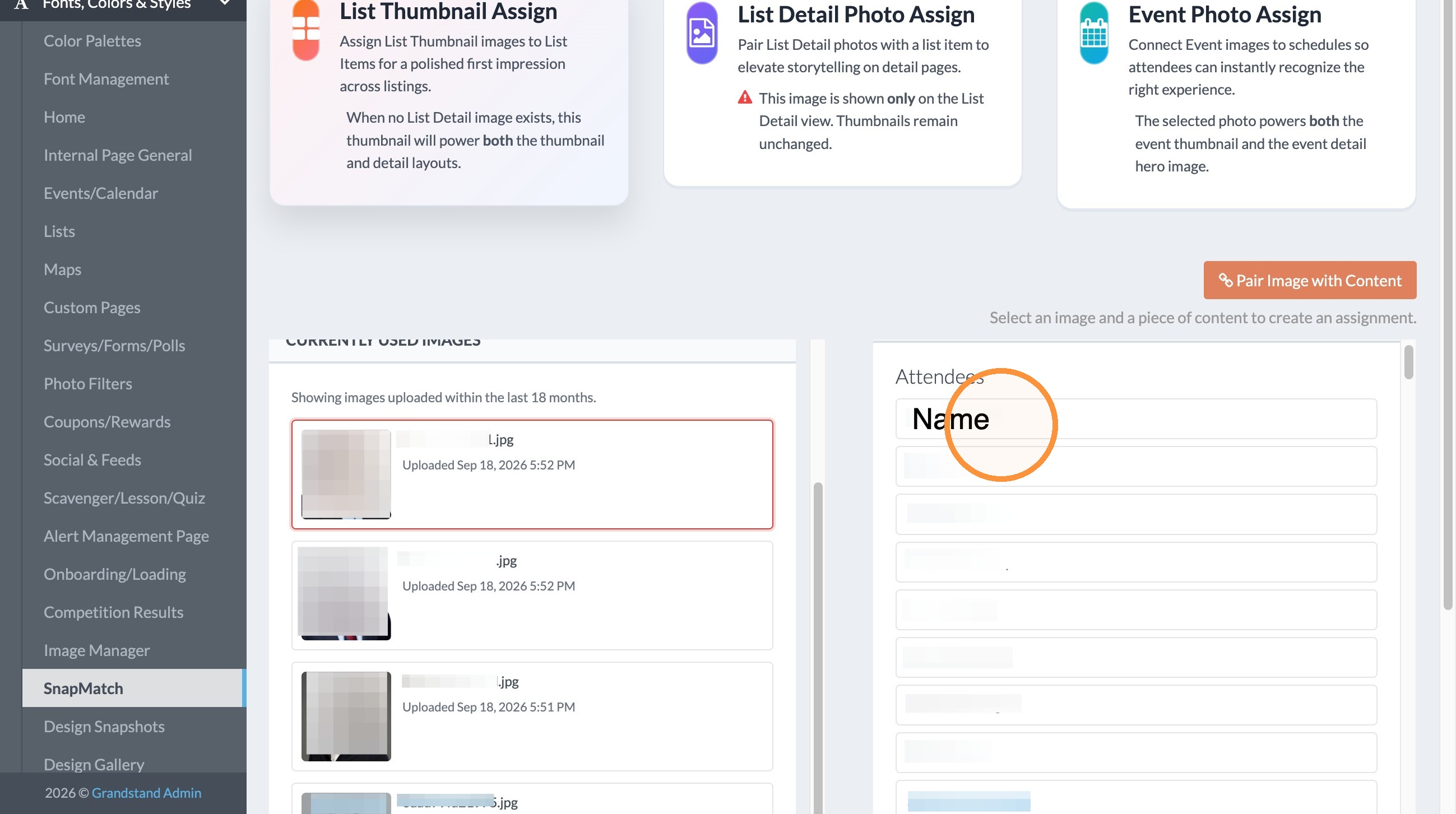
13. Click the button titled "Pair Image with Content."
14. When you pair the images, go to Lists and click "Update Lists in App" to make the changes to the list items.
| Images, Batch Upload, Lists, Events |