Google now requires all active Google Play developer accounts to declare whether they are a trader or non-trader by February 1, 2027. Missing the deadline can prevent app updates and result in your apps being removed from Google. Learn how to officially declare your developer trader status to maintain compliance with Google Play Console requirements. This guide walks you through the necessary account settings and submission steps to finalize your status declaration successfully.
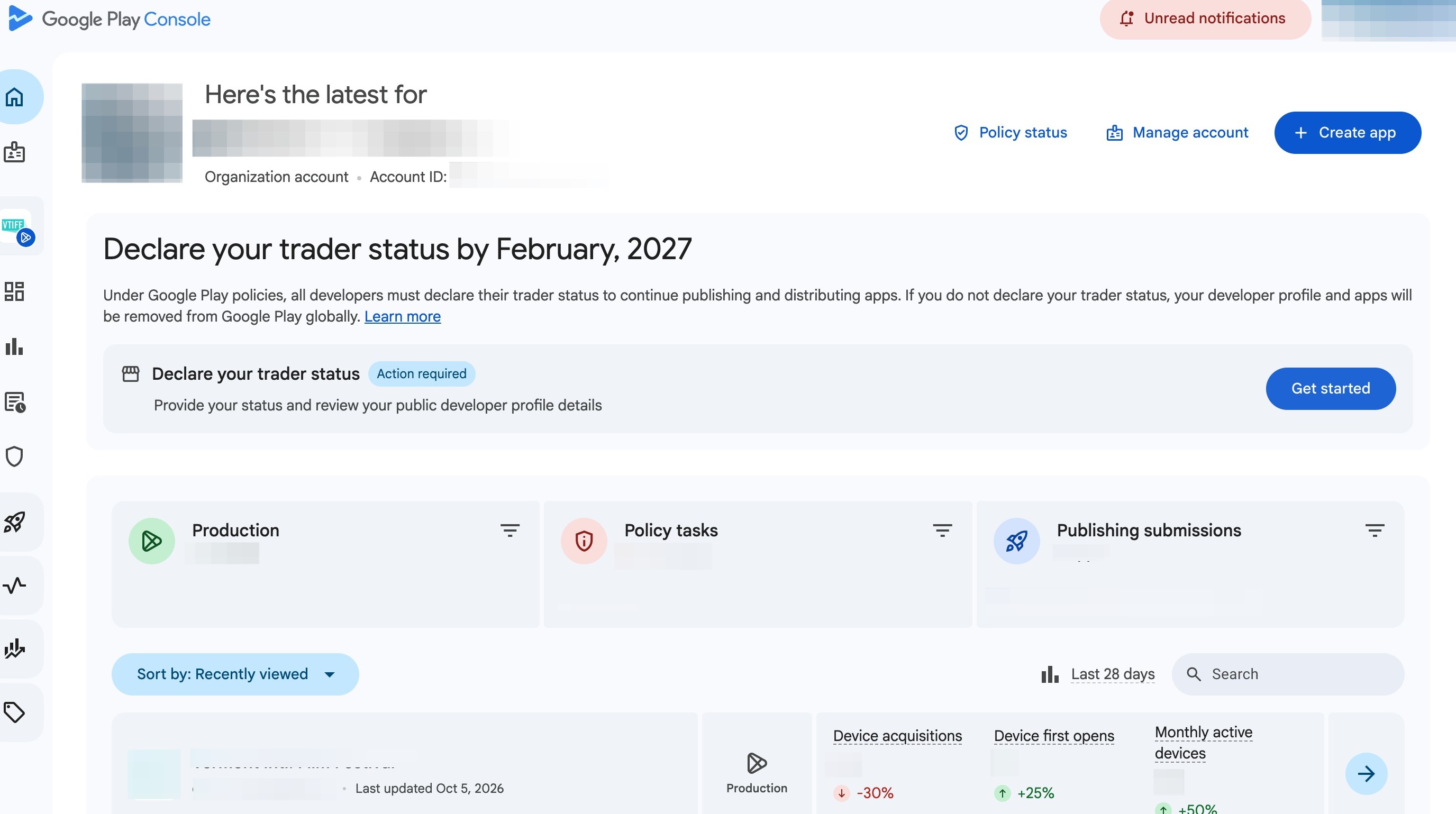
Developer Trader Status
2. Click "Get started"
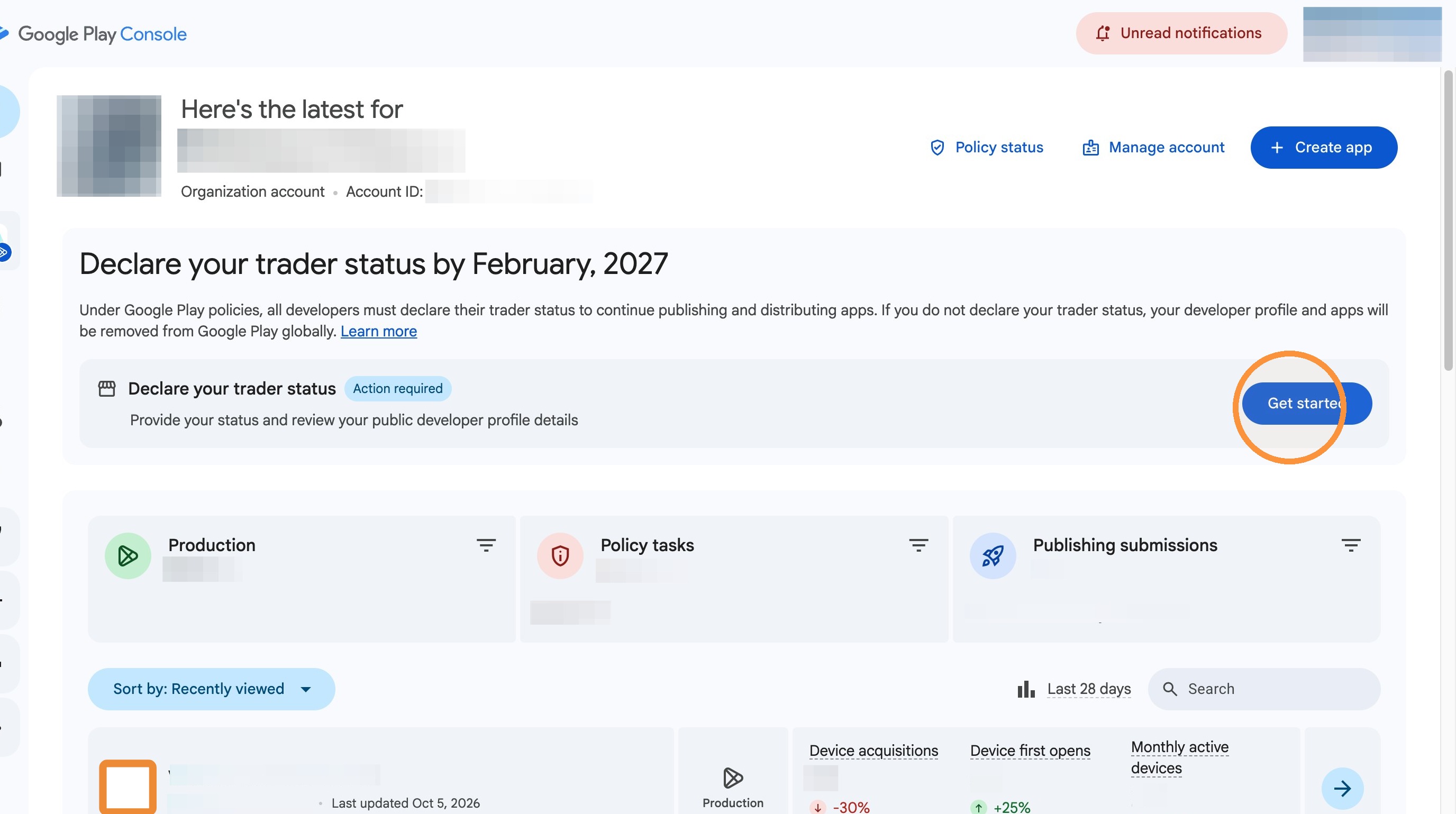
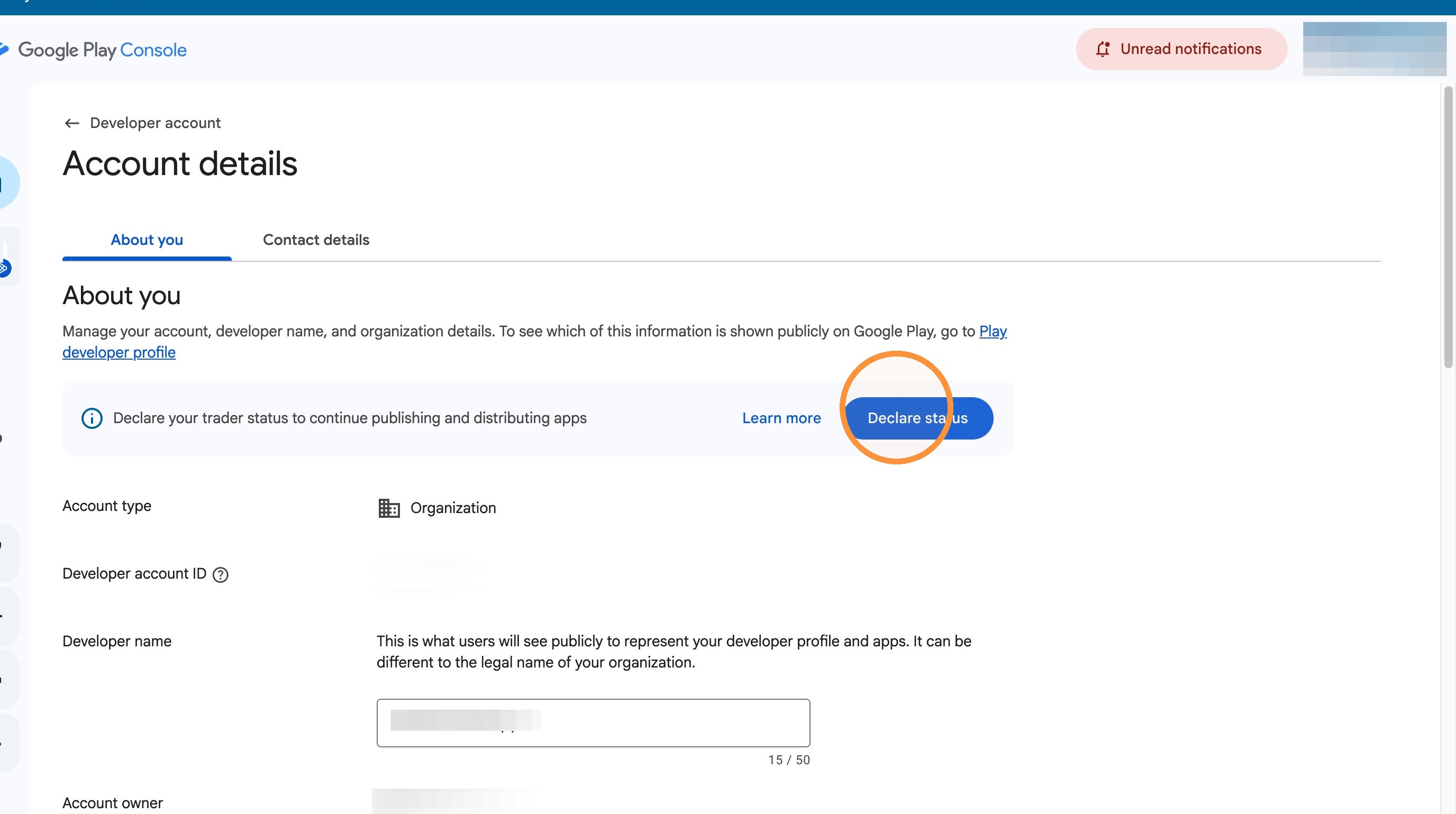
3. Click "Declare status"
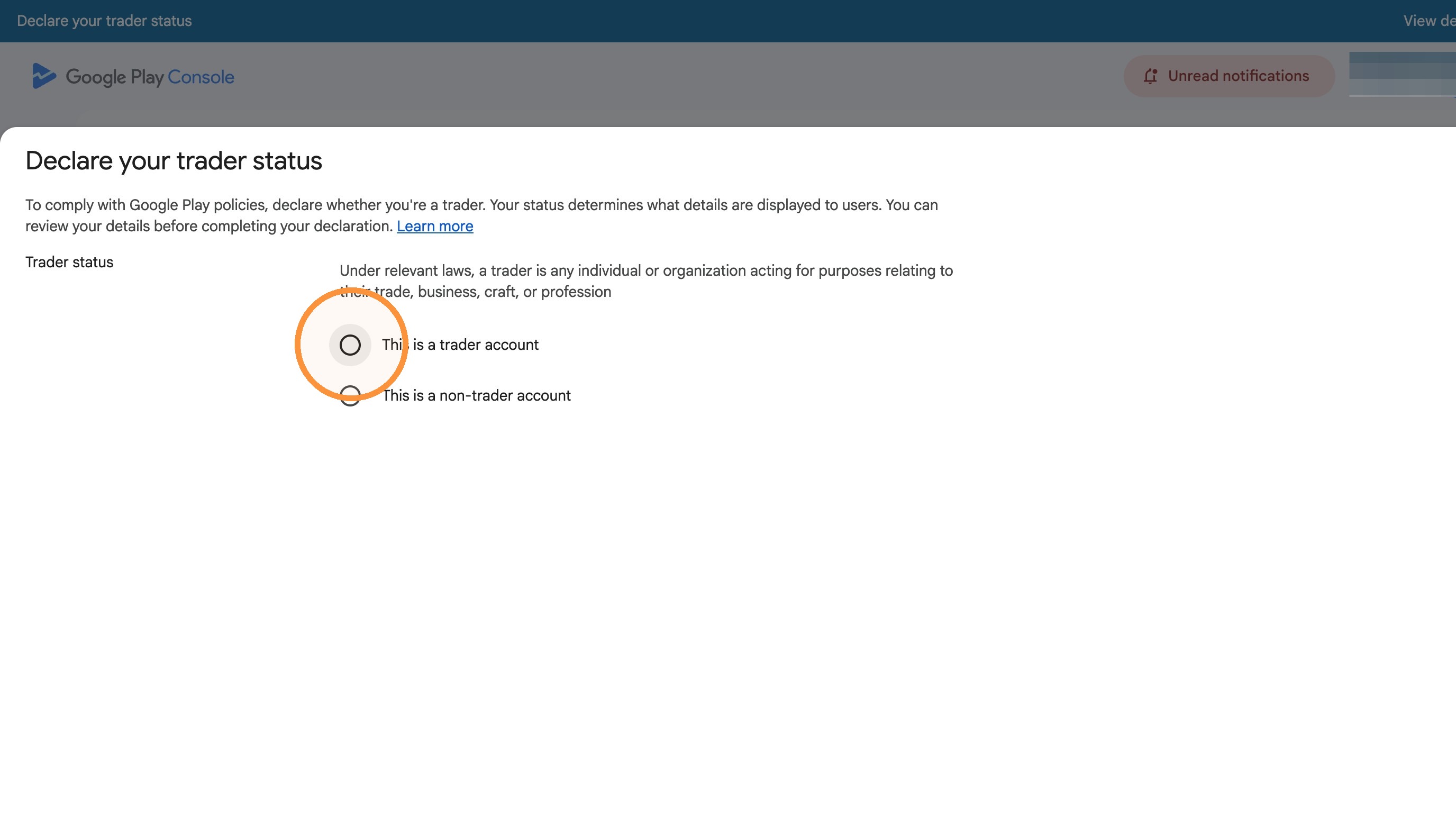
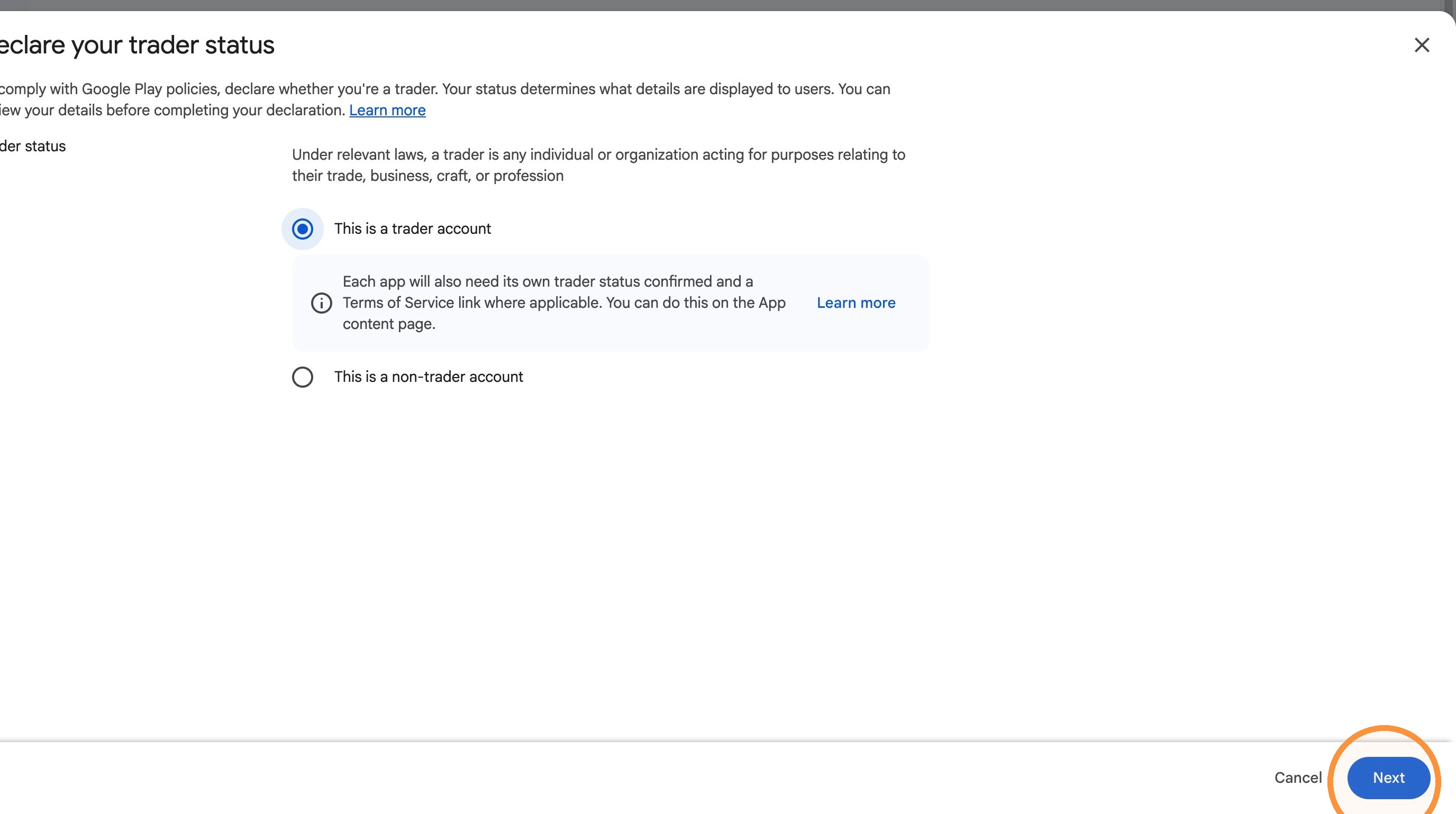
4. Select the “This is a trader account” option.
5. Click "Next"
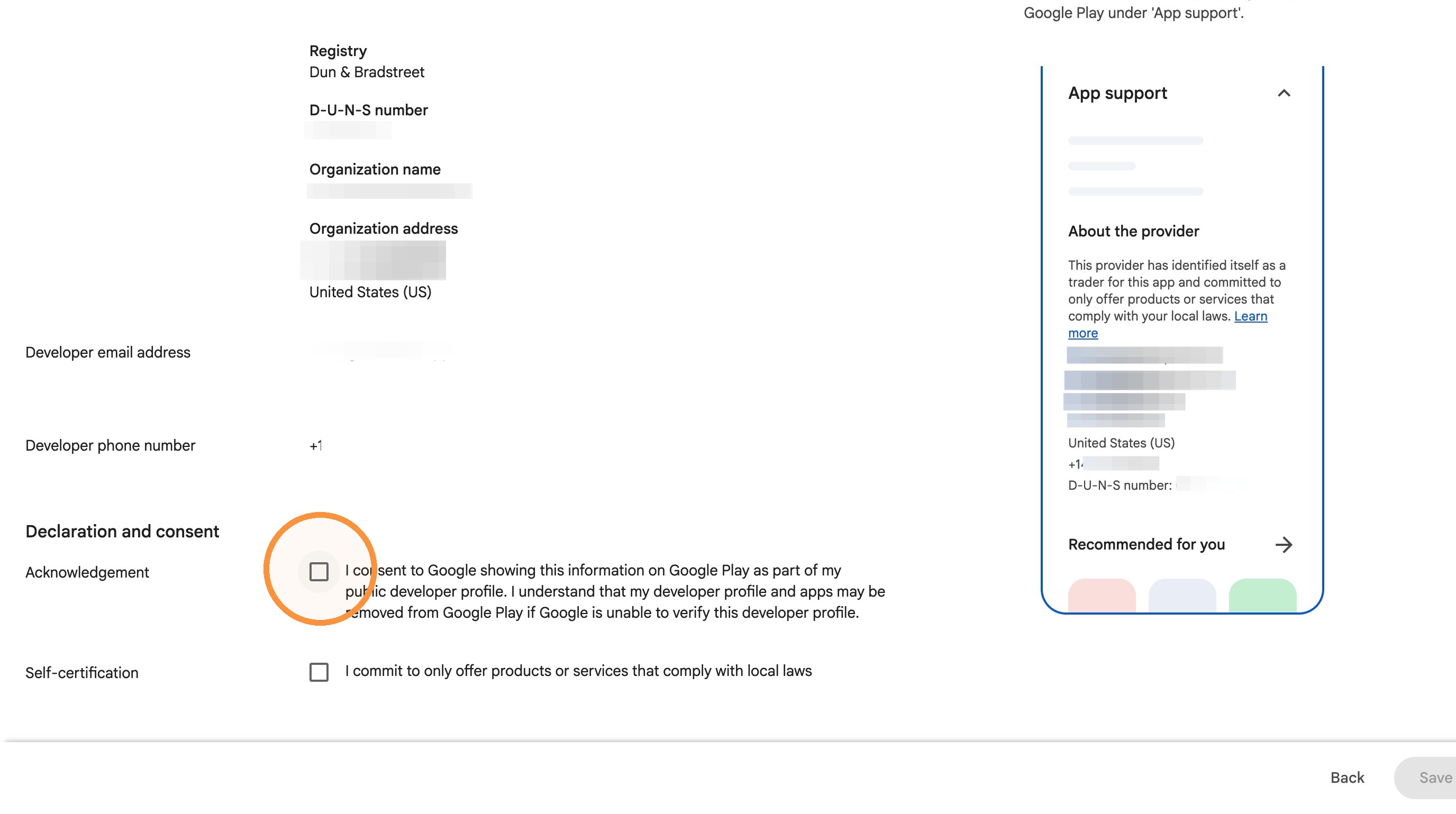
6. Review the DUNS info and provider contact info. If correct, select the acknowledgement checkbox.
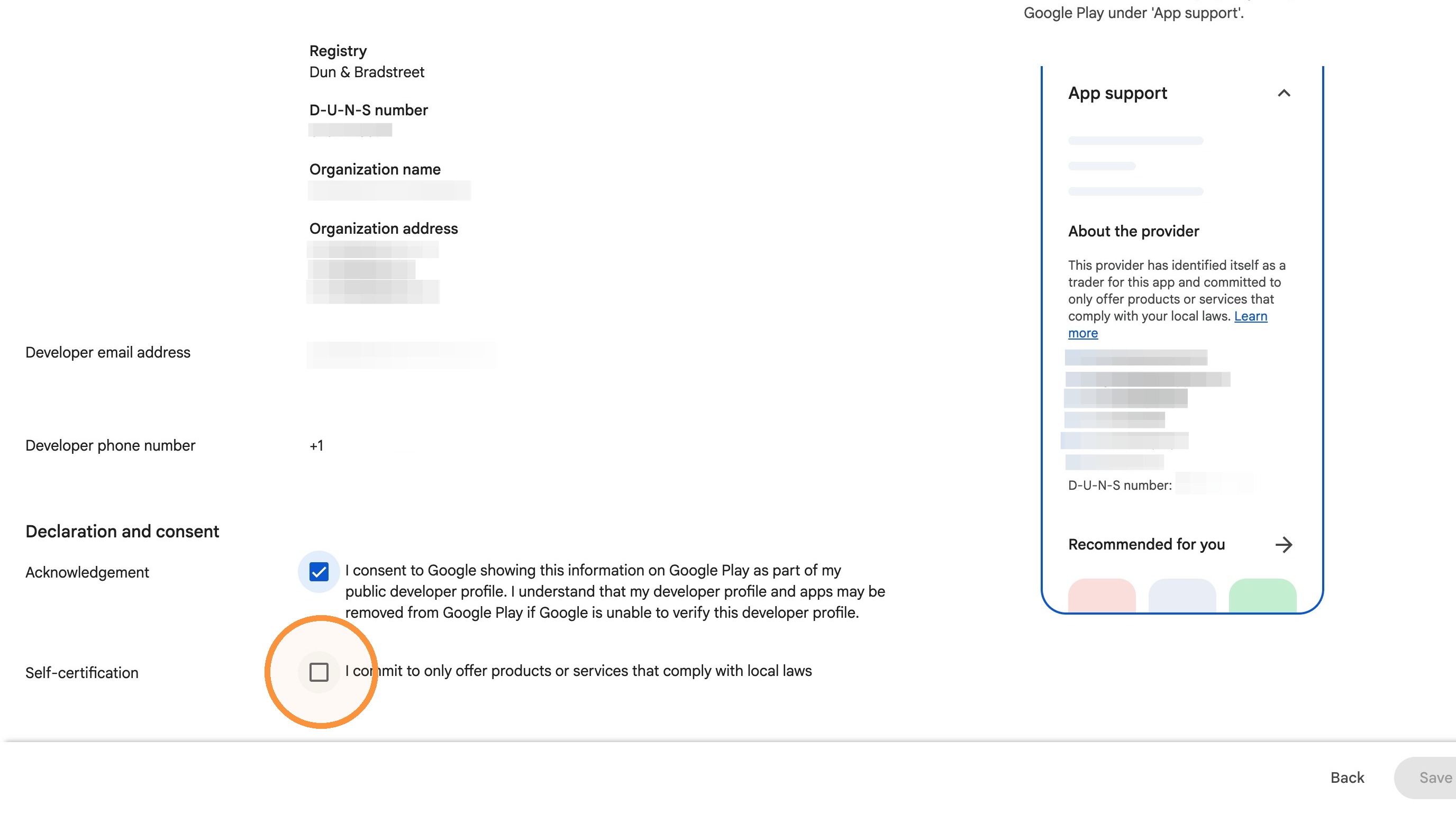
7. Select the self-certification checkbox.
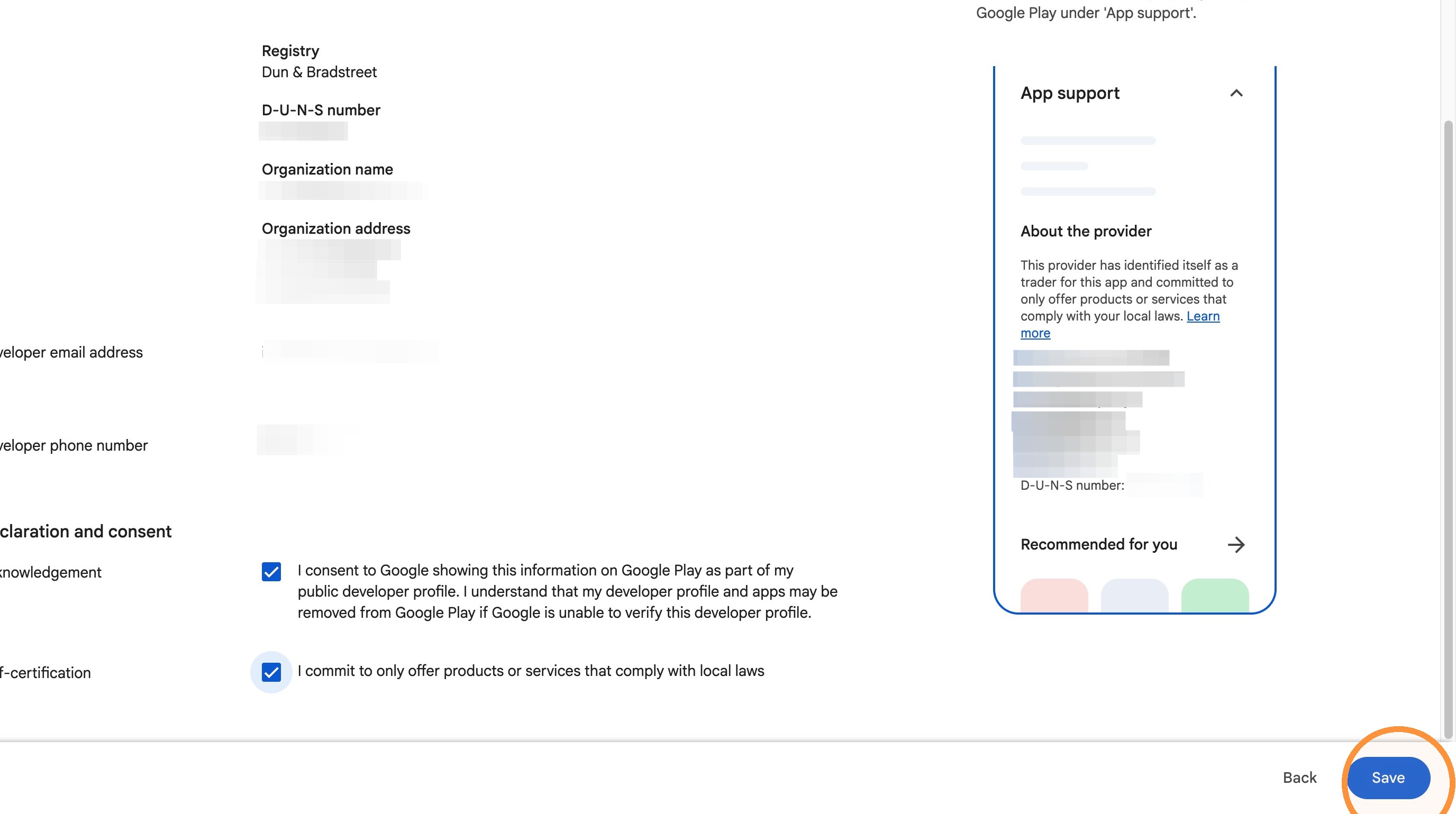
8. Click "Save"
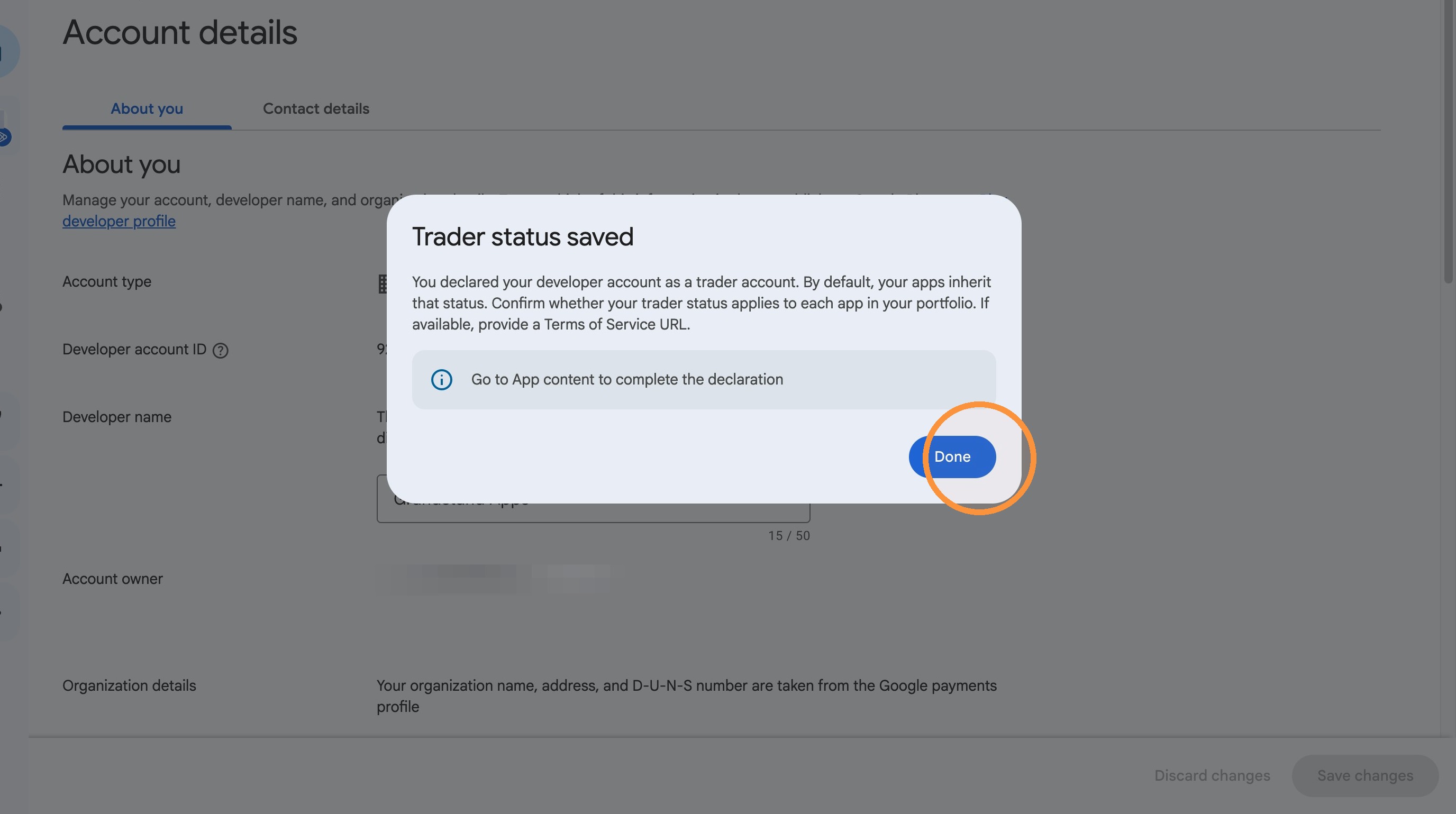
9. Click “Done” to close the confirmation dialog.
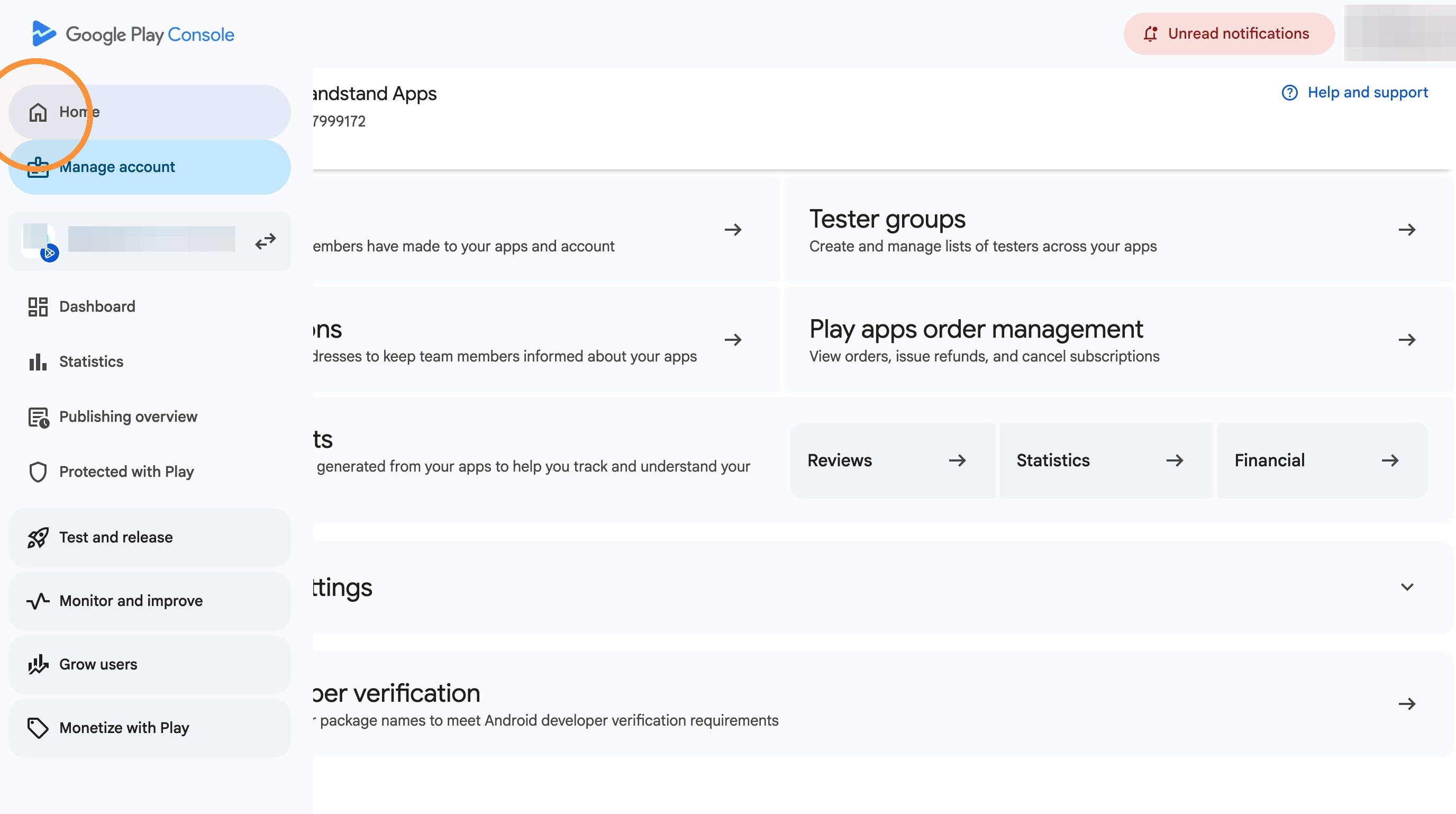
10. Click Home in the left navigation.
App Trader Status
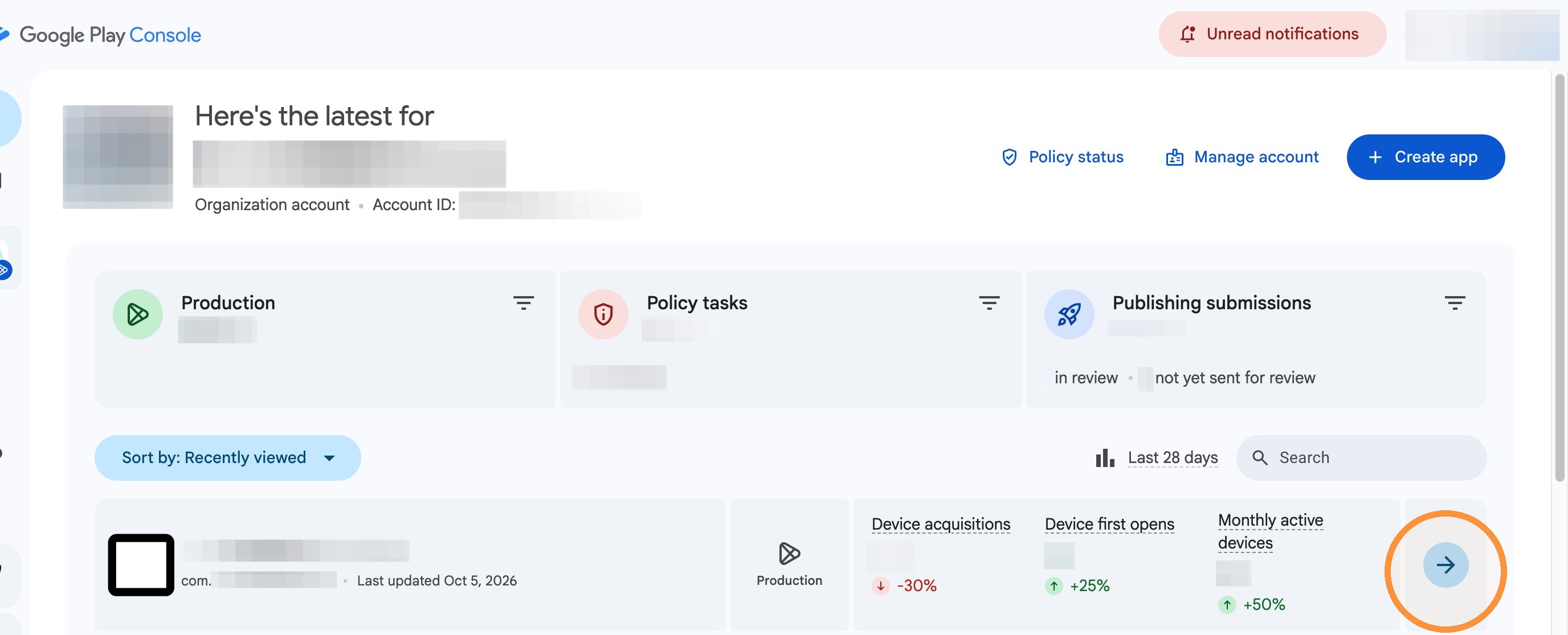
11. Click blue arrow next to your app (if you have more than 1 you will have to repeat).
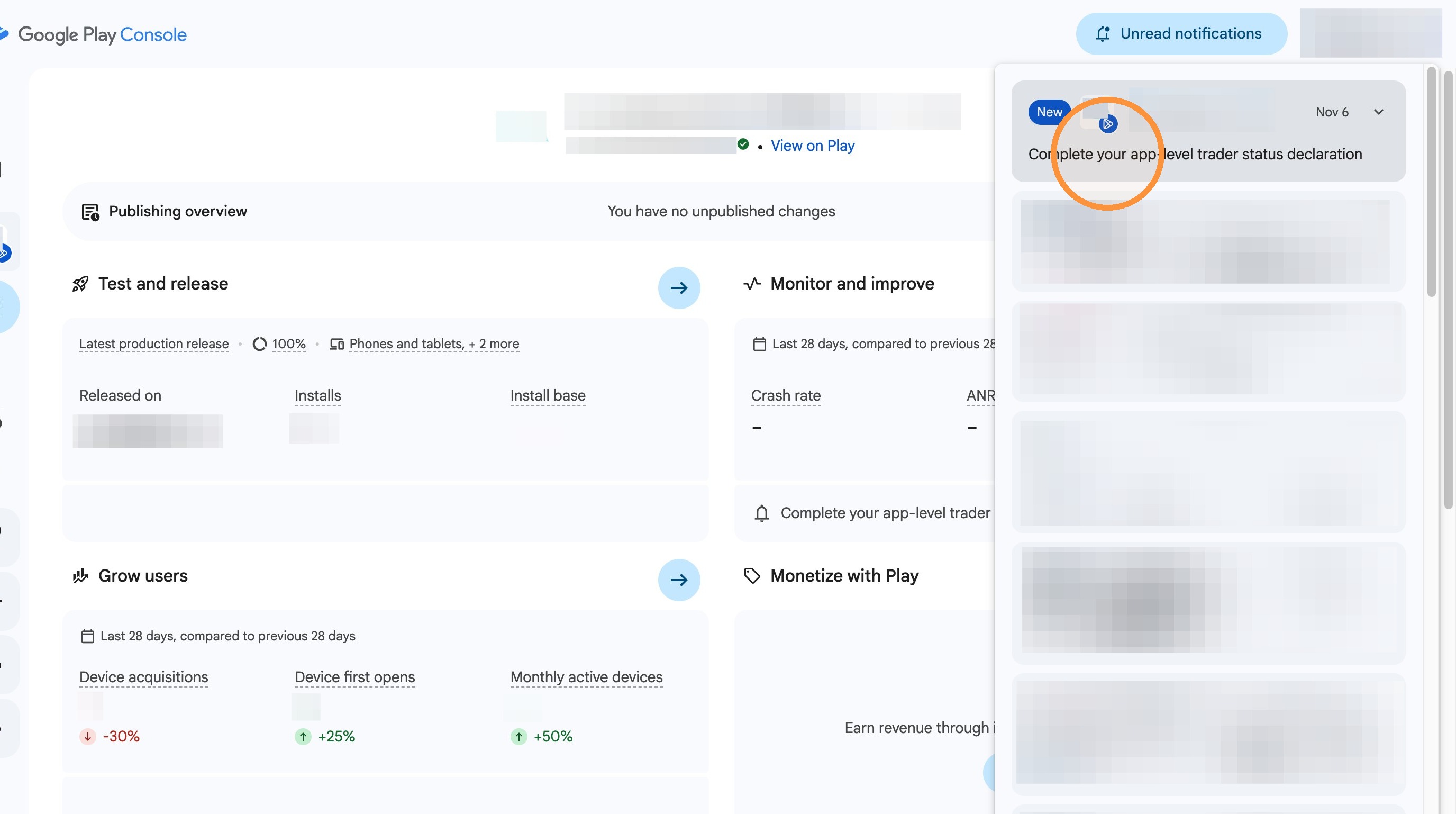
12. Click "Unread Notifications" in the upper right corner.
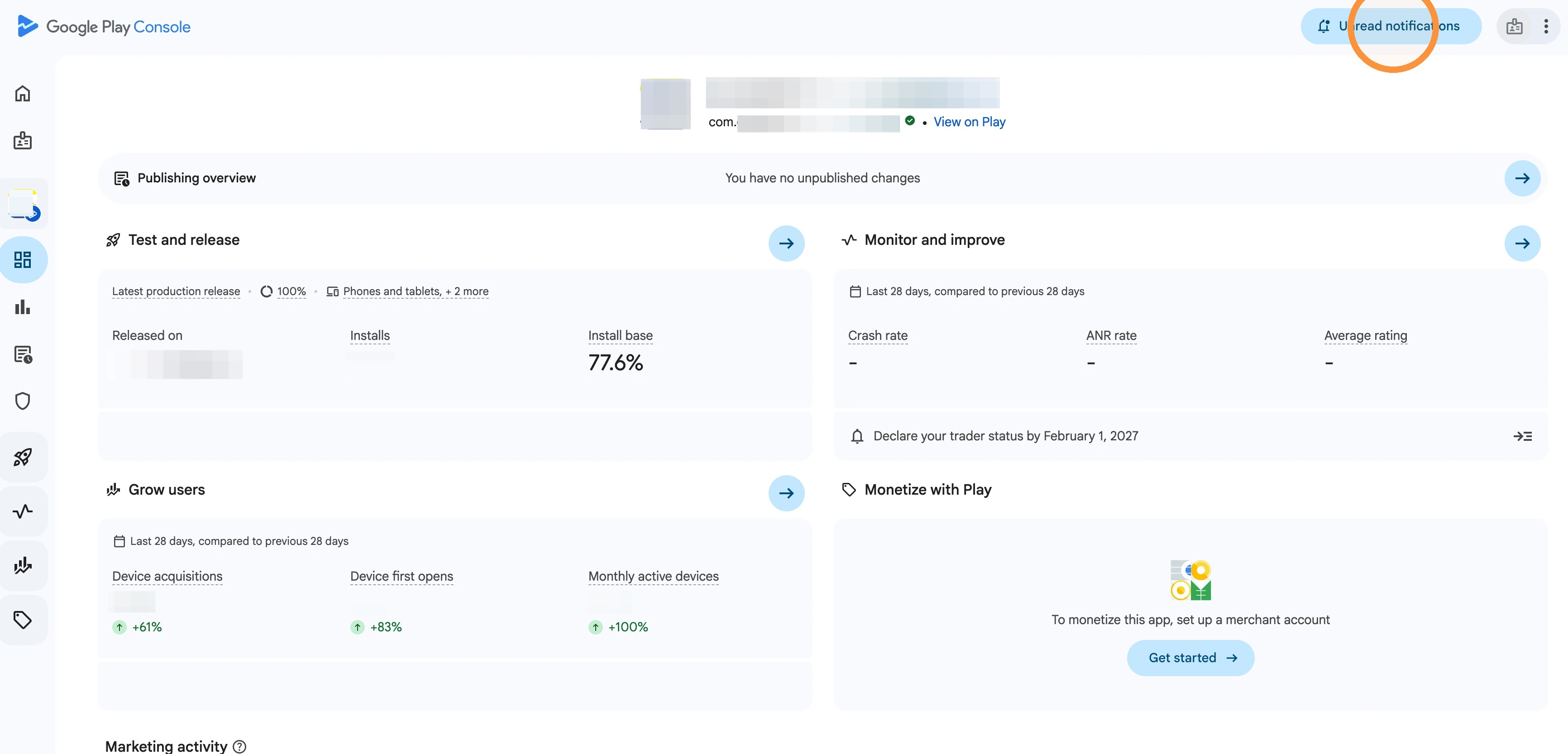
13. Open the app-level trader status declaration notification for the app.
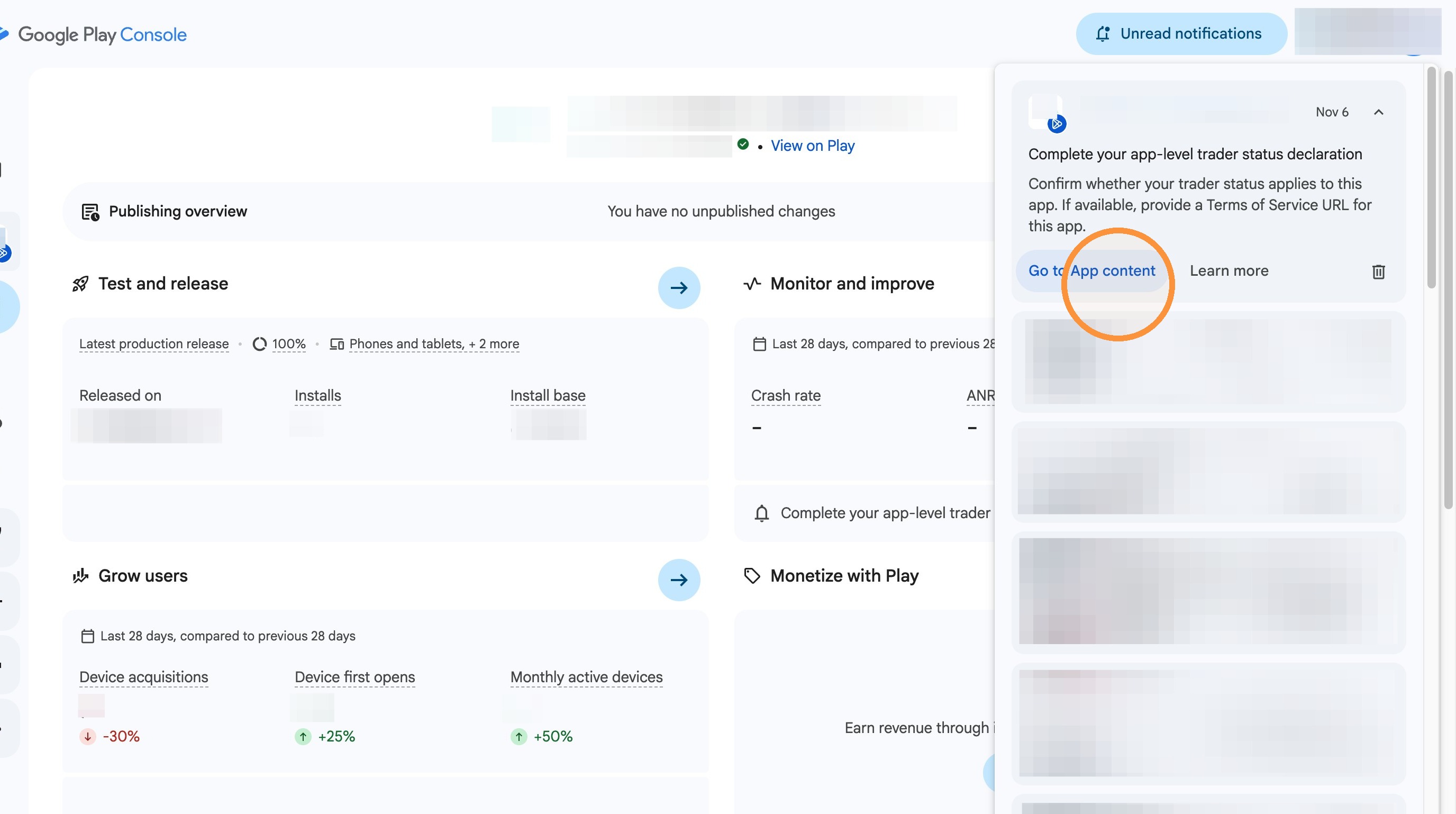
14. Click "Go to App content"
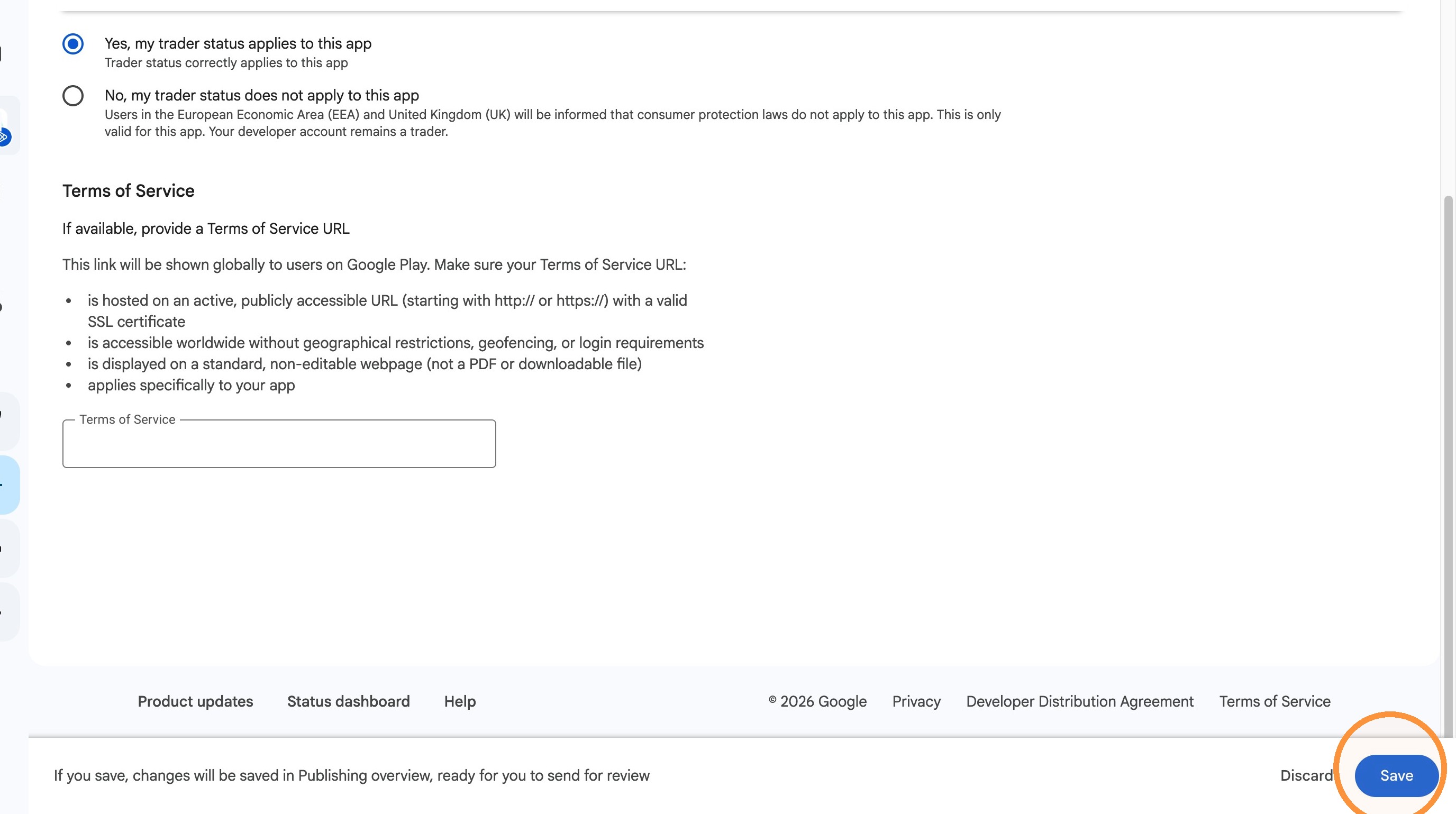
15. Select the radio button next to "Yes, my trader status applies to this app. Then click "Save"
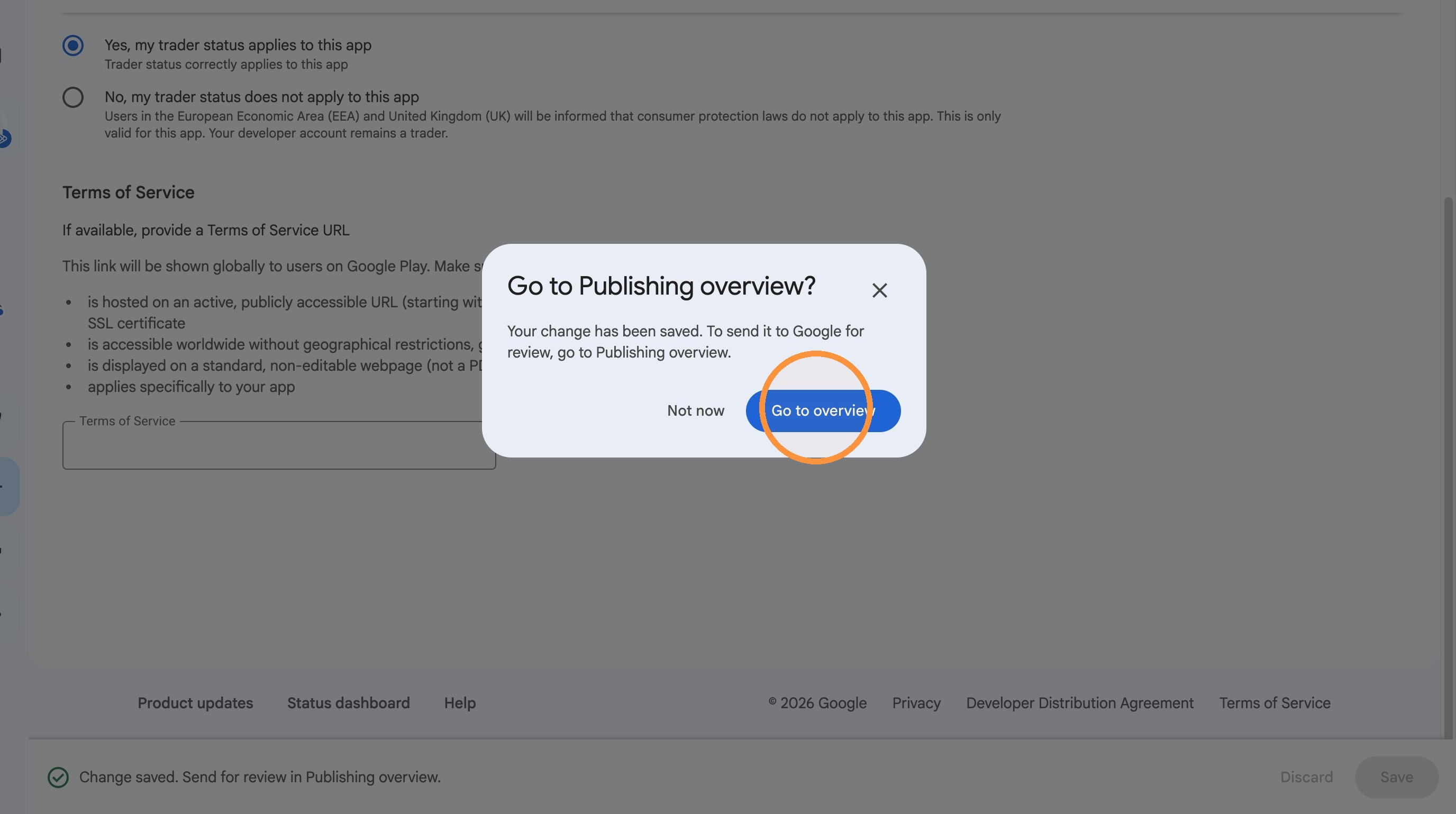
16. Click “Go to overview” in the confirmation dialog.
Review and Submission
17. Click "Submit 1 change for review"
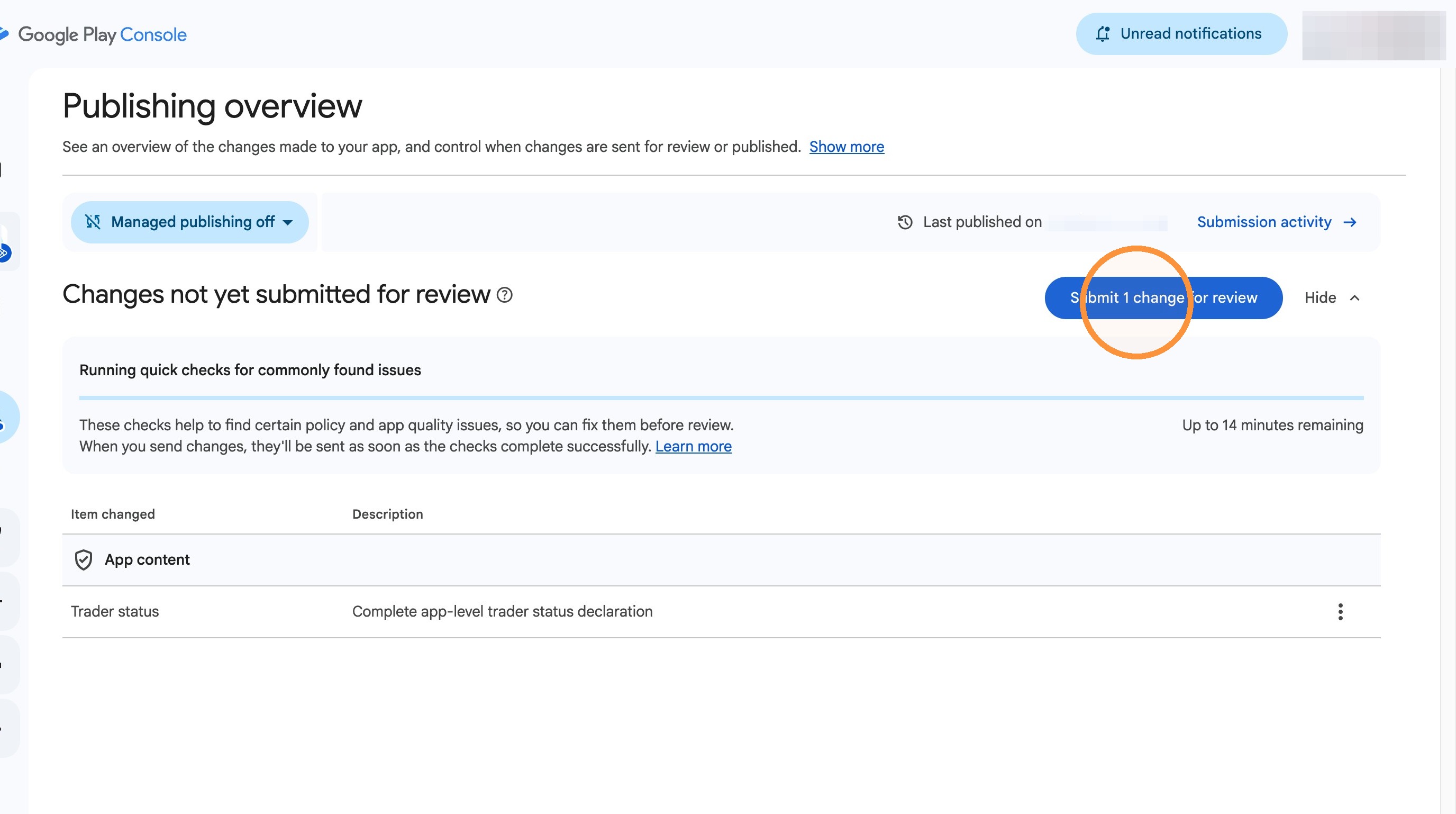
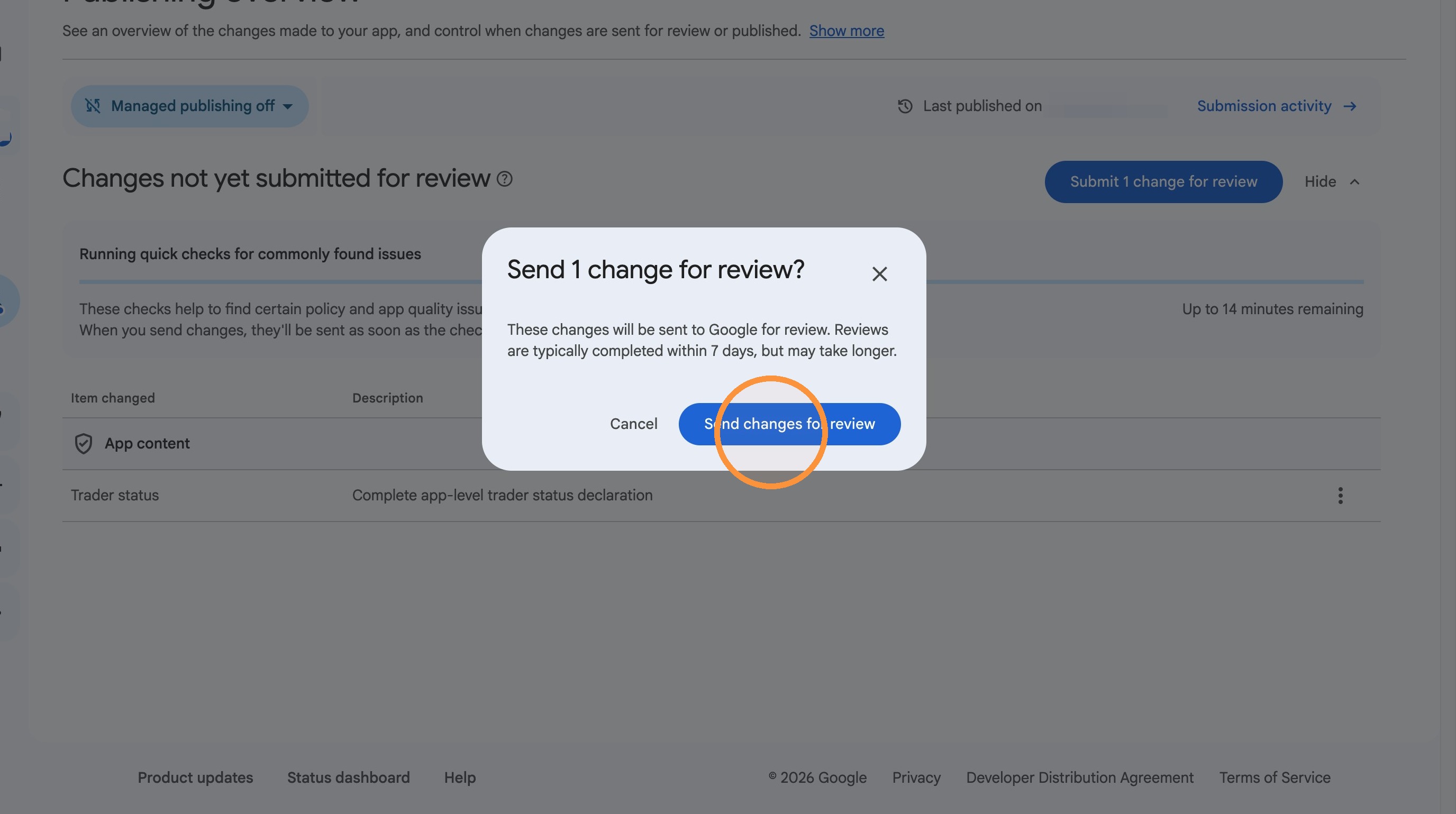
18. Click "Send changes for review"
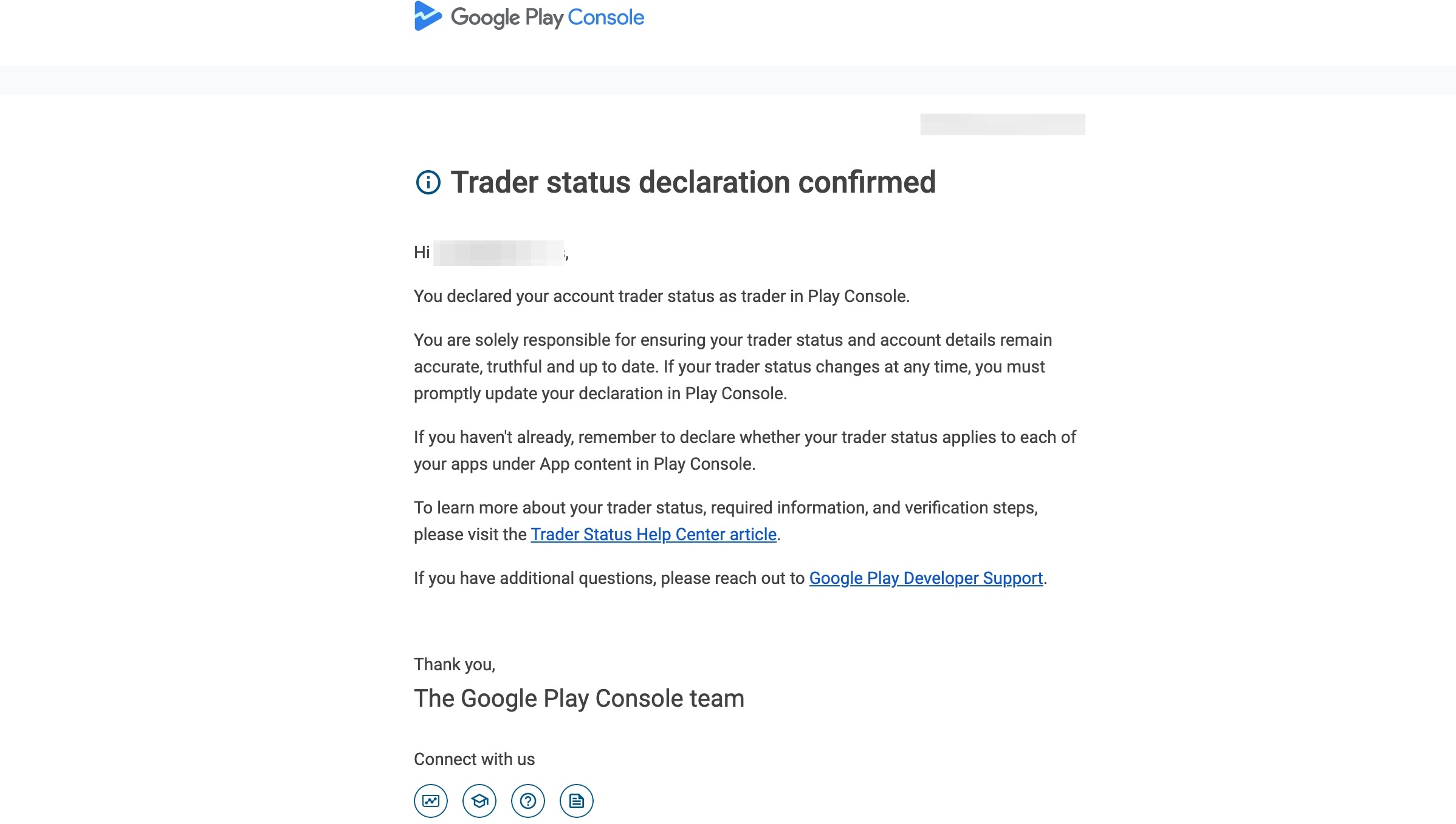
19. There will be a waiting period while Google Play reviews the submission. You will receive an email like the one below when the declaration is approved.
20. Repeat Steps 11-18 for each of your apps (if you have multiple under a single account).
Account, Google, Publishing