This guide shows how to add or reposition map pins on a graphic map. A Graphic Map is one that is just an image, not related to the latitude/longitude of the location.
1. Login to grandstandapps.com/admin
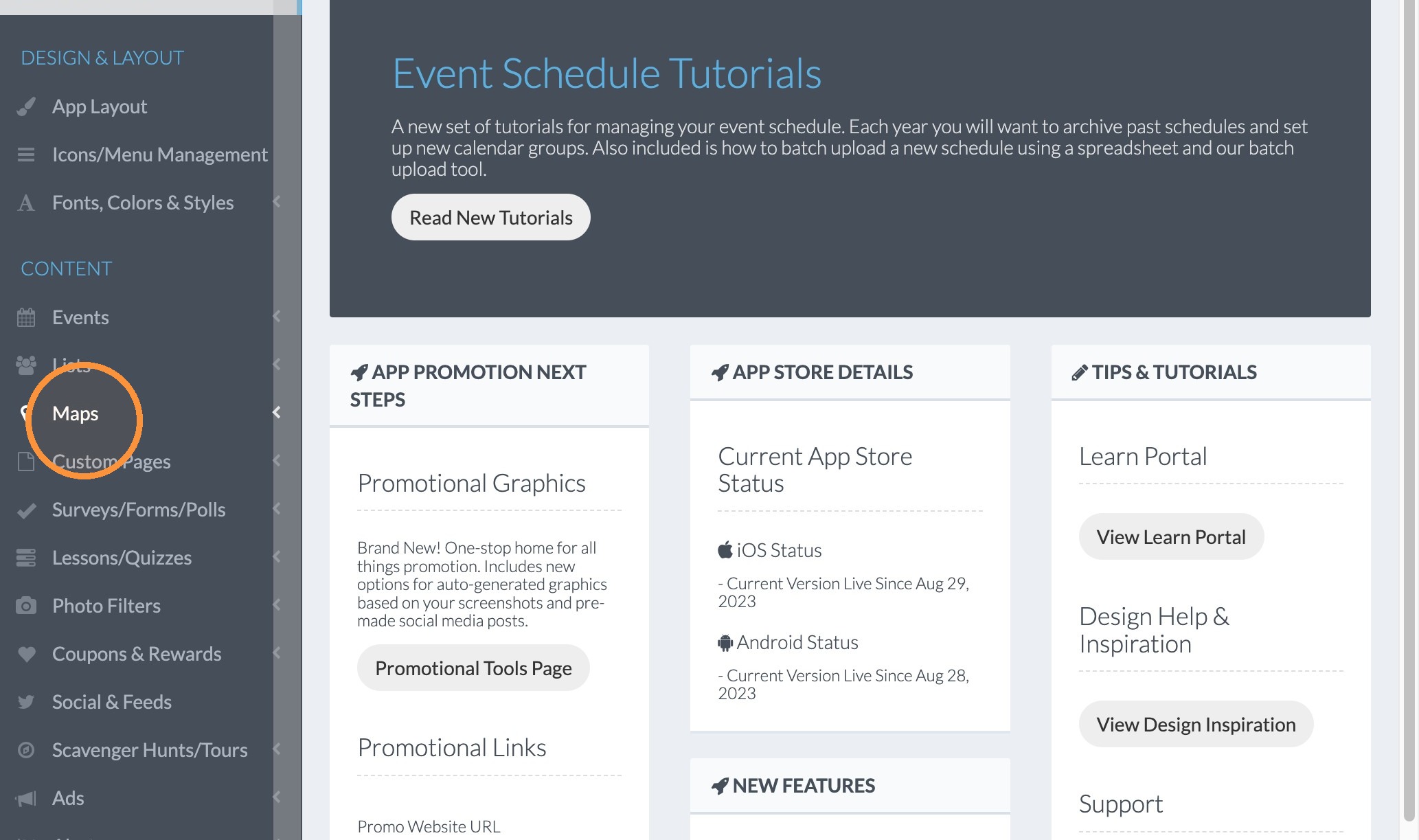
2. Click "Maps"
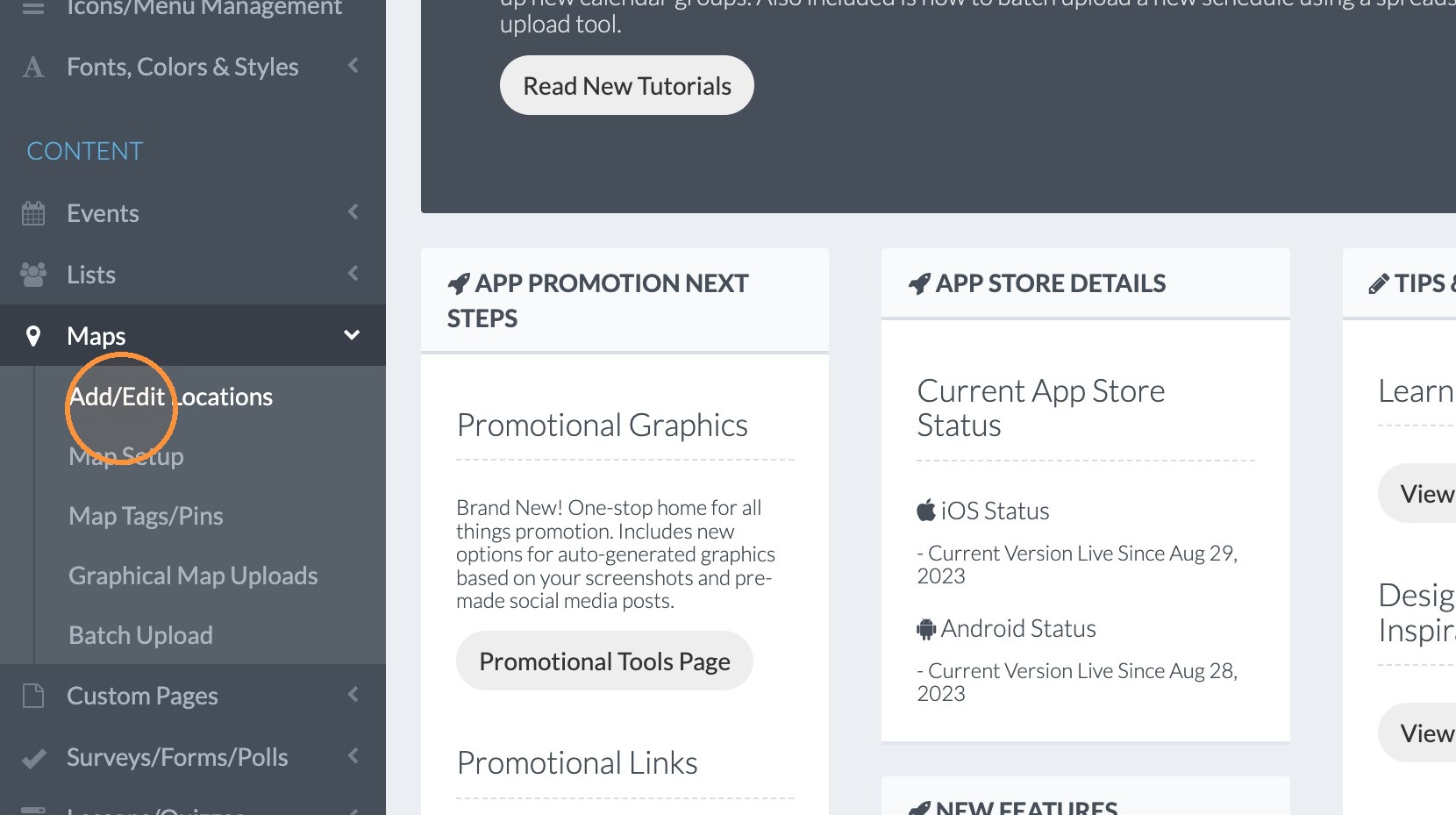
3. Click "Add/Edit Locations"
How to Add a New Location to a Graphic Map
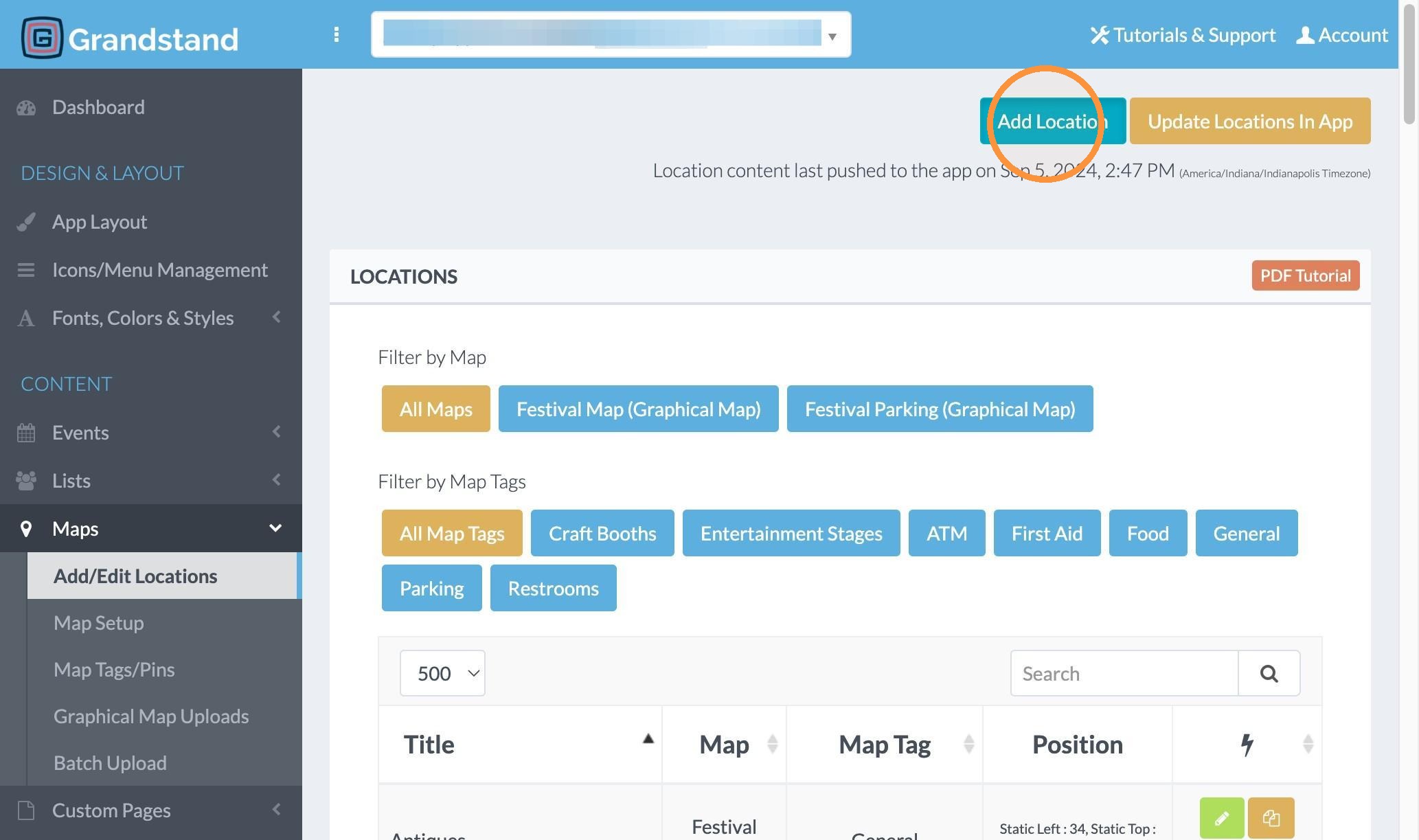
4. Click "Add Location"
5. Click "Select Map"
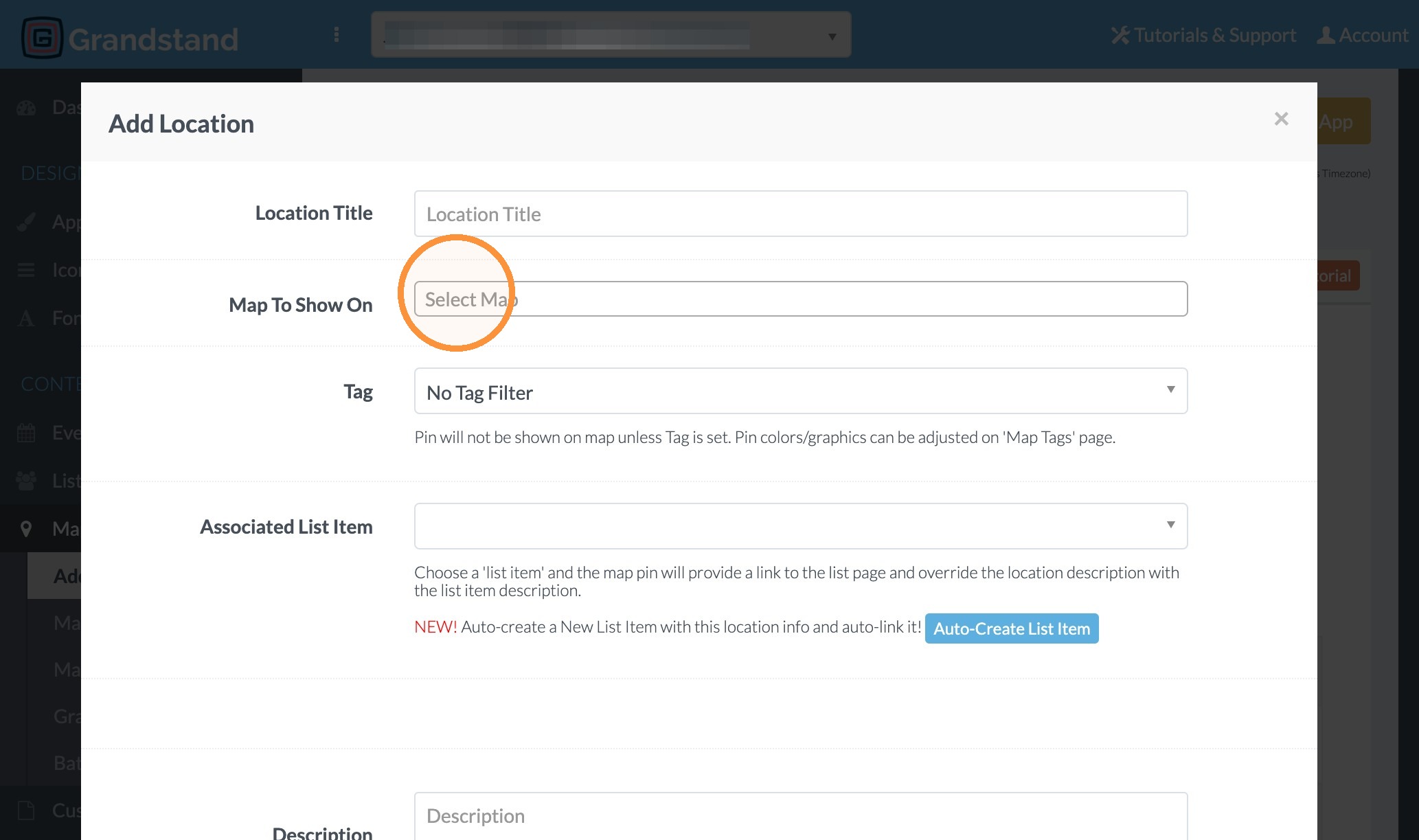
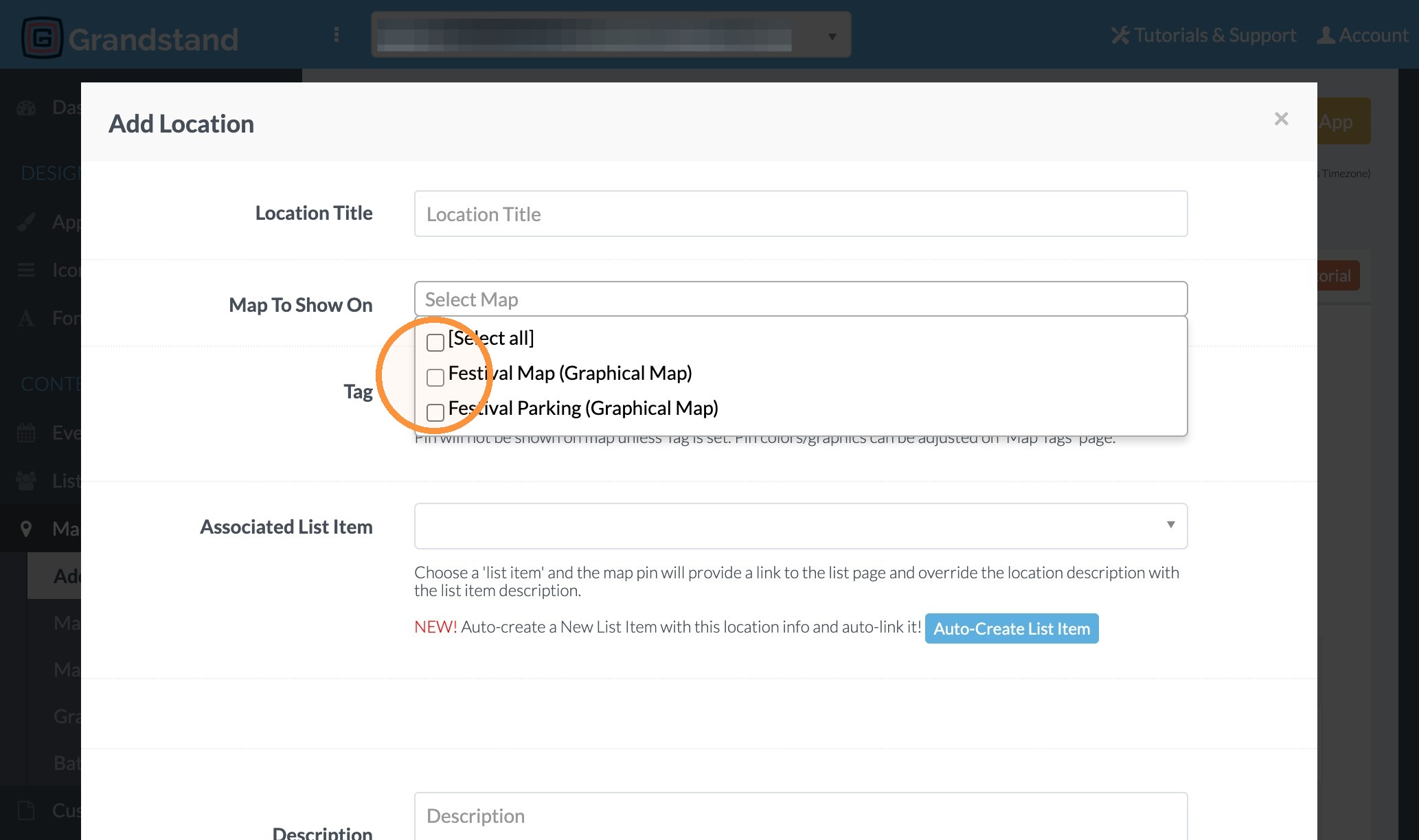
6. Select the map for which you would like to add a pin.
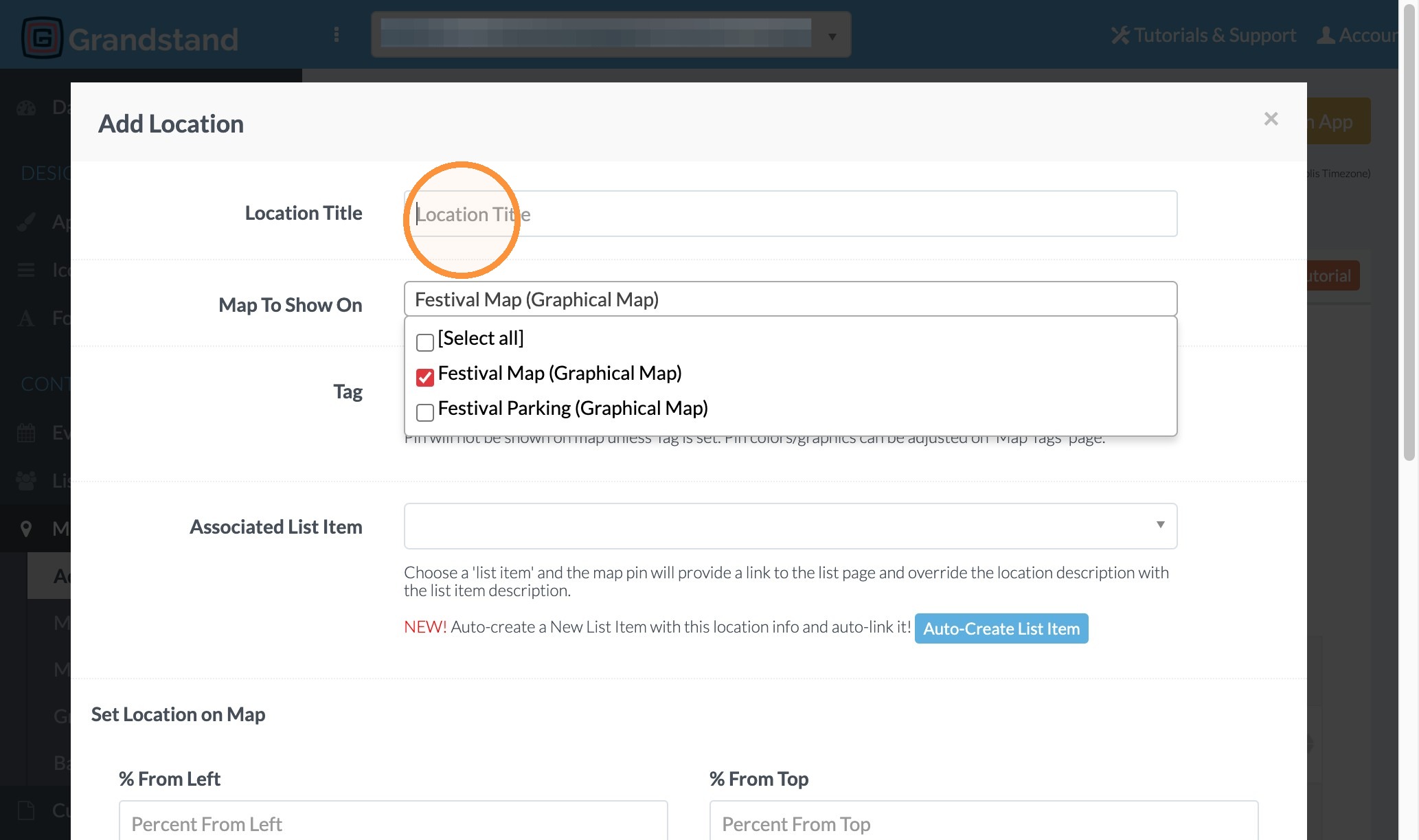
7. Click the "Location Title" field and type the name of the location.
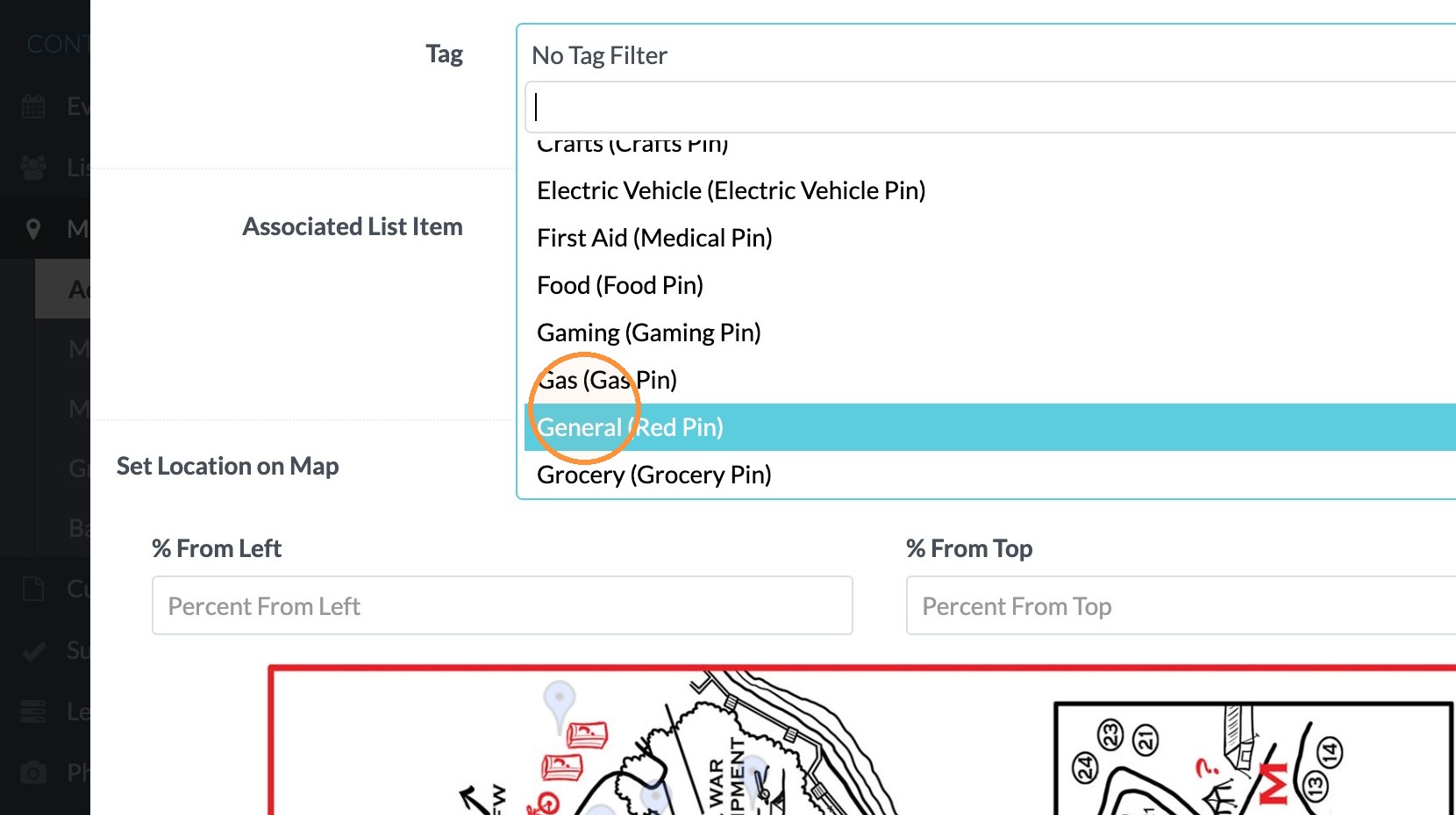
8. Click "Tag Filter" section
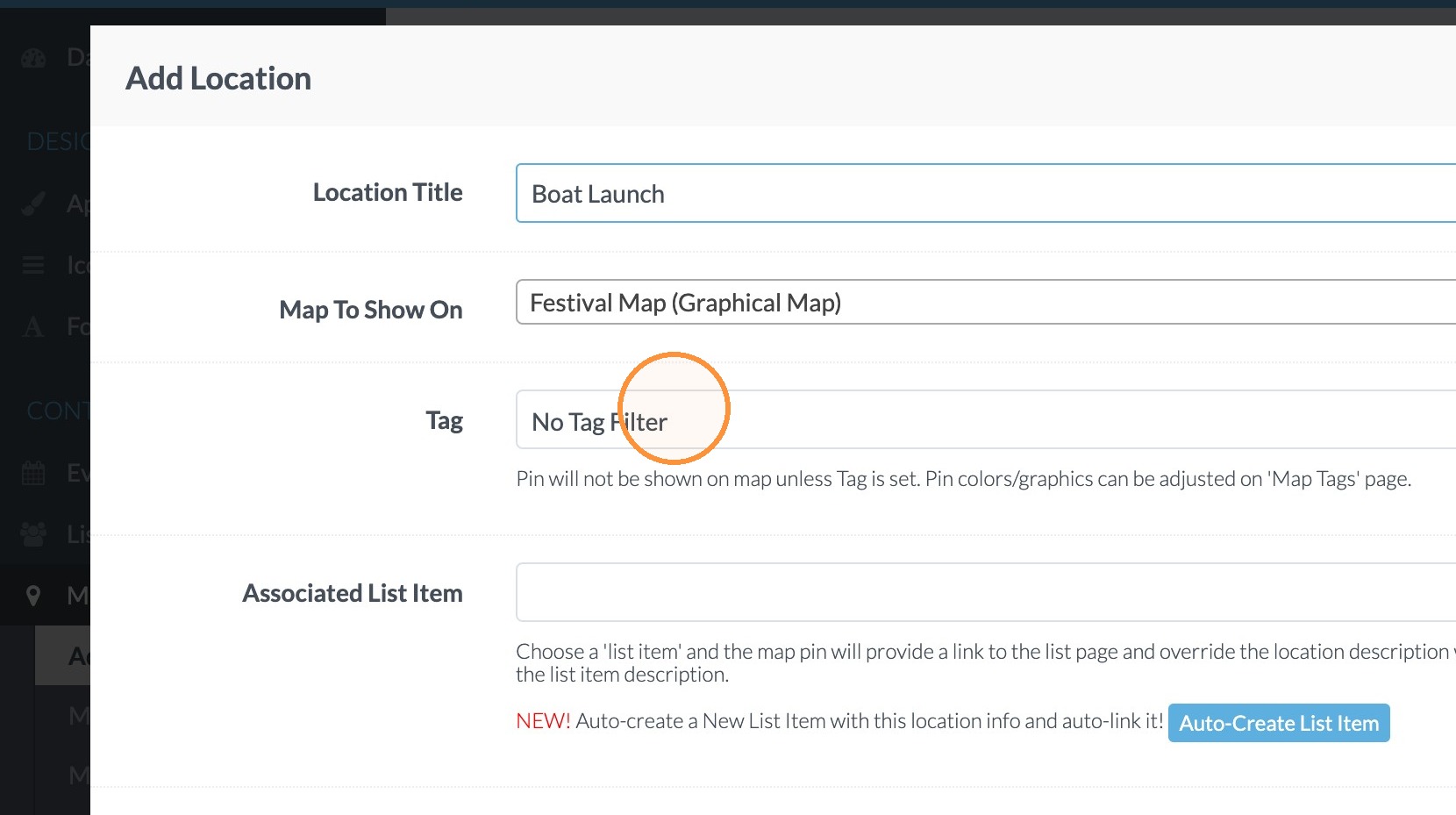
9. Select the type of location it is (in this case it is a General location).
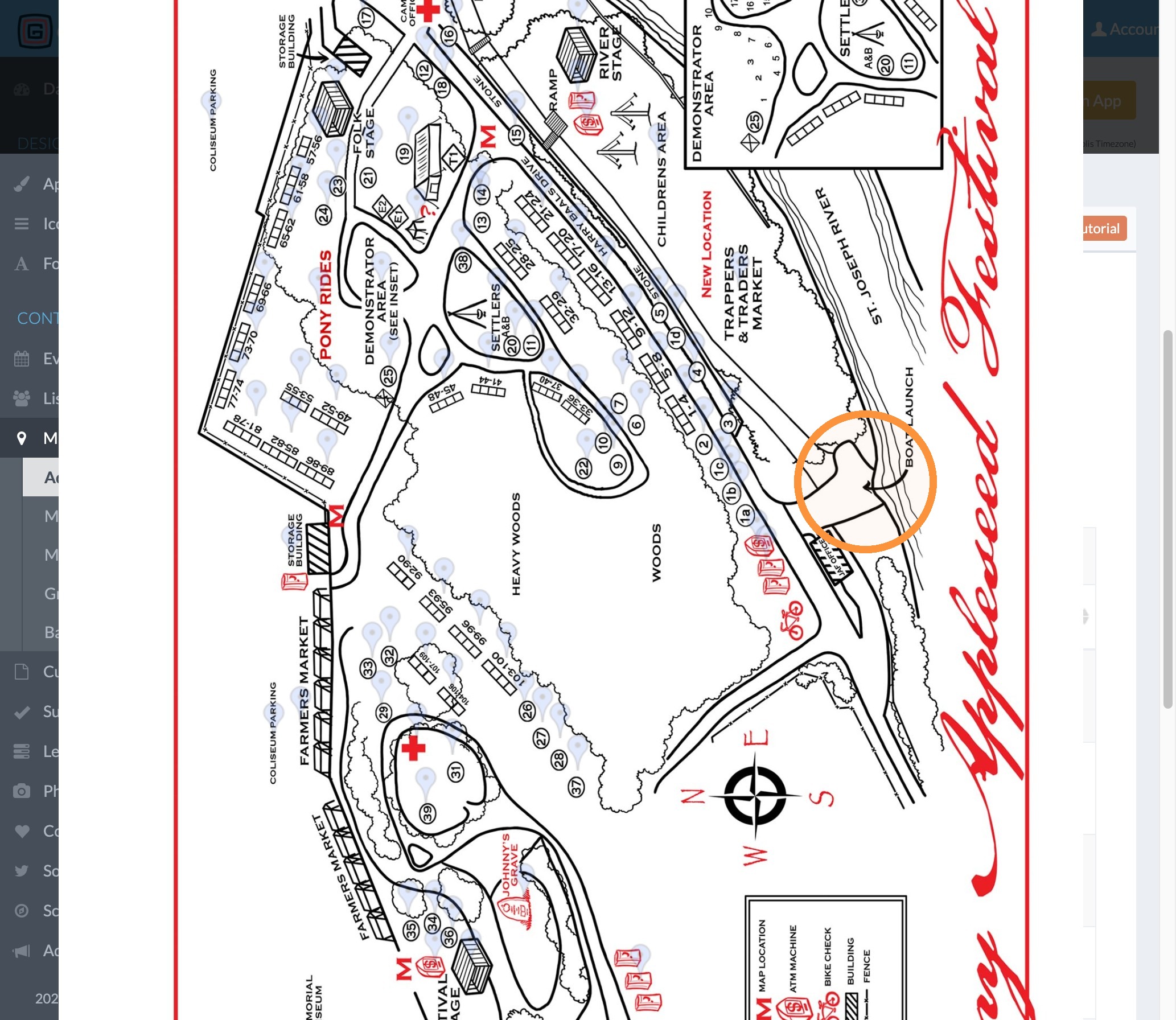
10. Click on the map image where you would like to place the pin.
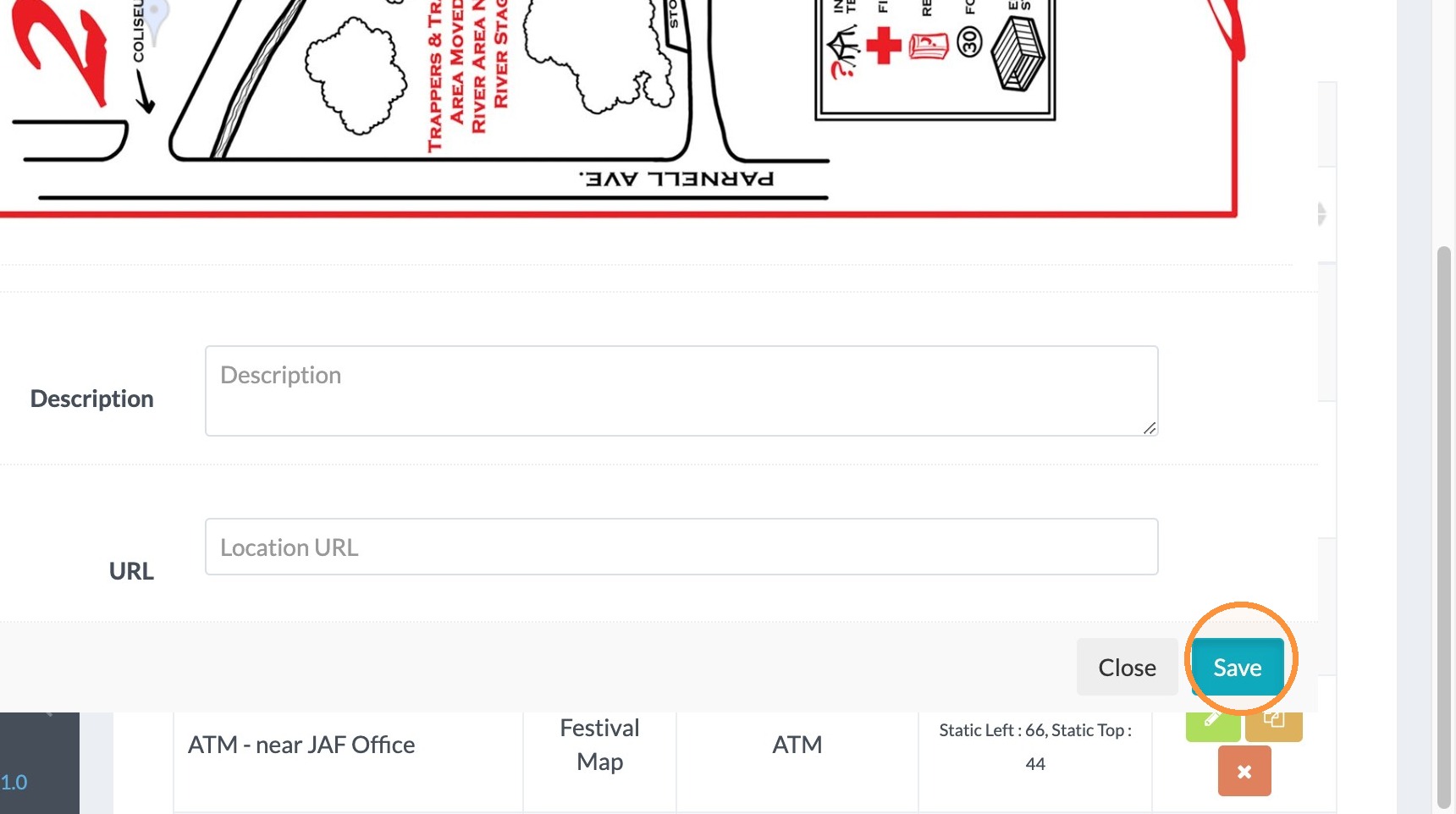
11. Click "Save"
12. Click "Update Locations In App"
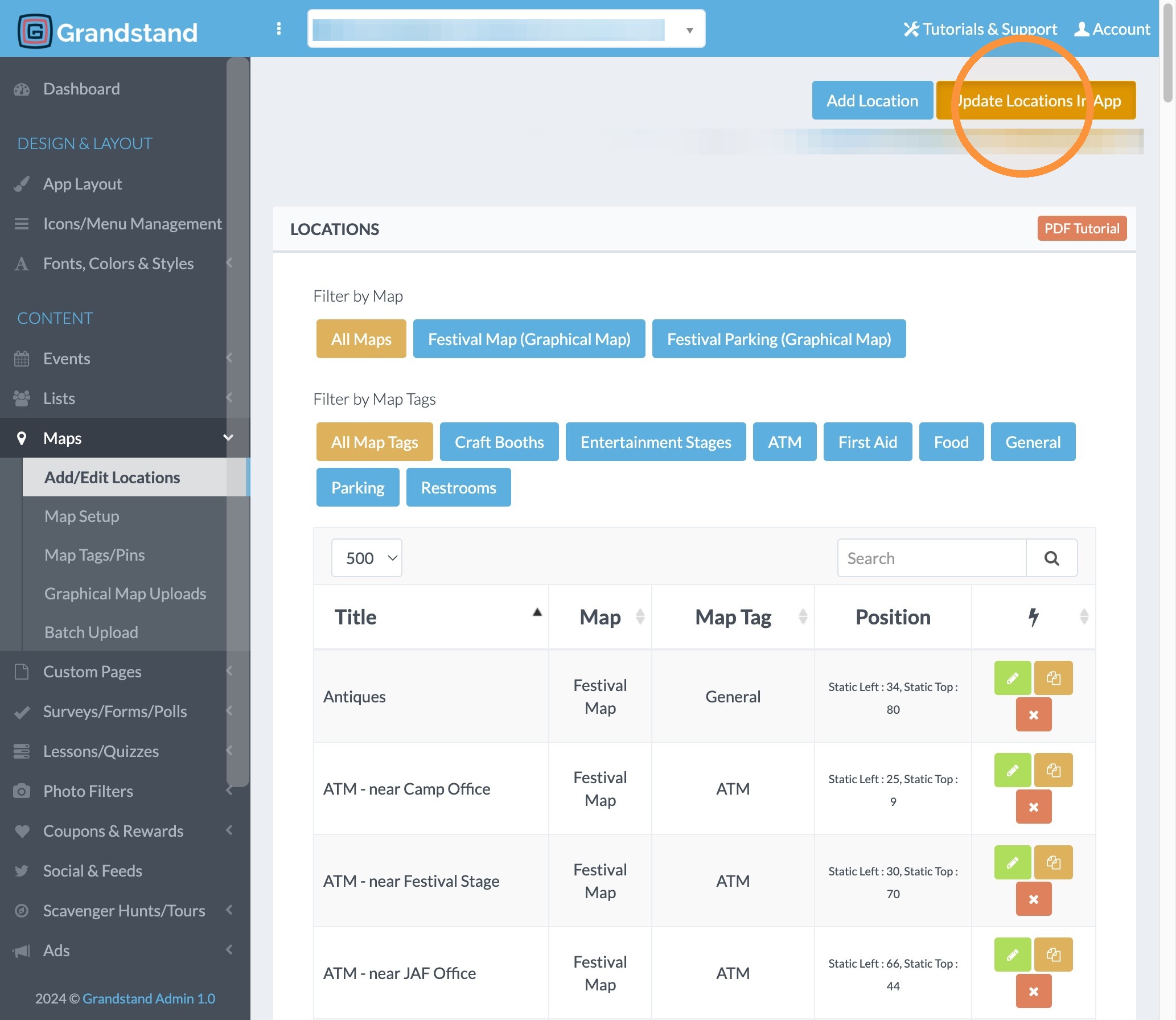
Editing a Location on a Graphic Map
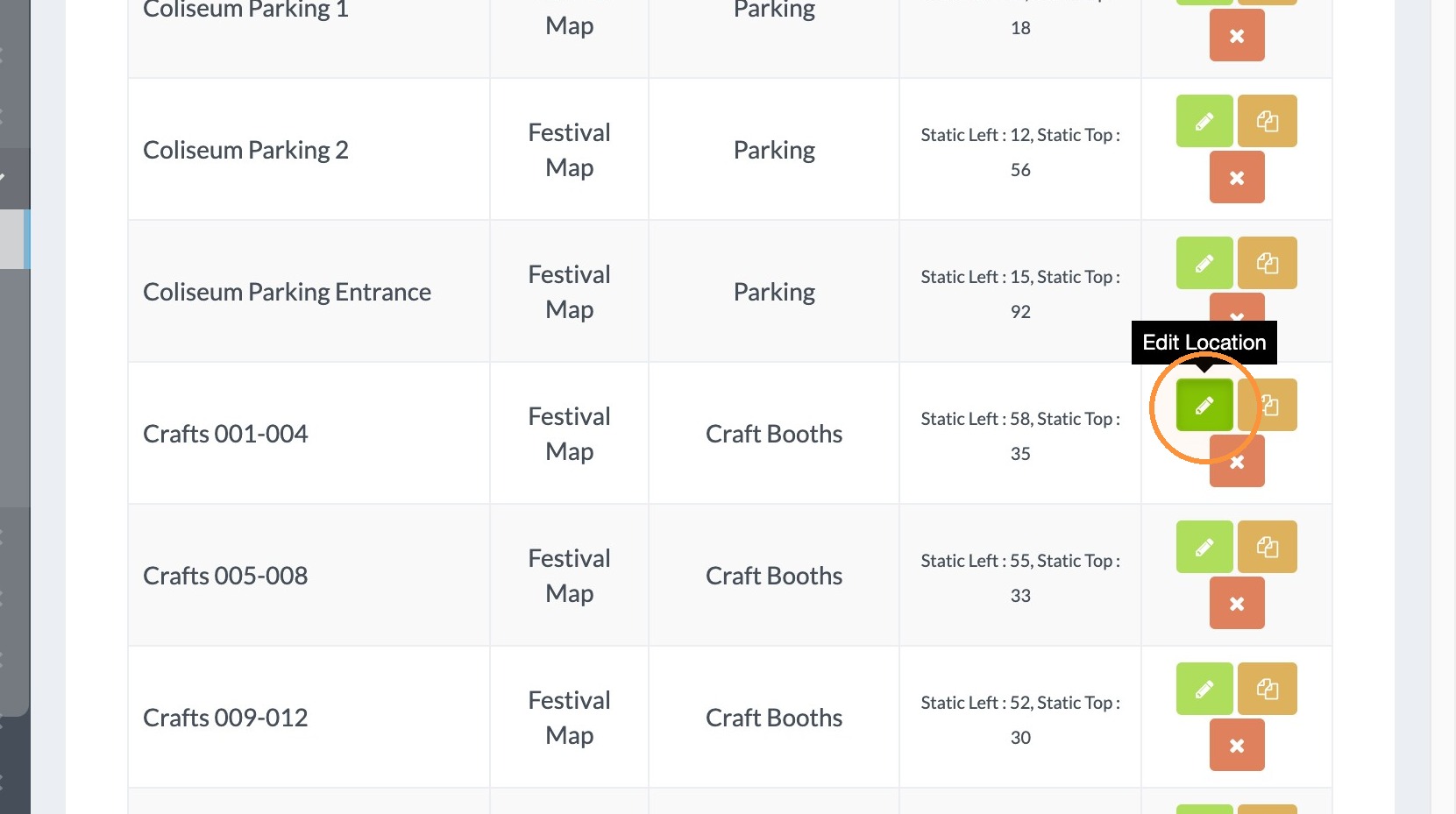
13. Click the green button next to the location you would like to edit.
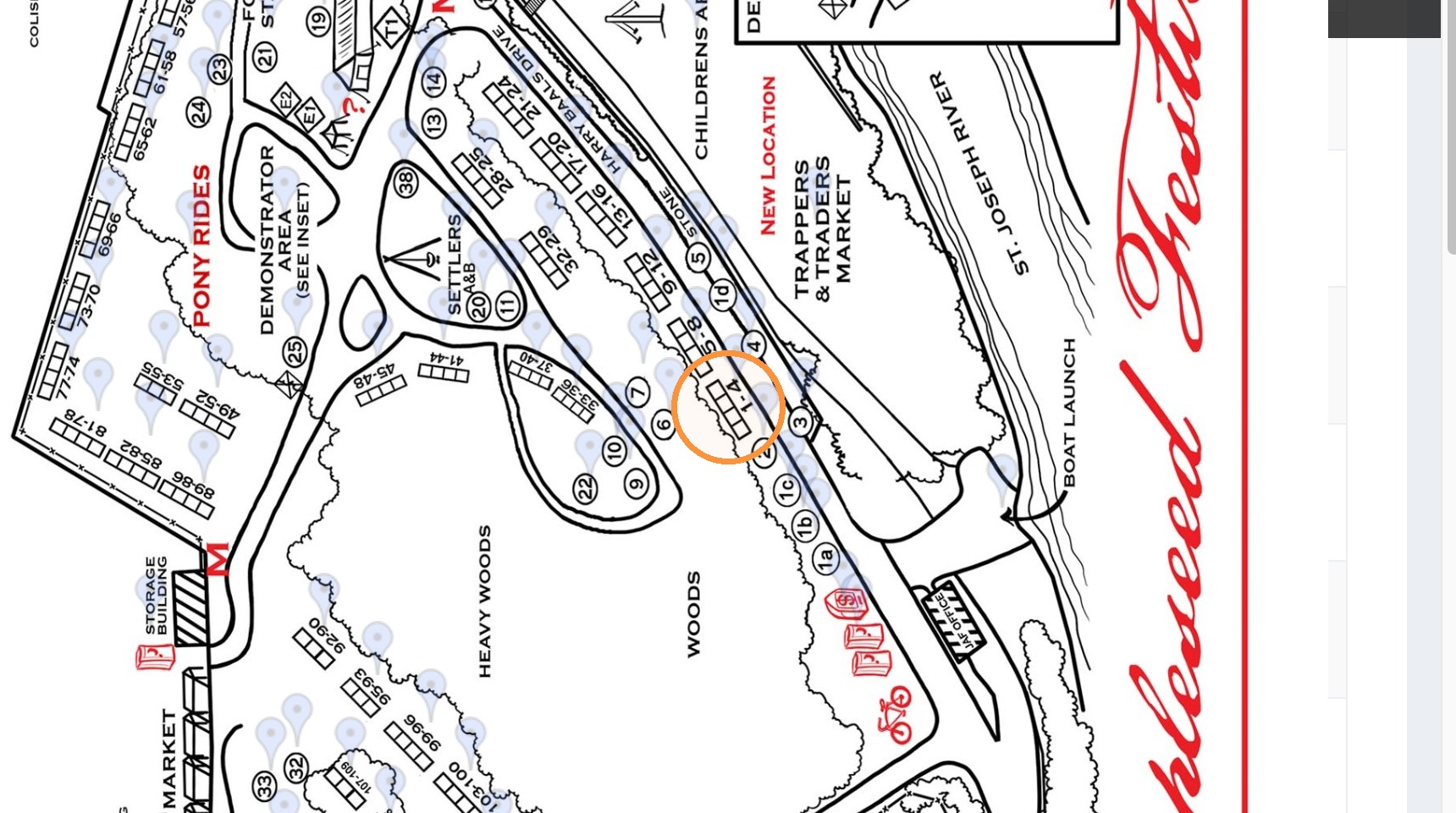
14. Click on the image the correct new location for the pin.
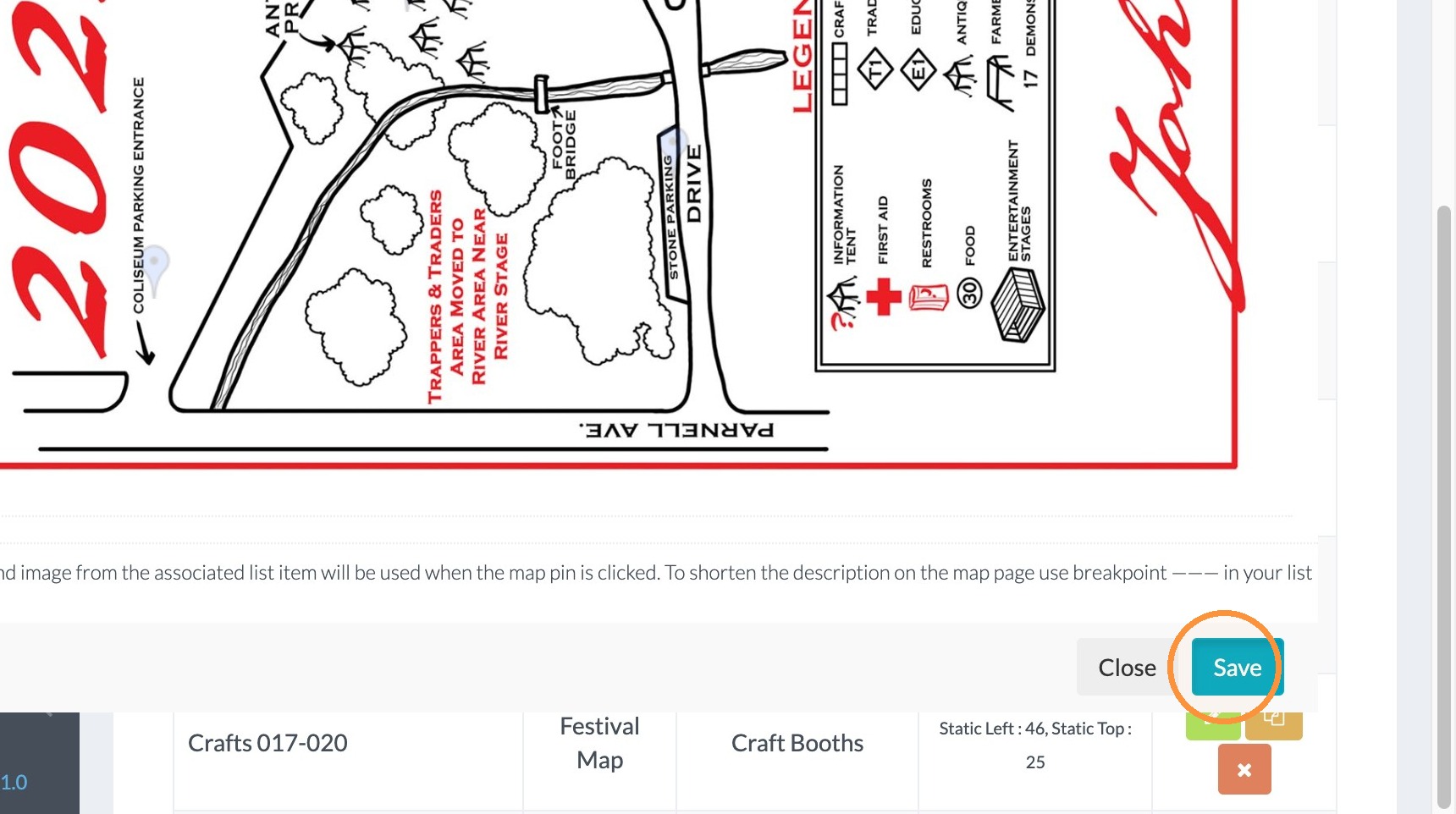
15. Click "Save"
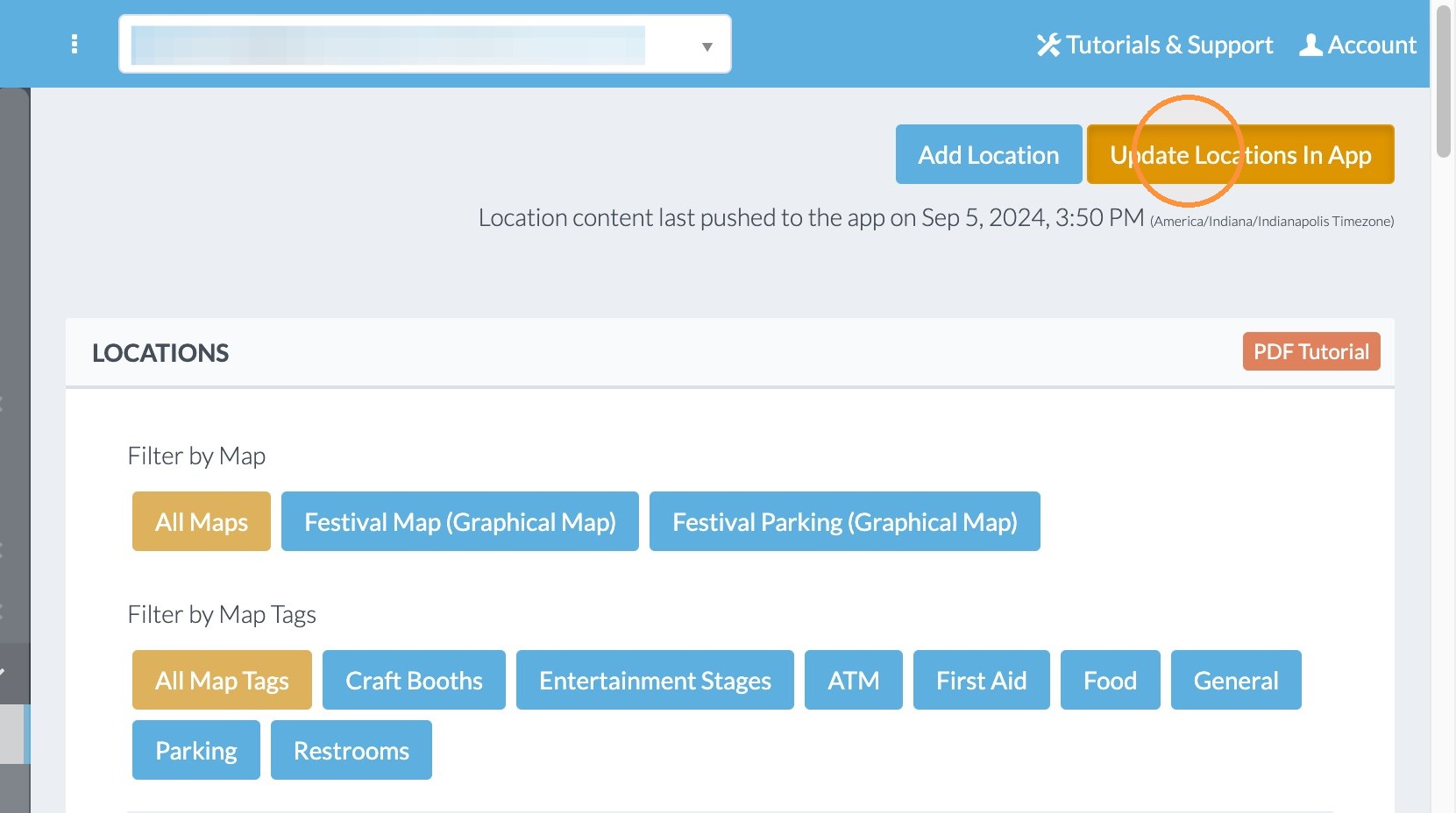
16. Click "Update Locations In App"
Tip: You must also update the Events & Lists when you are using locations in those entries as well. So go to the Edit Events or Edit Lists and click Update to App in both locations to make sure the edits to the locations is reflected.
17. Click "Add/Edit Events"
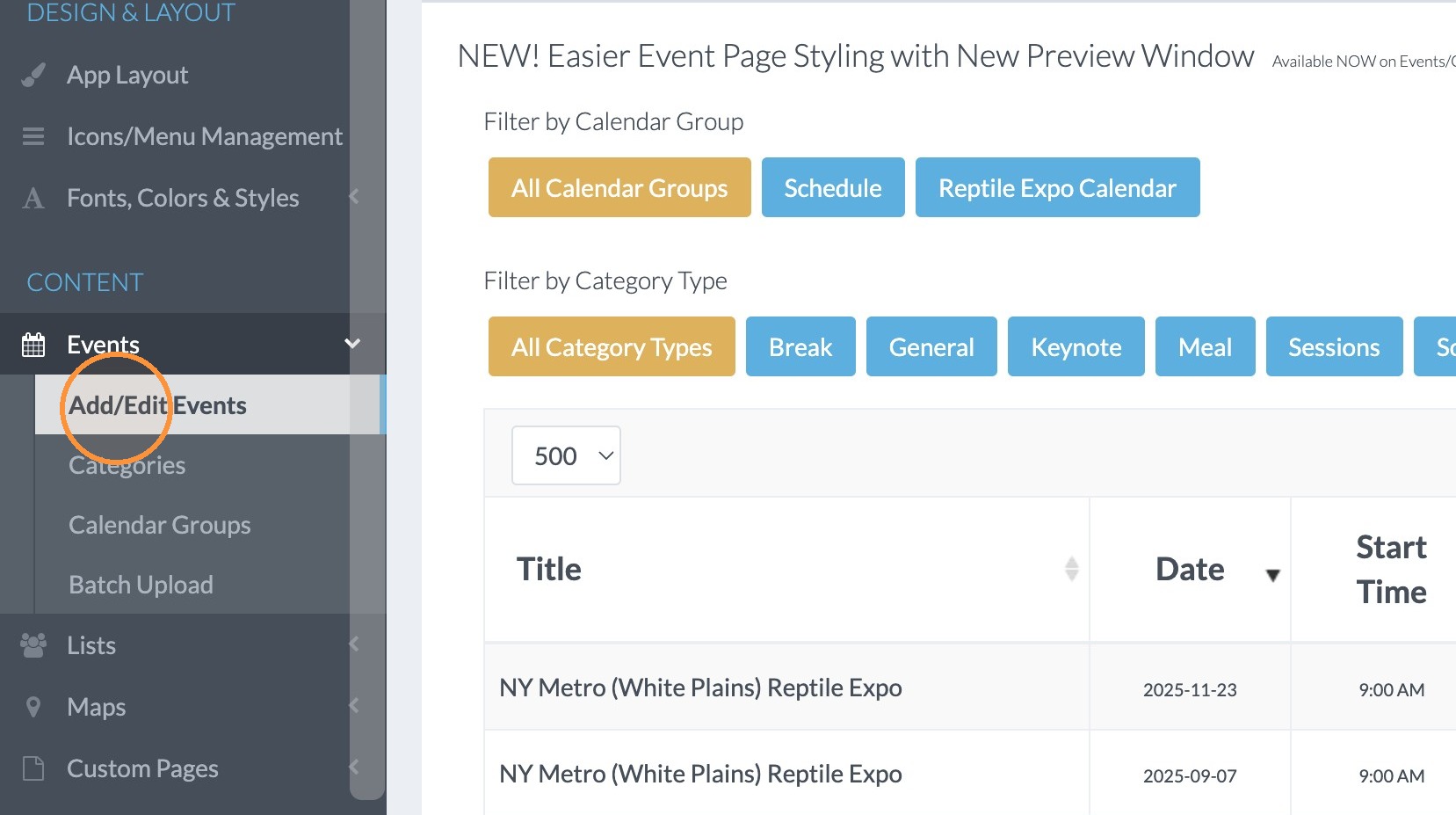
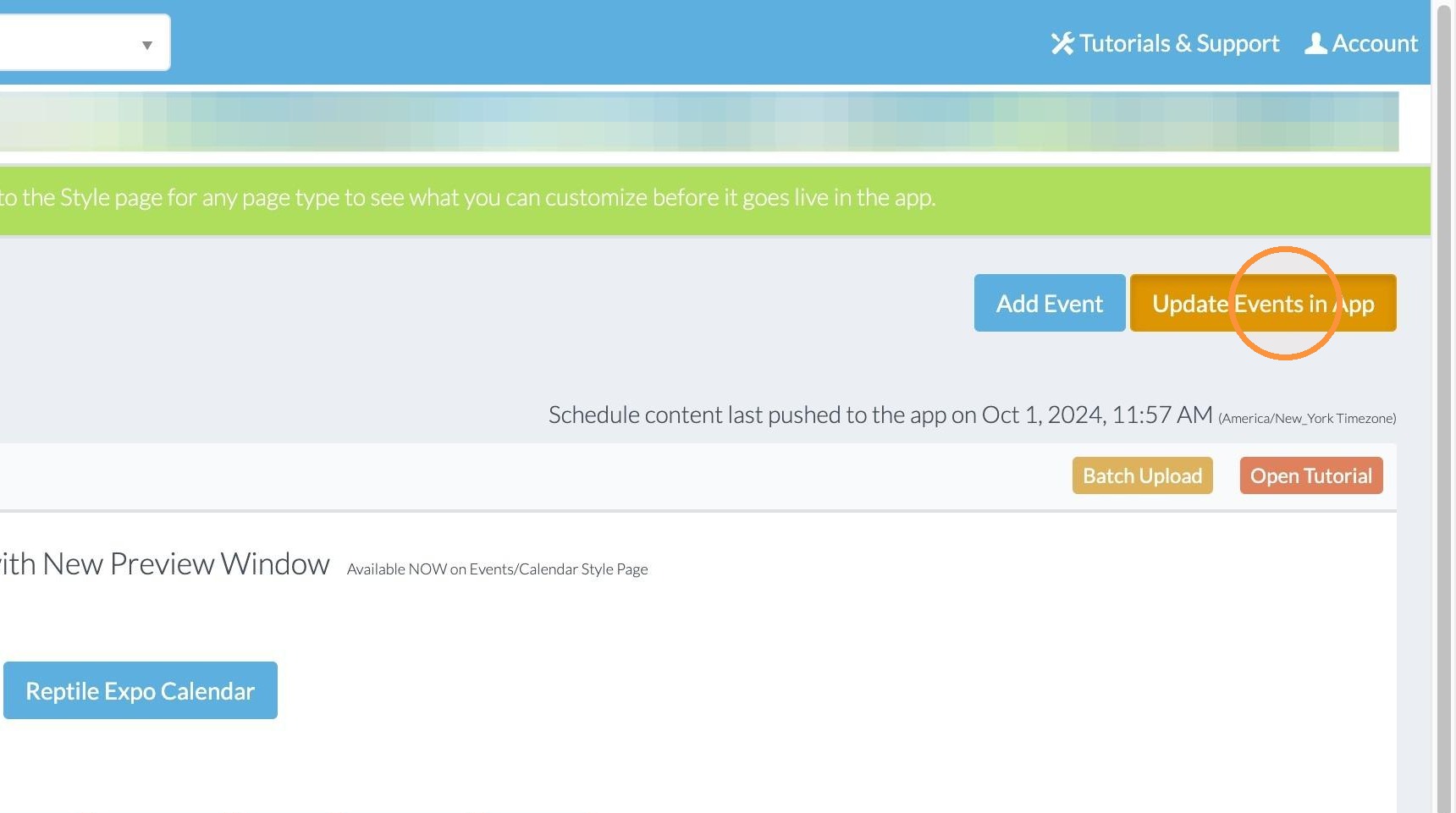
18. Click "Update Events in App"