The schedule is one of the key pieces to any event app. Your visitors want to have correct and fully detailed calendars. You can include as much or as little info as you would like, but the more the better. With Grandstand's new calendar layout, images are also a key component of the schedules. Following are instructions to get you started editing or creating new event listings.
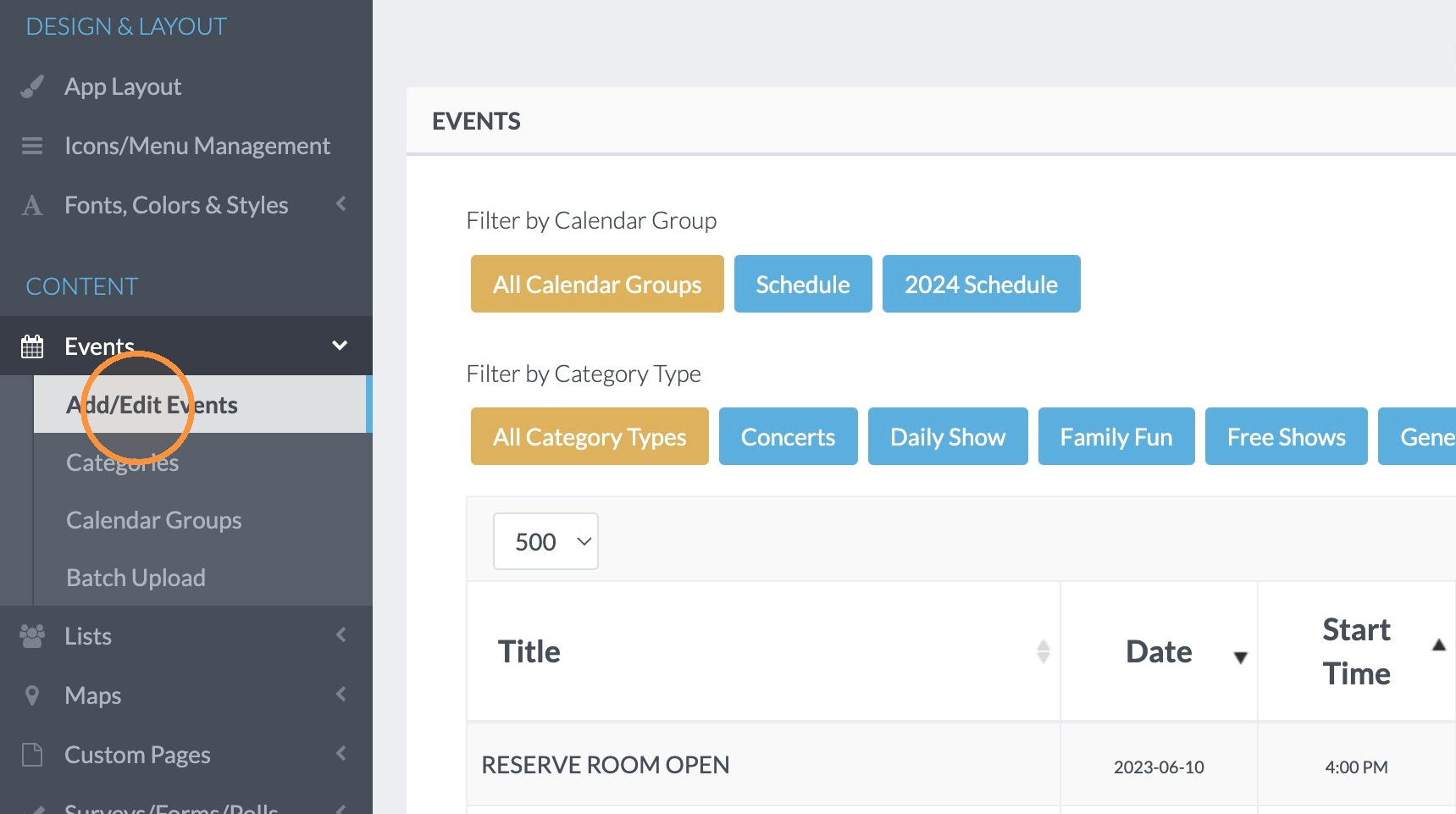
1. Click "Add/Edit Events"
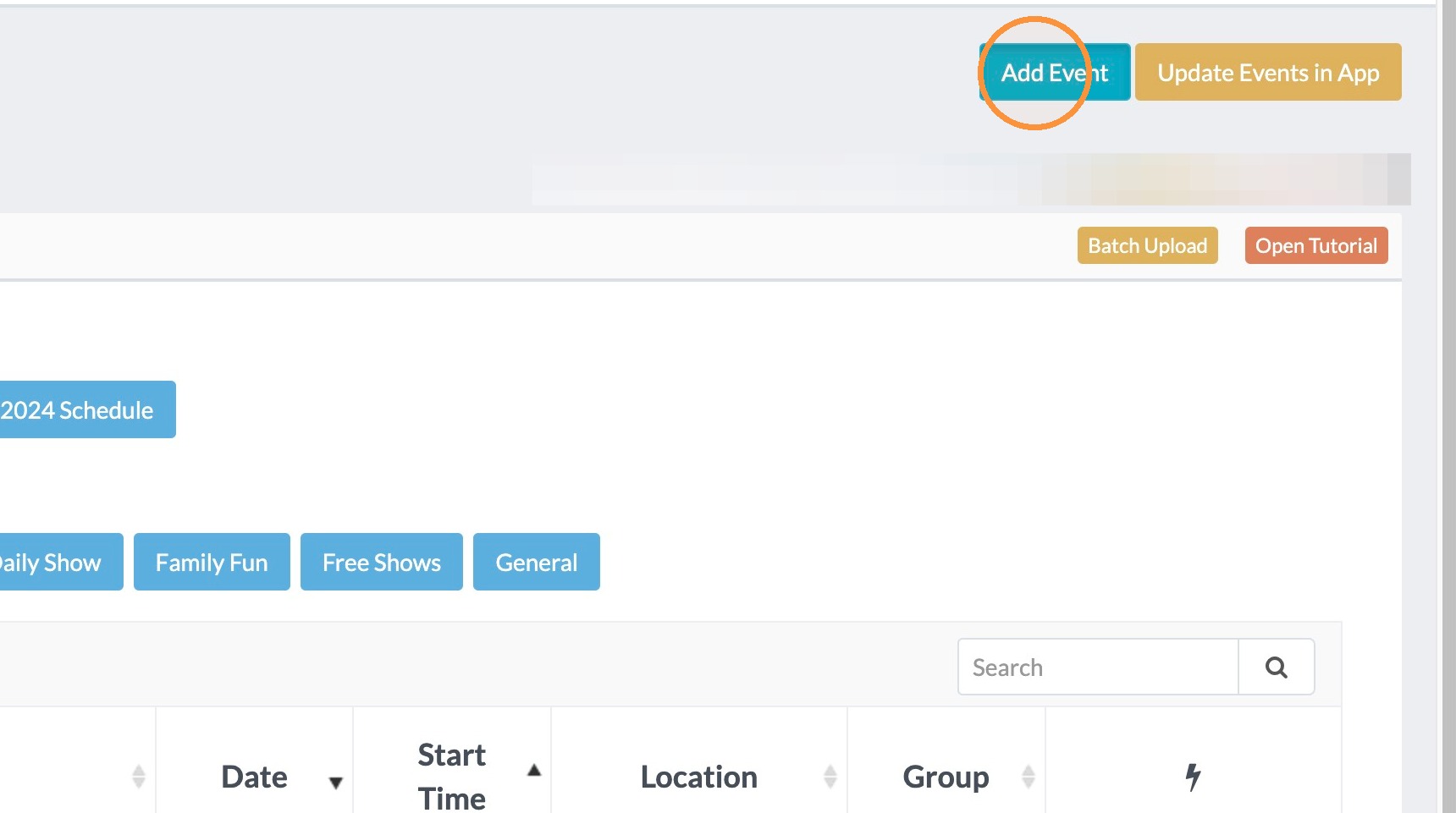
2. To add a new event, click "Add Event"
3. Click the "Event Title" field. and Type the Name of the Event.
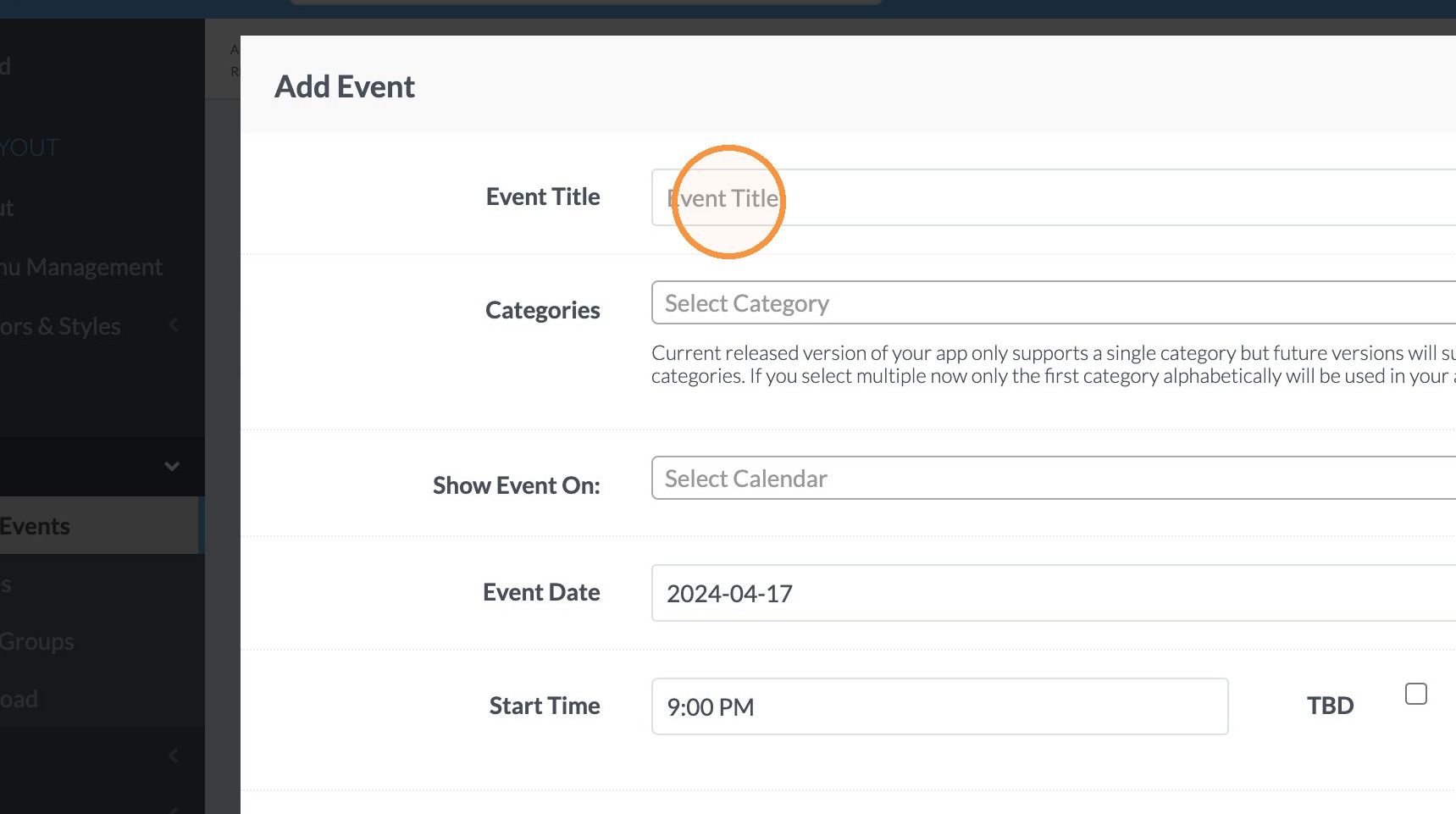
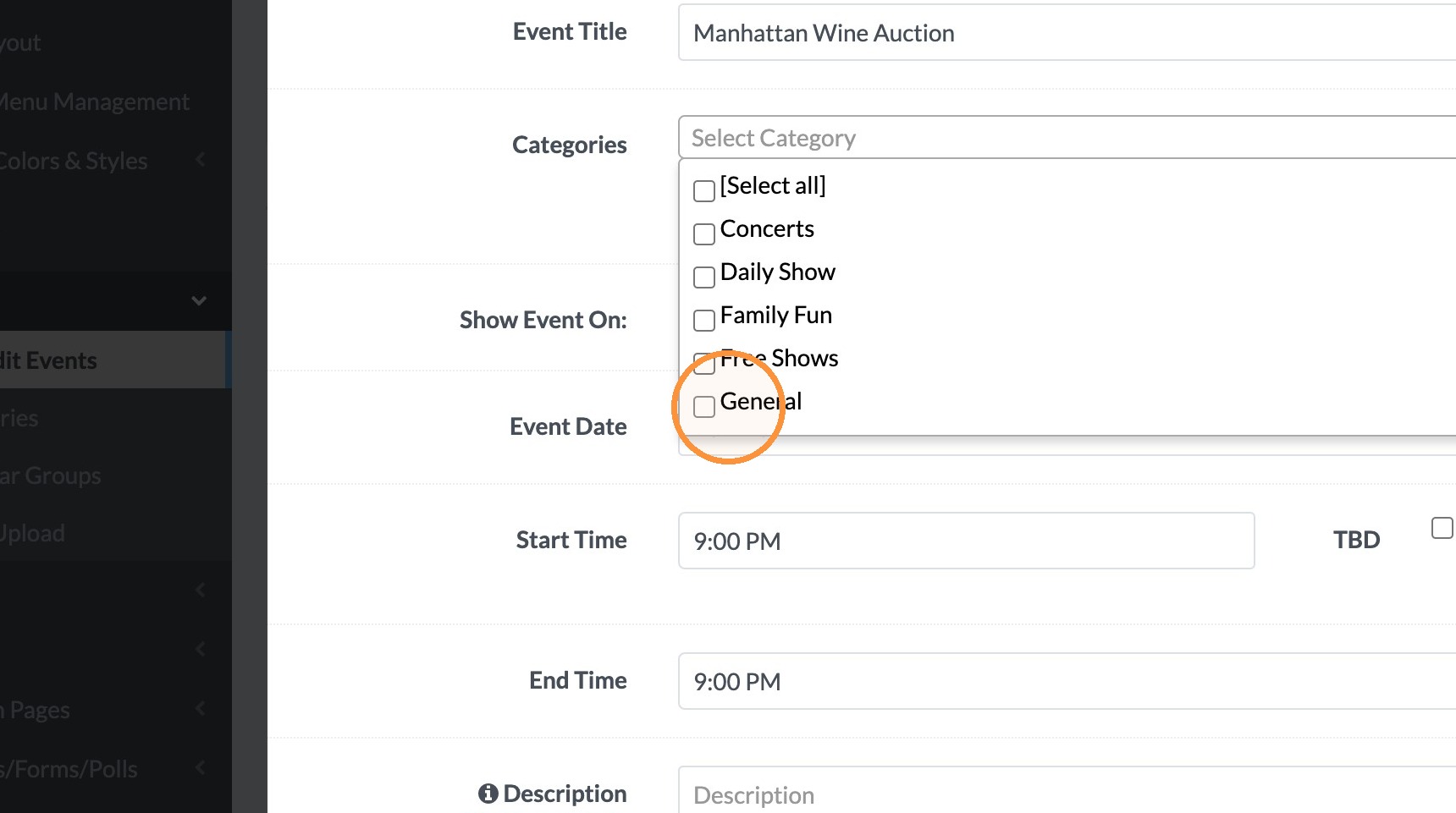
4. Click the Categories drop down and select the category for the event.
Note: You can set up additional categories under Events>>Categories in the Menu.
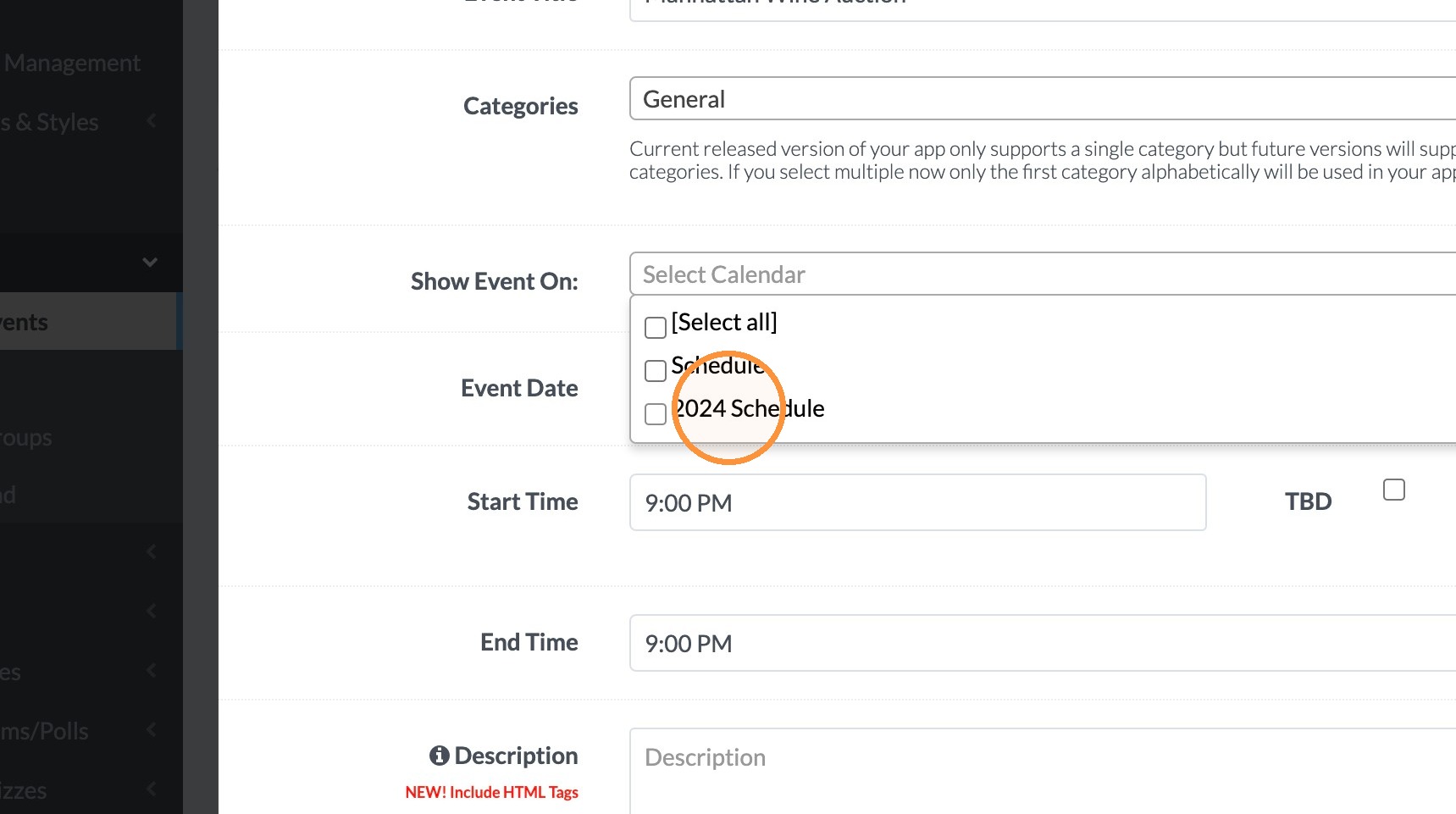
5. Click the "Show Event On:" dropdown and select the calendar it should be appear on.
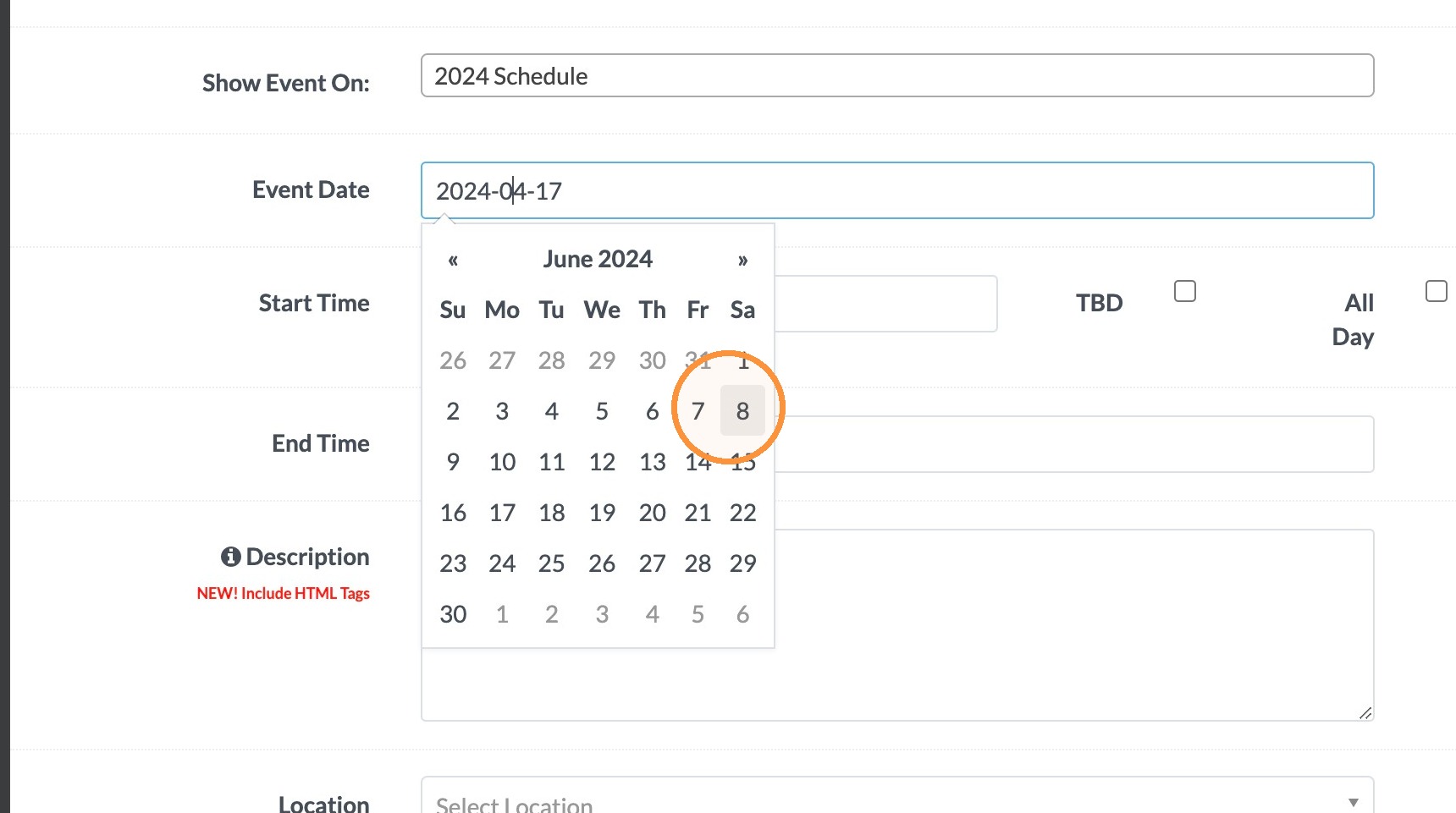
6. Click the Event Date and select date on the calendar.
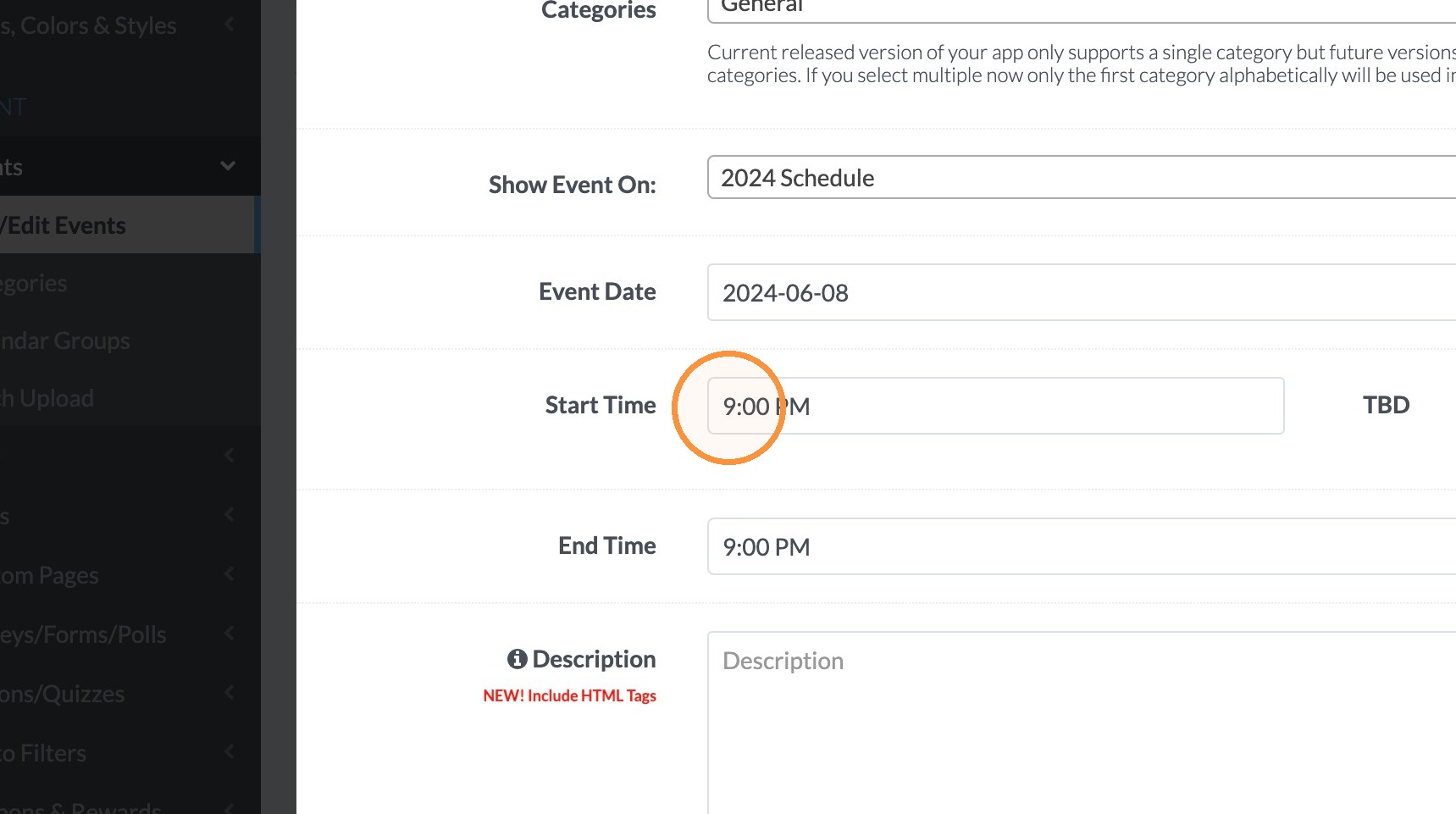
7. Click the "Start Time" field and set the start time of the event. You can also select TBD or ALL DAY.
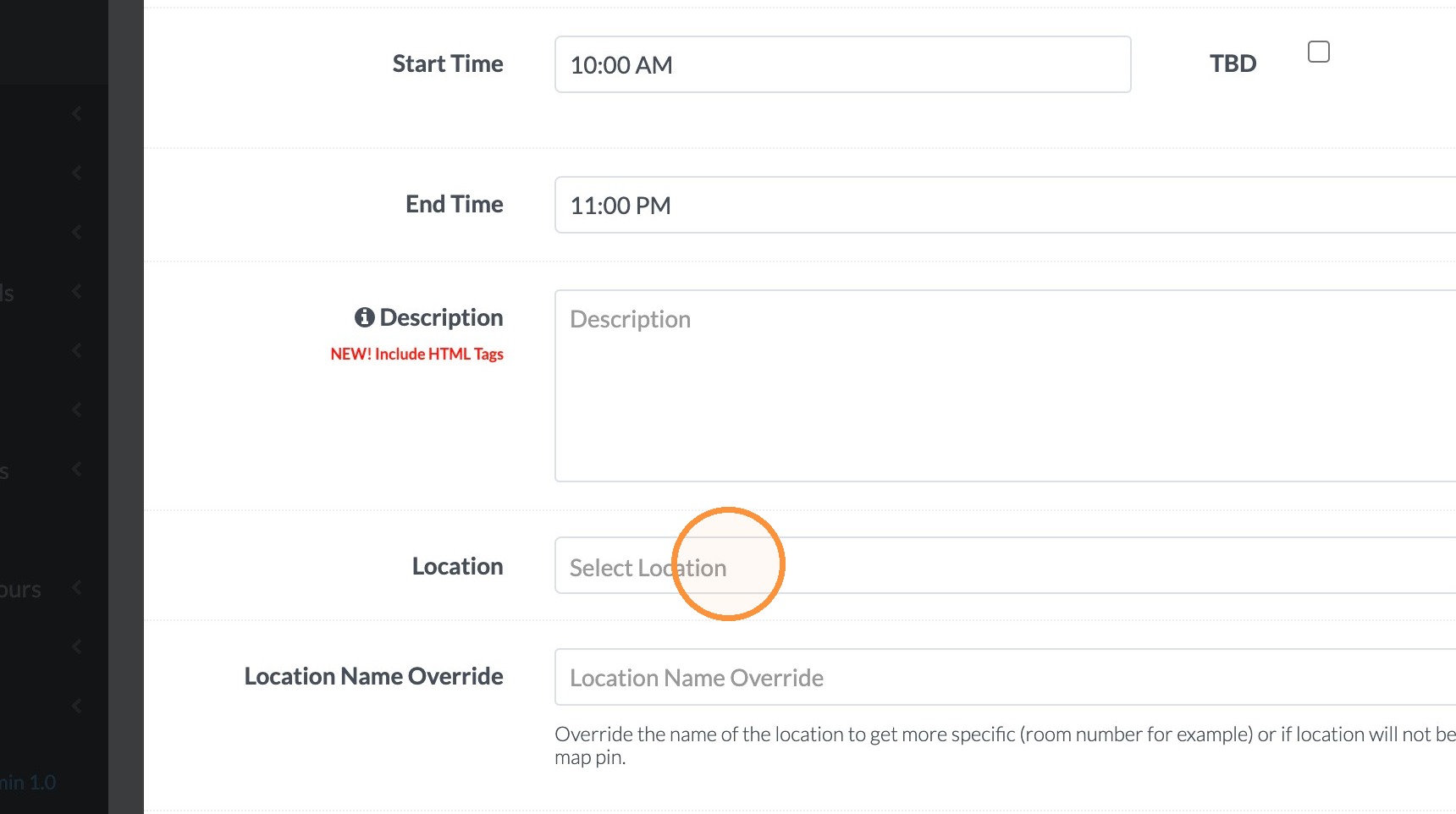
8. Click "End Time" and set the end time for the event.
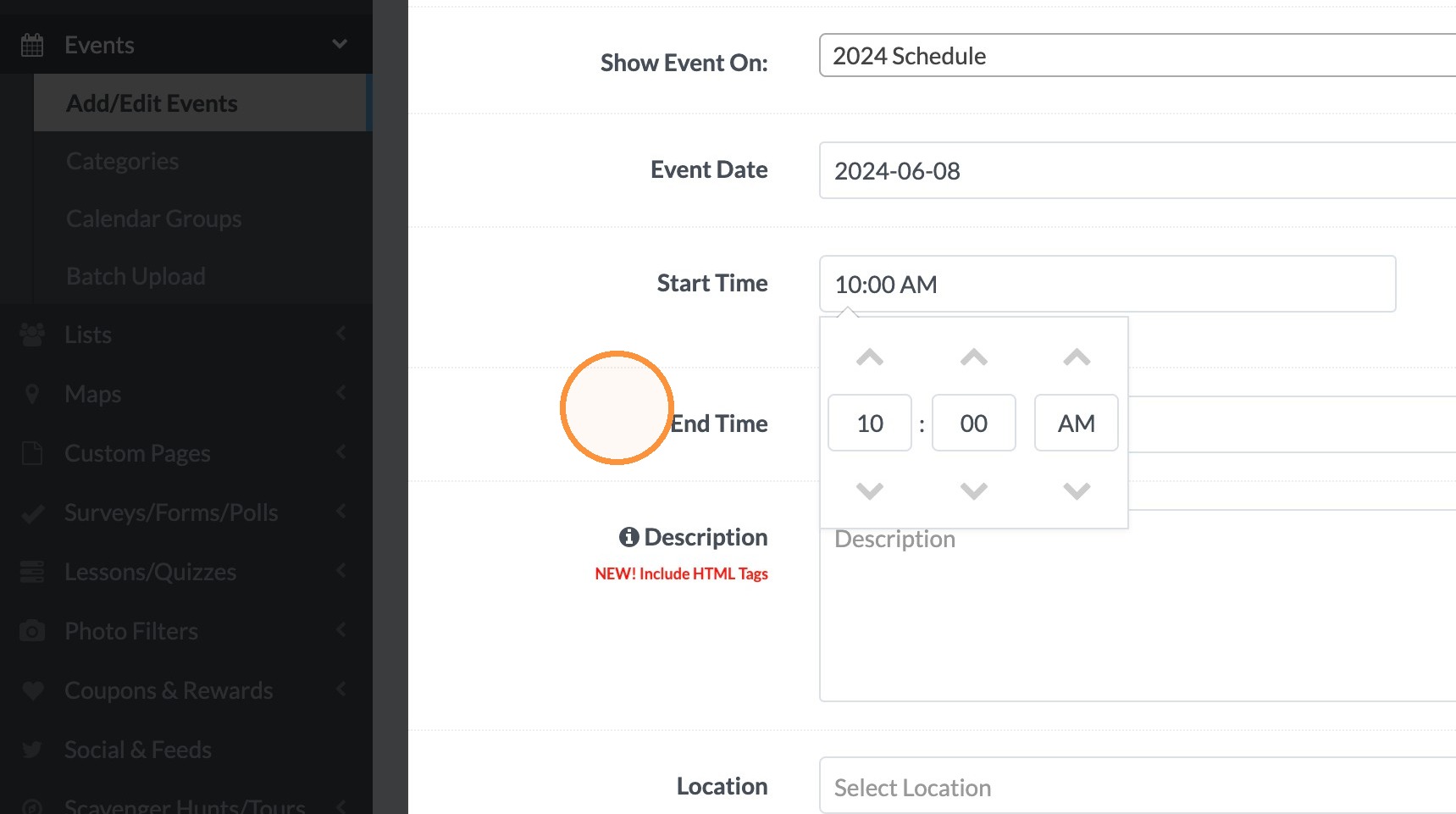
9. Click "Select Location" dropdown menu and select location for the event.
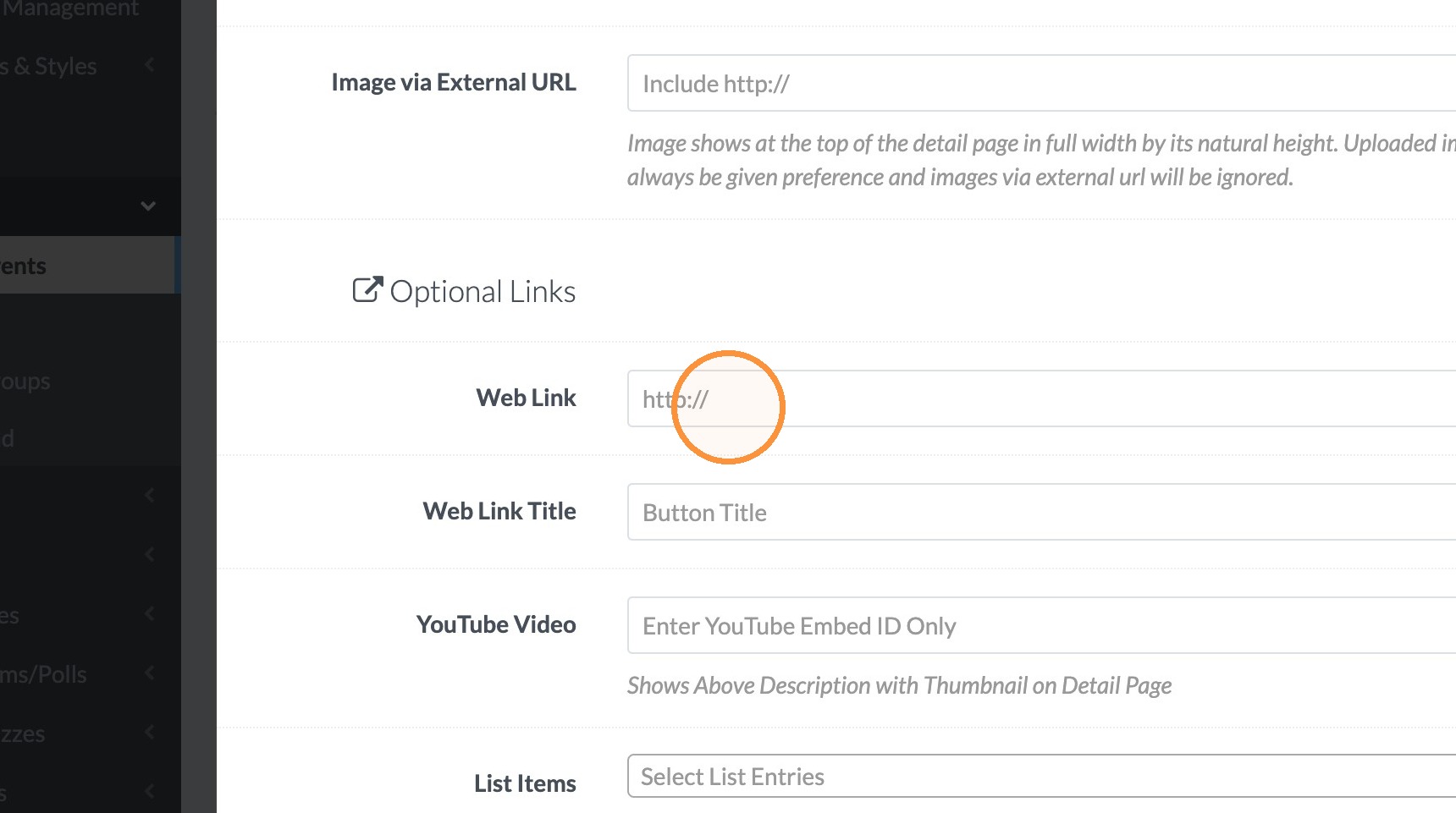
10. Click the "Web Link" field and enter the website you might like to include on the details page.
11. Click "Save"

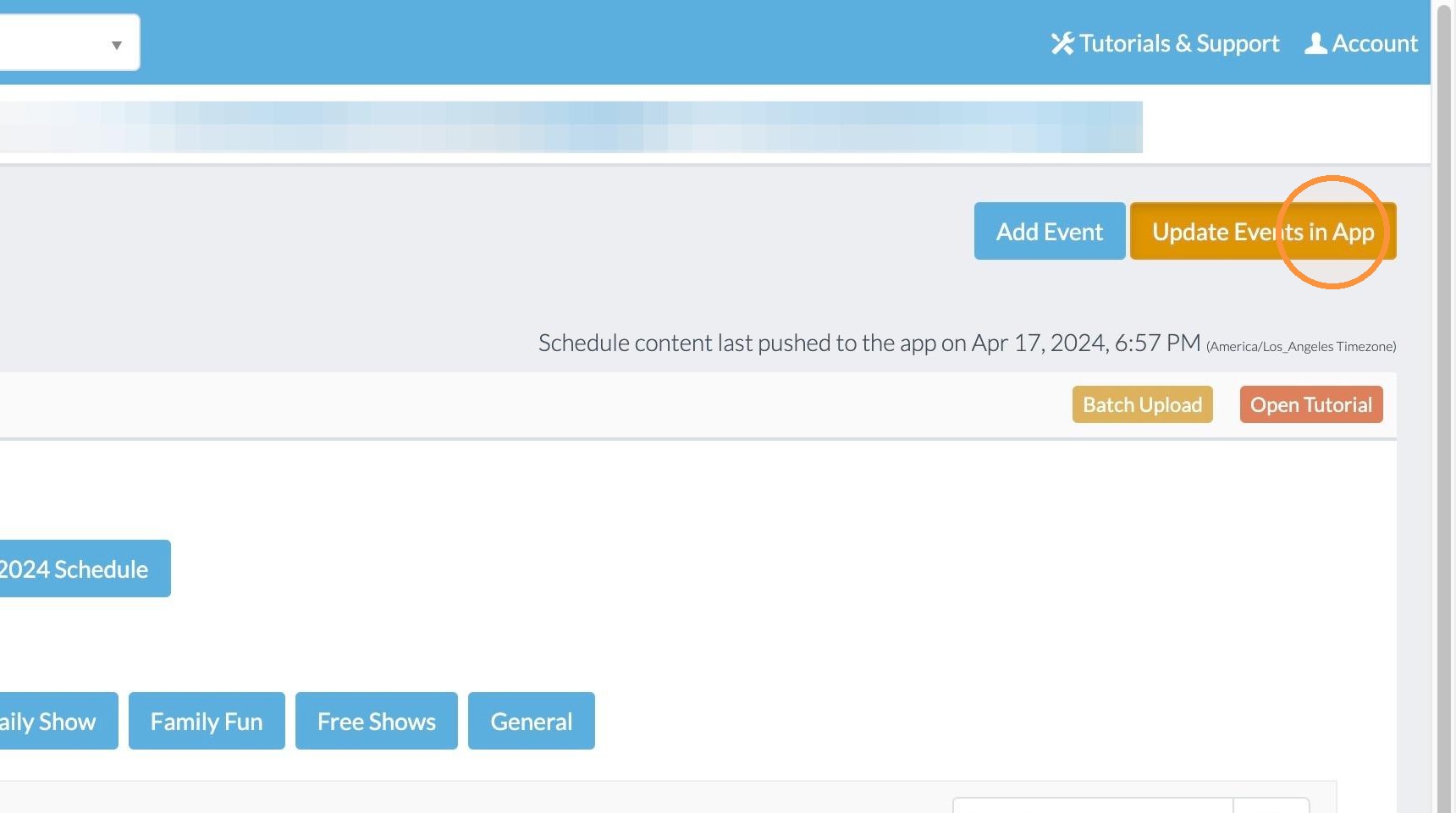
12. Click "Update Events in App"