
Published March 23, 2026
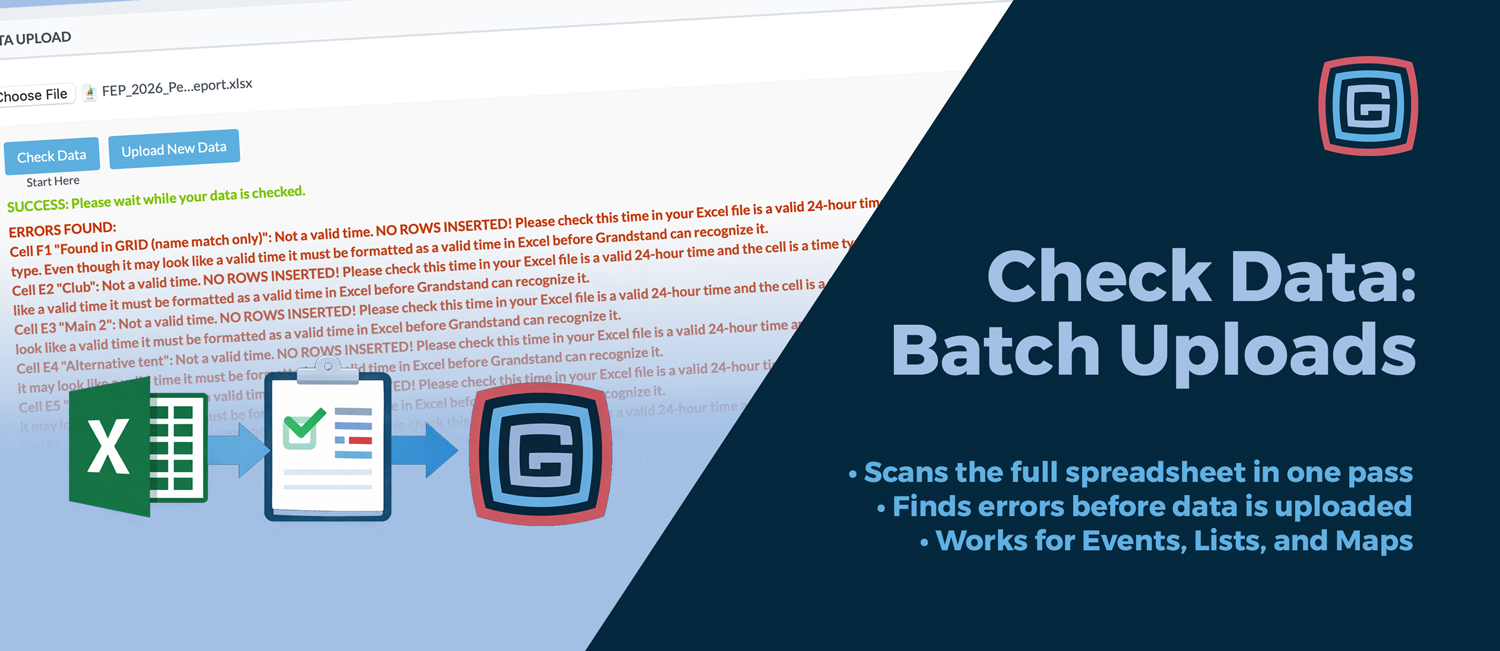
Uploading spreadsheets should not feel like trial and error. If you have ever uploaded a file, fixed one issue, uploaded it again, and repeated that cycle several times, you know how frustrating it can be. That is exactly why we built Check Data.
Across your Events, Lists, and Maps/Locations batch upload pages, you will now see a simple workflow: Start Here, Check Data, then Upload New Data.
This is more than a button update. It creates a true validate-first process so you can review your spreadsheet before any bulk upload happens.
The process is simple:
As it runs, the page communicates progress clearly, including messages like Processing file for validation... and Checking Data....
When the check is complete, users see one of three results:
One of the biggest benefits of Check Data is that it does not stop at the first error. It continues scanning the spreadsheet and returns all issues it finds in one run.
That means fewer repeated upload attempts, less back-and-forth, and a much faster cleanup process. Instead of fixing one row at a time, you can correct everything at once and move forward confidently.
When something needs attention, Check Data tells you exactly what is wrong. Validation messages can identify missing categories, invalid date or time formats, malformed URLs, numeric formatting problems, missing map references, and other field-specific issues.
Messages are designed to be precise, often including the row, cell reference, submitted value, and reason for the error. That makes it easier to find the problem and fix it quickly.
Before deeper validation begins, each upload page confirms that your spreadsheet includes the minimum required columns.
If one of these required fields is missing, the page immediately tells the user what needs to be added before continuing.
Check Data is intentionally designed as a validation step only. In check mode, it scans the spreadsheet, collects errors, and reports them back without inserting the uploaded rows into the database.
That gives admins a safe way to test files, catch formatting issues early, and confirm everything is ready before running the full upload.
Each upload type has its own validation logic based on the data it manages.
This tailored validation helps catch the kinds of issues that matter most for each type of content.
For teams managing large schedules, exhibitor data, or detailed maps, Check Data can save significant time. It reduces upload mistakes, improves accuracy, and makes batch uploads much more predictable.
Most importantly, it gives admins confidence. Instead of wondering whether a spreadsheet will go through, they can validate first, fix everything, and upload clean data with fewer surprises.
Check Data makes batch uploads faster, safer, and easier to trust.
NEW